A Tale Unfolds: Part 1

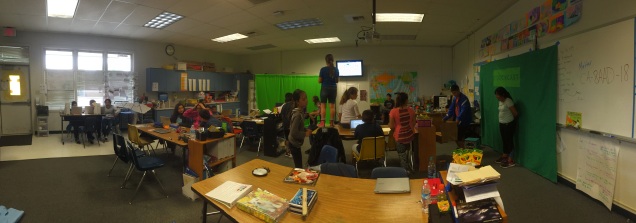
a tale unfolds Next week I will start A Tale Unfolds with my class. It is an 11 week ELA/ELD/Writing unit where the end product is a movie that the class has written, performed, and taped. As this is a UK Standards aligned unit, I looked over the lessons for the upcoming week and was pleased that on Day 1 ten (5th grade) CCSS are covered. While the lessons are complete on their own, I will be able to enrich them with conversations and expectations.

Along with the lesson plans, there are Promethean Flipcharts and SmartBoard resources, a ‘book’ (2 levels), and in certain cases leveled resources (depending on the activity). The focus of the writing is on quality, not quantity.

Overall, I am excited to get the unit started. I think the students are really going to enjoy it.

You Know It’s Working

I had a few ‘it’s really working’ moments this week. Two of them centered around ‘8*pARTS of Speech‘ by Jon Corippo. In this activity, students are shown a rather silly picture (my favorite was the elephant on a giant toilet). The sillier the better! Each day my students practice writing and using the 8 parts of speech. We also address subject, predicate, and similes. Oh, and write 1 paragraph EACH DAY. They are also getting pretty proficient at using quotation marks.

clutter-560701_960_720

Writing the parts of speech and a paragraph based on a photo (from pixabay) is more engaging than a boring prompt!

It’s Working Moment #1

We were working on writing. A student commented that the word ‘on’ was an interjection. Immediately, another student corrected the first by stating, “No, ‘on’ is a preposition.”

The first student looked at the second and said, “Oh yeah, that’s right.”

Seriously, how awesome is that? AND we’ve only been doing this activity for 3 weeks!

It’s Working Moment #2

Earlier in the week, a student asked if she could find pictures we could use for the daily activity. Um, yes! Now I don’t have to look for photos for a few weeks. This has caught on and I have a few students sending me pictures. Looks like I’ll have to make a GForm in order to help organize it all.

Here’s My Advice

Try it! The first few times, my 5th graders and I did it together. They quickly caught on and can now complete the entire page in 15 minutes or less. I still have a few that need extra help (in the form of previously completed papers). That’s okay, they’re making improvements and that’s what I want to see!

And finally, a big thank you and shout out to Jon Corippo for sharing this nugget of awesomeness!

Gamification: Here’s the Deal

And what a deal it is! I have written about my use of Mangahigh in my classroom in the past (Gamify My Homework, Math In the Summer, Engage Student With Mangahigh, and Online Homework). I really do like the tool!

Here’s an opportunity to check it out…for FREE (for a limited time). Not only do you get to check out all the features, your class/school can participate in an online challenge! Adding to the gamification fun. Go ahead, sign up for the challenge. What do you have to lose? It’s FREE.

10% Discount

And if you like it and decide to purchase…You can receive a 10% discount and a 30-day FREE trial. See, it just keeps getting better! Email Amber (amber@mangahigh.com) with the code: NOWATECHIE10.

Mangahigh

Challenge Details

The challenge will run from February 1st – 15th 2016 for all K-10 students at schools in the US and Canada. It’s completely free to participate and we encourage you to take advantage of this opportunity to explore Mangahigh and see the impact digital games-based solutions can have on students’ learning.


During the challenge, you will have full access to all of Mangahigh’s premium features, including 600+ activities aligned to Common Core and other state standards. You can assign specific challenges to support the topic you are currently teaching, or simply allow students to complete challenges independently.

What do we win?

The school that scores the most points during the competition will be crowned the Math Bowl Champion, winning a $500 Amazon voucher, $500 Mangahigh voucher, trophy plus medals and certificates for their top 10 students.

The 9 runners up with all receive a $100 Amazon voucher$200 Mangahigh vouchermedals, and certificates for their top 10 students.

Students with 200 points or more will receive a Mangahigh medal!

Who can enter?

The competition is open to all schools in the US and Canada for grades K-10 regardless of school size, location and previous experience with Mangahigh.com. You are welcome to enrol as many teachers and students as you like.

Who will join me?

I’ve already signed up. Who will join in the challenge?


Google Docs: Comment

I have been editing my students NaNoWriMo Stories in Google Docs. The easiest way to communicate with them is to write comments. Since we are in the ‘it must be perfectly polished’ mode, I’m making a lot of comments! I’ve invited other teachers to give their input as well.

When I find an area that I would like to comment on I highlight the word or area with my cursor.

Comment 1

I can then either navigate to the toolbar at the top, find ‘Insert’, then scroll down to comment. OR I can locate the ‘Comment’ button on the right side of the toolbar, select it, then choose the comment button from there.

There is also a keyboard shortcut – Option + Command + M (Mac) or Alt + Control + M (PC and Chromebooks). Any of the 3 options will then bring up a comment window on the right side of the document. When this appears, type your comment, then select the blue ‘comment’ button. When the reader clicks on either the comment or the highlighted area, the highlight becomes a bit darker and the comment window becomes more prominent. comment 4

Happy Commenting!

Google Classroom: Drive Folder

One of the nice features of Google Classrooms is the folder that is automatically created in Google Drive. I like to use this when I am looking at student work. We have been working on our NaNoWriMo stories. We began polishing and editing our work last week (our first week back after break).

I created an assignment in Google Classroom, turn in their stories. Now that my students have turned them in, it’s easy to read them. While in Google Classroom, locate the assignment and select ‘Done’ (those students who have completed the assignment).

class folder 1 This takes me to a new page within Classroom. Here, I see thumbnails for those students who have completed the assignment. However, just above the thumbnail is an icon of a folder. Click that to open a new tab, Google Drive.

class folder 2 Once the Google Drive tab opens, you can easily navigate your students’ work.

class folder 3

NOTE: This is just one of several ways to access the Drive Folder.

Changes

I am on my third, and final week, of Winter Break. Yes, I get 3 weeks off. I LOVE it! The time off has given me time to regroup, recharge, and realign my focus.

giphySo… Next week when I am back with my students I am ready to go! No, really I am. I have some exciting lessons, well, I think they’re exciting. And there are some big changes. One of the biggest changes coming up is that I will go back to teaching all the subjects. For the last year and a half, my partner teacher and I have done a partnership with our classes. However, due to forces outside our control this year, it just wasn’t working. Another change is my attitude towards classroom decorating. In the past, I have been lazy. I have had no desire to create that ‘cutesy’ type classroom. I filed it under, ‘just not my style’. What I really should have been saying is, ‘Ugh, that takes so much energy’. Apparently, I have found said energy. I plan to ‘cutesify’ my room. It will begin with a stool painting project. I then plan to paint other furniture in the room AND attempt to do something with the 1980’s metal blinds. Yup, my next few months of Genius Hour are packed!

Then there is the curriculum. There are some exciting learning opportunities happening there too. One such project will be A Tale Unfolds. Students will read, write, produce, video, and star in their own movie. This will start in a few weeks. I’ll keep you posted on this activity. Before that, we need to edit our NaNoWriMo Stories. My hope is to publish an anthology of their stories. I mean, how cool is it that they will be published authors at the age of 11?

So in short, I’m super excited to see what the rest of our year has in store for us! THIS has been an amazing break.

Google Sites: Add/Edit Sidebar Countdown

On my classroom website, I like to have a countdown for events. These might include Days until:

  • Conferences
  • Minimum days
  • Vacations
  • Breakout EDU sessions

Other ideas include:

  • End of semester
  • Days until a project is due
  • Meetings

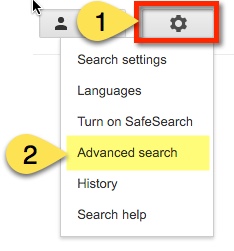
Doing this is easy! Log into your site. Locate the ‘Gear’ and navigate to ‘Edit Site Layout’.

Countdown1

Once this option is selected, the top bar should show that you can now edit the Site layout. Next, locate ‘Sidebar’ and select the ‘+’ to insert a countdown.

countdown2countdown3

This will then bring up a pop-out window. There will be several options to choose from such as Navigation, Text, and Countdown. Once you select Countdown, you will be able to configure your countdown. Name your event and set the date. When finished select ‘Ok’.

countdown5

Now in the upper right corner, select ‘Close’ before exiting.

countdown6

Once your Countdown has expired, setting the next one requires you to ‘Edit Site Layout’. Simply navigate towards the ‘Gear’, go down to ‘Edit Site Layout’, locate your expired Countdown, and hover your mouse. Notice the tag ‘Edit sidebar item’.

Screen Shot 2016-01-04 at 4.41.43 PM

This will bring up the ‘Configure Countdown’ window. Identify your next Event and Event Date, select ‘ok’, then ‘Close’.

Happy counting!

Lesson Plans & Google Calendar

I know this is not revolutionary, but while reflecting this break, I thought I’d try out using Google Calendar as a lesson planner. There are a few reasons why I chose to do so.

  • I’m terrible with lesson plans. I keep them in my head. Then when I need to share what I’m doing, I have to remember then write it all down.
  • This will help me stay on task and organized.
  • It’s really not that hard to set up.
  • Since it’s in a calendar, I can easily see what weeks are short, which days are minimum, and so on.
  • Since it’s in Google Calendar, I can easily share the calendar or event(s) with various people.
    • Now the Resource (Special Ed) teacher doesn’t have to hound me about what I’m doing. Bless her for putting up with my ‘organization’.
    • I can easily share, therefore making collaboration that much easier.
    • My partner teacher can add details and we can have a cohesive program.
    • If I’m out and forget to leave lesson plans, anyone with access can quickly see what I’m doing. Still debating if I should make it open or restrict it to people who could help in a situation like that.

So here’s what I did. First, I created a new calendar  and named it ‘Lessons’. Then I created an event for each section of my day and made sure it was created in the ‘Lessons’ calendar.

calendar1Calendar2

calendar3

Remembering to make sure each event was repeated 5 days a week until the end of the school year.

calendar4

Now you can share your ‘Event’ with someone. Select ‘Save’ to save the event.

calendar5

And this is what my January looks like:

calendar6

To add details to a subject/day, simply click the subject on the desired day and select ‘edit event’. Then add the details. So Monday, January 11 I will do the following in Math:

calendar7