What is the best thing you do in your classroom/school/district/job?
I push the envelope and take risks. I often have an idea of some crazy ‘out there’ project. I know where I am, and where I want to go. I rarely have an idea of HOW I’m going to get to the end, and I’m okay with that. Furthermore, the ideas generally come in the middle of a lesson. I have dubbed them ‘Brain Storms’. I get a ‘look’ on my face, that my students quickly recognize. I then stop the lesson, and begin talking (quite rapidly) about my idea; and when I’m really excited, I get ‘flappy hands’. This leads to a tumbling of ideas. Many times, the students will interject their ideas. In the end, the idea becomes a reality and is a combination of my original vision and my students’ ideas.
I’m currently in the middle of one of my crazy ideas. I gamified a Social Studies unit. We are currently studying the reasons for the American Revolution. Somehow I got it into my head that it should be turned into a game ‘Road to the Revolution‘. In short, it’s a series of questions and tasks. The information the students need is located on a Hyperdoc (found in Google Classroom). [Please note: it is still a work in progress]
So yeah, the best thing I do is take risks. I have crazy ideas, follow my gut, try new things, listen to others’ ideas, and just go for it!
How are you, or is your approach, different than your favorite teacher?
I struggled with this question all week. I came to the conclusion that I took the good qualities from her, and must have forgotten the not so great stuff.
Ms. Cotnoir came from New York City. We were a bunch of lily white, catholic school kids – 8th graders – in the middle of suburbia (just outside of Detroit). I was in awe of her. She posed questions to us that made me think (about abortion no less). She related to us on a human level. She wanted to get to know us. Those are the things that I remember about her. I don’t remember her being an especially inspiring to me in math or religion class (this is what I remember her teaching).
I recall one night a few friends went to the mall with her. I don’t remember exactly what we did, but I remember that we weren’t looked down upon. We were treated fairly. And she hated the local music stations. We argued that our favorite station played the top 10 ‘Pop Hits’ every hour. Looking back, I can see how she was less than impressed with our musical choices. She was more of a punk rock listening kind of teacher.
The memories and the stories could go on, but I won’t bore you all. So rather than discuss all the ways in which I differ from Ms. Cotnoir, I’d like thank her for: making me think, broadening my horizons, treating us like people, listening to us, taking a real interest in our lives, and being really cool! I’d like to think I am a bit like this with my students; because of her.
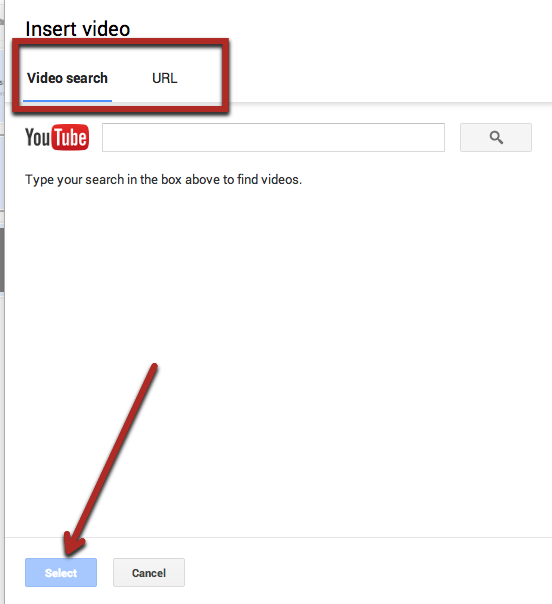
Inserting a video into a Google Slide is simple. Open the Slide you’d like to add a video to. Choose ‘Insert’ from the top menu, then ‘Video’.
Once you choose ‘Video’ a pop-out window appears. You then have the option to search for a YouTube video by either URL or Search by keywords. When you find your desired video choose the blue ‘Select’ button on the bottom left.
Today was a GREAT day! I began my day by videotaping a 1st grade classroom. They each wrote a word on their white boards, stood in a single file line, and showed their word. They did all this without saying the words. Why? A fun way for this teacher to help her students practice their high frequency words.
It began yesterday at lunch when another 1st grade teacher made the comment that her students practiced their words on the computer (using a game). That got me thinking about what the students can do to be producers instead of consumers. My initial idea wasn’t great. It involved making a Google Slide then using TechSmith’s Snagit Chrome Extension (you also need the App), have the students read and record the words. Well, it was the best I had at the time, and sent an email to the Kinder and 1st grade teachers. I offered to help (my schedule gives me a bit of time to help on Wednesdays).
I was so pleased that one of the 1st grade teachers like the idea and wanted to take me up on it. So after school we met up and began brainstorming. This is where we came up with the idea of taping the students.
So this morning I walked into the classroom and the students were ready to go! We ended up taking 2 different videos, and will do more next week. The idea was to switch around the words so a different student held the word ‘horse’. Another teacher was inspired and approached me today. She would like to do this in her Kinder room; only she will write out the words for the students so that they are legible.
The beauty of this is that the students can have fun practicing words. We posted this on our Facebook Page and School Website. This way, parents can access the videos at home and practice the words with their child.
The best part? The two teachers who want to do this, are self-proclaimed non-techies. Neither of them are too comfortable with using technology in the classroom. This was a great way to get the ball rolling for them! I’m so excited about this, and for the teachers and their students.
As I sat and reflected upon this, I thought, “What DO I do to make this world a better place?” I then began thinking about the people who inspire ME to be a better person; which in turn makes the world a better place.
I began thinking of people who help others, quietly. I thought of my friend Bryan who stands in front of malls offering ‘Free Hugs’ near the holidays. He is a person that is there for his friends and will do what he can for others. He teaches me what true kindness, and generosity is.
Then there is Jen. Years ago I went to a conference with her. She witnessed a man digging through the hotel’s trash. We were on our way out when she made me stop the car. She jumped out of the car, ran over to the man and gave him some cash. I was raised NOT to do such things, so I asked her why she did it. She explained that a person must really be in a really bad place to have to resort to such actions. From that moment on, I have given to others. I learned empathy from Jen.
Finally, there are those that participate in the ‘Pay It Forward’ movement. I immediately thought of Liz and Lisa who have often done this. Who knows how many lunches, coffees, and drinks they have given to others anonymously. They most often have done this good deed in the drive through lane. I have learned generosity, giving, and selflessness from both of them.
So back to the question at hand, what will I do to make the world a better place? I will use the lessons that I learned from those mentioned, and many who were not. I will continue to show generosity, empathy, and kindness to others in the hopes that I can affect others the way my friends have affected me.
*Disclaimer: This is solely meant as my account with a student who identified himself as the opposite sex in which he was born. While the title suggests the student was indeed transgender, I cannot say for certain if he was or was not. If I wrote any pronouns incorrectly, I apologize.
Back in the mid 90’s I did my student teaching in a first/second grade classroom. I was assigned to two teachers, each with their own classroom. There was another student teacher assigned to the teachers as well. The assignment went from January to April.
So why am I bringing up something that occurred so long ago? Well, recently Brad Pitt and Angelina Jolie‘s daughter, Shiloh, has stated that she would like to be called John, and identifies as a boy. This got me thinking about my student teaching days and a boy named William.
He’s Gay
That’s what I about William after my first day in my assignment. The other 3 teachers said that I was being mean. I explained that I was in no way judging or being mean, I was simply stating my observations. It was clear from the beginning that William had very feminine traits and played mostly with the girls.
*Note: I was younger than the other teachers in the room. I took a more liberal view to ones sexual orientation than most. My experiences with the GLTB community were very different than many around me. I have long since held the belief that you’re born gay; you don’t decide or ‘change’. It is who you are.
Now it’s not like he was the only child we discussed. The teachers were filling the other student teacher and I in on some of the specifics of students. Who went to speech, who benefitted from SpEd, who to academically keep our eye on, etc.
When I Grow Up
As a part of the daily routine, we would do ‘Calendar’. If you’ve ever taught the younger grades, you know exactly what I’m talking about. It’s a time students gather around a large calendar discussing days of the week, months, counting, place value, weather, etc. Part of our routine must have been to ask about what they wanted to be when the grew up. I remember when it was William’s turn to be ‘Person of the Day’ that question was posed to him. His immediate response was, “I want to be a girl when I grow up.” I asked him why (I know, rookie mistake; shouldn’t have done that in front of the class). Without hesitation he replied, “So I can have long blonde hair and long fingernails.” This answer was accompanied by running his fingers through his imaginary long hair and stroking his imaginary fingernails. I didn’t think much of it and moved on. So he wanted to be a girl, and had an age appropriate reason. It’s no different than another boy saying he wanted to be a firefighter so he could ride in a firetruck. First grade answers are pretty basic.
Christina
Then came the day he went around asking the adults how to spell Christina. This must have been around mid February to mid March. He was now writing Christina on all of his papers. He came to school with a yellow bandana on his head. He asked me if I liked his blonde hair. He was quite happy with his hair. I believe the girls also started calling him Christina. The master teachers refused, and immediately scheduled a meeting with the mom.
Somewhere in that time period, he developed a crush on another little boy. He would sit by this boy and try to hold his hand. This freaked everyone out, especially the other little boy.
In the meeting, as a student teacher I was to observe and not say anything. I don’t remember much from the meeting. I was of the mindset that if he wants to be called Christina do it. If she wants to grow up and be a girl, it’ll happen. I do remember someone asking if the father not having a strong presence was to blame on his behavior.
After the meeting he was once again called William, and no longer wore a yellow bandana. It seemed as if things had ‘calmed down’. I don’t know what ever happened to William/Christina. I don’t know if it was an exploration into the other gender or if he really was transgender. I would venture to say he was/is transgender. I openly admit that I am no expert. Where ever he is I hope he is happy and doing well.
Lessons
What lessons can be learned from this? First of all, there needs to be more education on this topic. As a now ‘seasoned’ teacher, I’m not sure I would have a conference with the parents when a child wanted to change his/her name to something of the opposite sex. On one hand, I’ve had students who have wanted to be called Justin when their birth name was say Raul; I didn’t call the parents then. So why would I call in this case? On the other hand, it does signify more complex factors are at play. Being a 5th grade teacher, I might try to talk with the student one on one.
I also think that the stigma of being boys being boys and girls being girls needs to go away. We need to embrace each other, and especially children, for who we are, not what we identify as or who we like.
In Conclusion
I applaud Brad, Angelina, John, and their family for shedding light on this. It was brave of John. It is heartwarming to see he has the support of his whole family. I can only hope that all children who are gay, lesbian, bisexual, or transgender receive the same love and support.
In order to discover my #oneword for 2015, I first had to reflect upon last year. 2014 was a difficult year for me both personally and professionally. Since it was a less than stellar year, I thought, “What is it that I DO want?”
I know it sounds Cliché; Peace for the new year, but for me ‘Peace’ is not as simple as ‘getting along’.
I’m looking for:
cooperation
doing the right thing
being UNselfish
innovation
a sense of self
hope
solutions
communication
honesty
forgiveness
openness
inspiring
inspiration
change
I could go on, but I think you get the idea. Peace – this is the word that I will try to live each and everyday. I will try to teach my students the joy, and complexity, of peace; and I am looking forward to a peaceful year (personally).
Recently an administrator complimented me on all the innovative ways I incorporate technology in my classroom. The administrator then asked how that will translate on this year’s (new) state standardized test. My answer, “I don’t care. I’m looking at the bigger picture,” was most likely not what said administrator was expecting or wanted to hear.
Our education system is out of focus. There will NEVER be successful educational reform in our country until we stop focusing on a test scores (every single year) and start leveling the playing field. Yes, poorer communities need more money because they need more resources. They face greater hurdles. Taking money away from poor communities because they perform worse on tests is like being surprised that you sprained your ankle in a field full of holes. Neither makes sense. Spend money to fix the field, no sprain. Spend money to help fill gaps in poor performing schools, closes educational gaps.
So back to the conversation I had with the administrator. I went on to further explain that what I am teaching the students goes beyond being successful on this year’s test. They are learning to THINK for themselves, ask QUESTIONS, work out problems with others (like the real world), be CREATIVE and seamlessly INTEGRATE TECHNOLOGY, with purpose.
I challenge my students to learn more than what’s in a text book. They are expected to give presentations (large, small, and everything in between), explore new tools (low tech and high tech), talk, take ownership over their learning, and so much more. Many of those expectations can’t be measured on a standardized test.
So how does all that translate to a standardized test? Yup, still don’t care. How does that translate to their success in life; that, I have high expectations for. And from what I’m hearing from the middle school teachers, they are succeeding.
Recently my dad called, what he calls Google, (that would be me, the one with a computer) to do some research on a procedure for him. I started by doing my regular search on Google ‘Web’ when I quickly decided that I wanted something a little more scientific. This is when I switched over to Google Scholar.
What is Google Scholar? Well, it’s ‘scholarly literature’. It takes out all the blogs, ads, and propaganda and only shows ‘scholarly research’. Since my dad was interested in a medical procedure, I figured looking at the raw data and statistics was better than looking at what the medical companies had to say.
Why talk about Google Scholar? I figure it’s one of those lesser known Google tools. It’s great for high school students and beyond. Since you can use various filters, it won’t be hard to find the information you are searching for. I’m sure when I begin my next Master’s program, this will become one of my best friends!
A part of being a responsible digital citizen isn’t just about being safe on the web, but also responsibly attributing work, like images. When my students are searching for an image to use to enhance their work, they are required to use ‘Free to use’ images. Those are images that have no copyright or restriction. Many of these images can be found on compfight, flickr, wikicommons, and a host of other sites. However, like many of us, my students do a Google Image search to find what they are looking for.
When you first open Google, simply type the keywords for an image. In this case, I’ll use the example ‘puppies’. Then choose ‘Images’.
Choosing ‘Images’ gives us nothing but rows of cute puppies. But, not all those images are free. Just like we can’t plagiarize words, we can’t use another person’s images – unless we have permission AND properly attribute the image. To find images that we can use, choose ‘Search tools’ along the top bar. This brings down a second bar where we choose ‘Usage rights’. Choosing this will bring down a list of choices. By default, I have my students choose ‘Labeled for reuse’.
Doing this will show you only those images that are available to use. Remember to attribute the picture. Most websites will have this for you to copy and paste. When you find an image you want to use, click on the image, then choose ‘Visit page’.
For Wikicommons images:
You are given choices on where it will be used. Each choice is accompanied by ‘Attribution’ for you to copy and paste. If you are using the image on a blog, you will choose the ‘Use this file on the web’ option. Then copy and paste the image and attribution.
For Compfight:
Type the keywords for your image. You MUST change the search to ‘Creative Commons’ in order to find free images. Choose the desired image. A pop-out window appears. You will need to copy and paste the image, then copy and paste the html code (for use on the web) in order to attribute the image.
For Flickr:
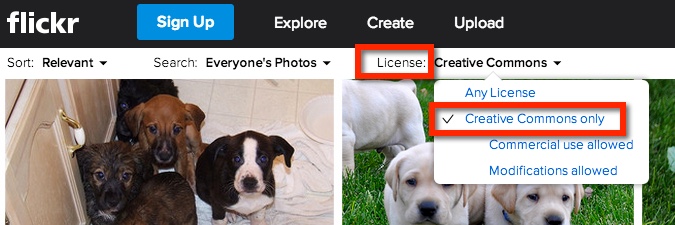
Type the keyword and press ‘Enter’. Under ‘License’ choose ‘Creative Commons’. Once you find the image you like, choose it. In the bottom right corner, there are a few choices. The middle arrow will give you the option of an embed code or html (for web use). However, if you use Google Chrome I recommend Flickr cc attribution helper for easy attribution.
And as models to our students (or staff) we also need to be responsible digital citizens. Happy attribution everyone!