This year I have done a few Breakouts with my class. To say that they love them would be an understatement. So this week when we started coordinates in math, the wheels in our brains started turning. Seriously, there are so many things a person can do!
As we were walking to lunch one student suggested that we do a Breakout based on coordinates. I thought this was a GREAT idea and told him that I would search to see if there were any already made. However, by the end of the 45-minute lunch break, I had decided that making our own would be more fun!
I have been wanting to create my own Breakout for over a year. I have had a few ideas. One was an entire Breakout based in Google Maps. Another was based on directions and graphing. Unfortunately, I could never really get clues and ideas that I felt were good enough. Today was a different story. With the help of 28 other brains, we began creating an exciting Breakout – if I do say so myself.
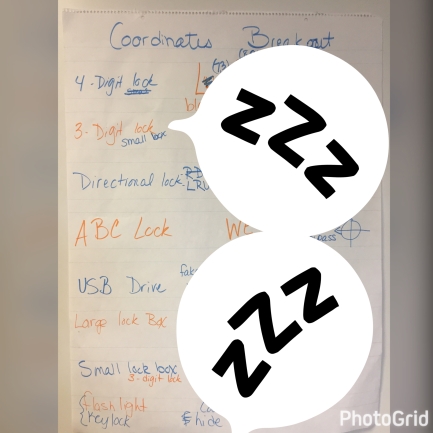 I posed the idea to the class and they went for it. We decided which locks and accessories to use, created codes, and clue outlines. They even designed a distractor that should be used. They had some great ideas! We’re not done yet, but we will definitely share when we are done. I will have them create the clues and the story. I’m pretty excited for what they will come up with.
They know that I introduced this concept – BreakoutEDU – to the staff last week. They want to run their Breakout with the staff. I don’t think there’s time for that, but hopefully, we can run it with the other 5th-grade class.
 On a quest to find more meaningful work for students to do at home, my 5th-grade team has been toying with projects. We have refined our ‘Homework Matrix’ through the year. Basically, students are responsible for producing 4 projects per trimester. Some have been to look for the International Space Station (ISS). Others have been to create a sculpture that can be placed outside. However, I think my favorite has been the ‘Create a shadow box about someone who is important to you.”
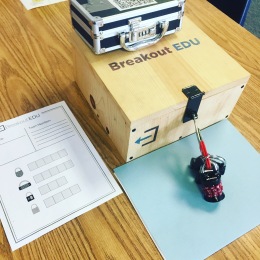
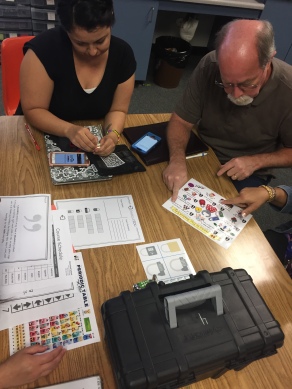 In the end, all teams broke out. Several teachers commented what fun it was and how they had to think outside the box to solve the clues. Which is the point; think outside of the box to break into the box!
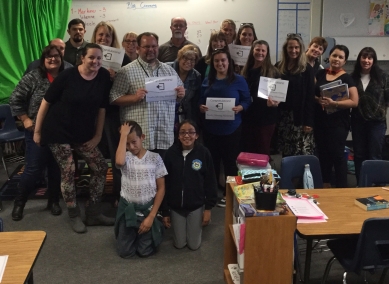 In the end, we talked about how it can be used in the classroom and it was revealed that our principal purchased 2 kits for our site. There were a few who said they were going to check out the
  A few days ago I wrote about Google Classroom and Personal Accounts. I applied for early access and was granted it today! The nerd in me is super geeked.
 Special thanks to the student and parents for granting permission.
 Oh. My. Goodness! I am so giddy, I can hardly contain myself. Google Classroom is open to everyone. Since Google rolled out Classroom (beta) in the summer of 2014, it has only been available to G Suite users (organizations): this included schools and non-profit organizations. Now, it is available on personal accounts.
 Seriously, I’m so excited! Check it out. Go to
  Friday we started our new path. The first lesson has students reviewing five different pieces of ‘Evidence’ (all factual) and taking notes. They are investigative reporters learning about the impact of plastic on our environment, animals, and us. Then, they are to form an action plan. When each group received their ‘Evidence’ I don’t think they thought I would stick to the 4-minute timer. I printed one copy of each piece of evidence and so they had a certain amount of time to review and take notes before passing it along. After the first round, they got the message. They then watched a 14-minute video produced by CNN to further their knowledge on the subject. Honestly, I have never seen the students so engaged. They really wanted to get all the information provided and answer all the questions on the guiding worksheet. And that was only day 1! I can’t imagine what the rest of the three weeks will bring, but I’m excited to see where this takes us!
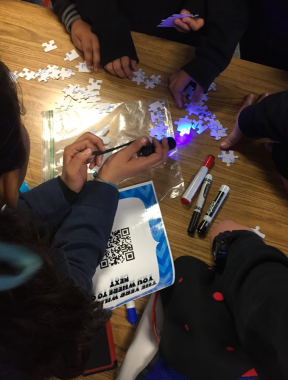 Holy Cow! It was a GREAT success. I mean, I knew it would be but it still blew my mind. A few weeks ago I sucked it up and purchased 4 more DIY kits. I had purchased one from the website a little over a year ago and was hesitant to buy more – I’m cheap! Anyhow, today I ran 5 simultaneous breakouts – Grammar Gurus.
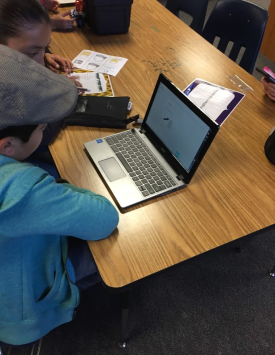 in the afternoon, I had another group of students in my classroom. They saw the locked boxes and asked what they were. I briefly explained what we did earlier and they asked when they were going to do one.
 The beauty of doing this is that it allows for easier sharing with the outside world. It has been said, and is most certainly true, that when students know the public will see it they up their game. When my students think it’s just for me, they give me ‘okay’ work. It’s like pulling teeth to get top notch work from them. However, when I say that it will go on a website that will be shared on Twitter and Facebook, they are much more careful and meticulous in their work. Adding to that, I present. I tell them what I am presenting and when. Okay, sometimes I ‘say’ I’m presenting on a topic even when I’m not. I want the best work from them, I have no shame.
 I have used this method of documentation and sharing in the classroom for over four years. I have never had a student abuse their editing rights. On the old Google Sites, I could give page level permissions for editing but never did. All students have always had full rights on the site. However, this year I have a student who has been known to maliciously edit shared documents (and when caught asks what ‘Revision History’ proves). So said student does not have editing rights. While this makes me sad and I wish I could have gotten through to the student that such behavior is inappropriate, I have decided to exclude him/her from editing until he/she proves themselves to be trustworthy. I figure once in four-plus years is a pretty good record.
