Insert Google Sheets Charts into Slides Effortlessly

Today, we’re diving into a simple but powerful feature in Google Slides—how to insert a chart from Google Sheets into your presentation without copy-pasting.

If you’ve ever needed to share data, track progress, or present reports to colleagues or board members, this tip will save you time and effort. Let’s check it out!

Step 1: Open Your Google Slide Presentation


Start by opening the Google Slides presentation where you want to insert your chart. Navigate to the slide where you need to add the data visualization.

Step 2: Insert a Chart from Google Sheets


Instead of copying and pasting, follow these steps:

  1. Click on Insert in the top menu.
  2. Scroll down to Chart > From Sheets.
  3. A window will pop up showing your available Google Sheets. Select the sheet that contains the chart you need.
  4. Once inside the selected spreadsheet, choose the correct chart by clicking on it (you’ll see a blue border appear).
  5. Click Import, and just like that—bam!—your chart is now in your Google Slide.

No extra formatting, no fuss—just an easy and seamless way to integrate your data.

Step 3: Why Use This Method?


There are several reasons why inserting a chart from Google Sheets into Google Slides is a game-changer:
No manual copy-pasting—saves time and effort.
Live updates—if your data in Google Sheets changes, you can refresh the chart in Slides with a single click.
Consistent formatting—ensures your reports look professional and well-organized.

This feature is especially useful when creating presentations for board meetings, tracking student fluency, or sharing progress reports with colleagues.

I told you it was super easy! Now you can insert charts from Google Sheets into Google Slides like a pro, making your presentations more data-driven and visually appealing.

If you enjoyed this quick Google tip and want to learn more, be sure to like, subscribe, and stay tuned for my next tutorial. Happy presenting, and see you next time!

My Maps: Set Default View

Recently I was leading a session on Google My Maps (#cuerockstar #rOxnard) when a question came up: Can you set the view in My Maps? I said, “No, I don’t think so.” Well, I was WRONG. You can set a default view!

It’s so easy, I can’t believe I never noticed. When you first open My Maps, after placing several pins on it, the view is something like the first image. That is unless you have a select few pins in the same area. It’s a zoomed out view of the earth.

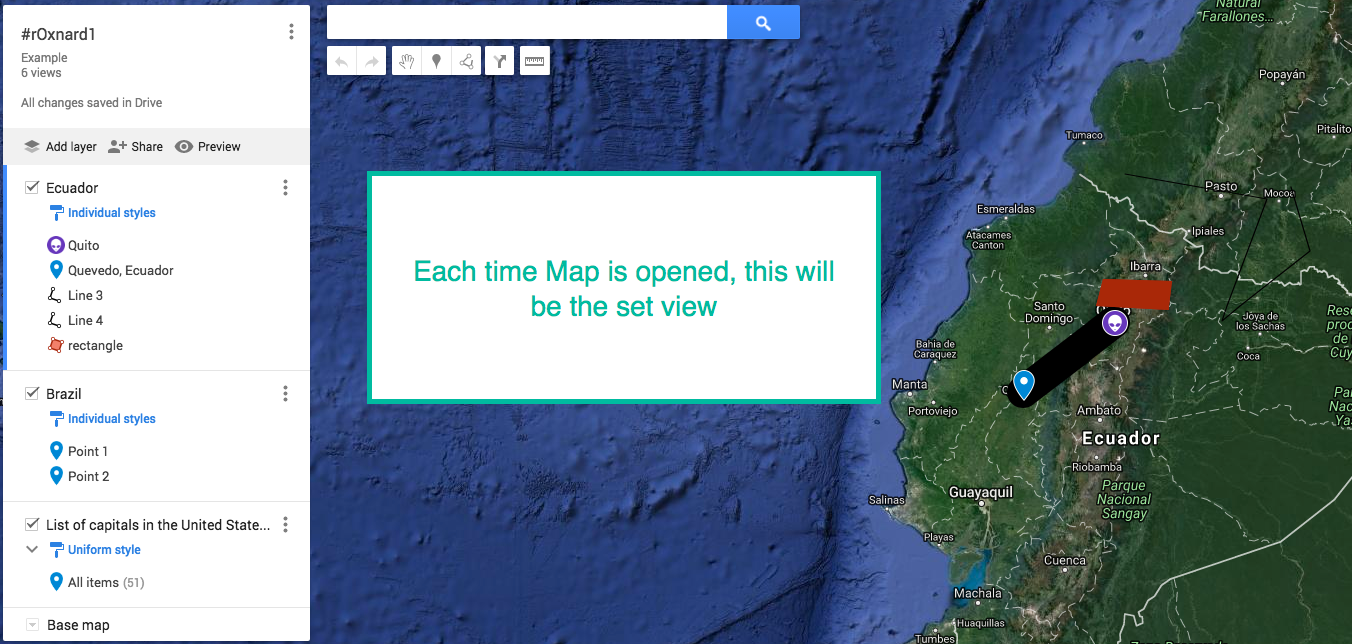
set view 0Before we get to HOW to change the view, set the view to how you would like it to look when the Map is first loaded. Once the desired view is on the screen, click on the 3 dots to the right of the Map Title (#rOxnard1 in this case), a pop out window will then appear with options. One of them is to set the default view.

Set view 1Simply select ‘Set default view’ and you’re done! Now everytime this map is opened, it will look like this: set view 2
NEW Google Sites Part 1: Getting Started

I was a fan of the old Google Sites, but admittedly it was clunky. Last year when Google announced its launch of the new sites I was stoked! It was the update I had been waiting for for years. The look is sleek and it’s easy to build a beautiful site. Now that it’s out of just the edu market, I’m even more thrilled. This video will kick off my video series on the New Google Sites!

Google My Maps Part 4: Layers

Another feature on Google My Maps is the Layers. When we were studying the 13 Colonies, I was able to separate information into layers. There was a layer for the original 13 colonies, a layer for the colonial regions (New England, Middle, Southern), and the current geography of the 50 states. The students were able to click on and off layers in order to clearly see important information.

Google My Maps Part 3: Lines and Shapes

There are so many learning opportunities with the lines and shapes feature of My Maps. We are currently adding and subtracting fractions with unlike denominators. It gets really boring doing problems from a book. In the coming days, I plan to create a Hypermap with lines – making sure the distance will be a fraction. (NOTE: My Maps measures distance using decimals. This will be good practice for my 5th graders to convert). My Maps will also tell the area and perimeter of a shape, MORE math opportunities!

Calendar: Deleting A Calendar

I love using Google Calendar. It’s so easy to create multiple calendars to help me keep track of work, home, and other activities. However, there comes a time when I no longer need a calendar. For example, last year I created a calendar for my lesson plans. I don’t need that calendar any longer, nor do I need the daily emails with the agenda. There are also several calendars from past Google Classrooms that I no longer need. Here’s a quick guide on deleting unwanted calendars.

Navigate to your calendars. On the left side of the page find the section marked ‘My Calendars’ (if no calendars are listed, click on the down arrow next to the section). Locate the calendar you wish to delete and hover over it with your mouse. A small down arrow appears to the right. Select that go to ‘Calendar Settings’.

calendar-1

This will bring you to a new page with several options listed on the left side of the page. Scroll down to Delete Calendar. Then choose the ‘Permanently Delete this Calendar’ link.

calendar-2

A pop out window appears confirming your request. You will need to checkmark the box and select the ‘Delete for Everyone’ button.

calendar-3

That’s all there is to it for deleting a calendar.


Create A Link in Docs

Creating a hyperlink in a Google Doc is simple. One reason you would want to create a hyperlink is for cleanliness. Having a large URL (short for Uniform Resource Locator) is messy on a document. Instead, I link a word or phrase to a particular web address. For example, if I am talking about Order of Operations in 5th grade I would link the words ‘Order of Operations in 5th grade’ to a particular web address like so:

This is a great resource for Order of Operations in 5th grade.

That is much nicer to look at than https://www.youtube.com/watch?v=zanq7gmXY88

Now, let’s check out how to do this in Google Docs (this also works in Gmail and Slides):

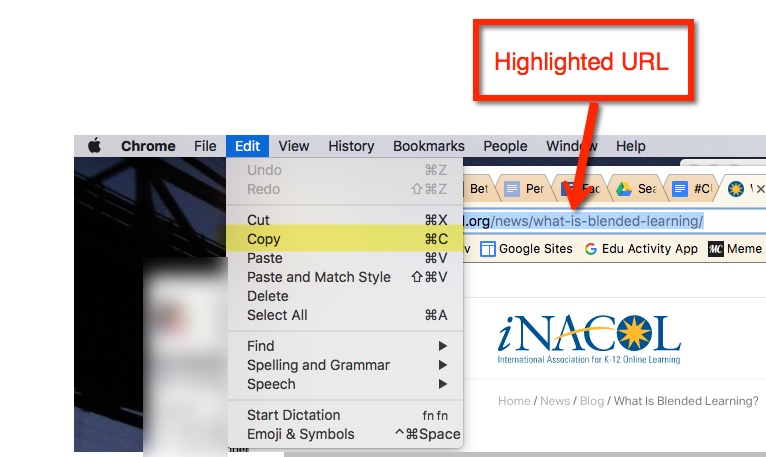
  1. Find the resource you want to link in your document and copy the URL. To copy highlight the URL, go to Edit > Copy. Or you can use the keyboard shortcut (Mac) command + C or (PC) control + C
    link-1
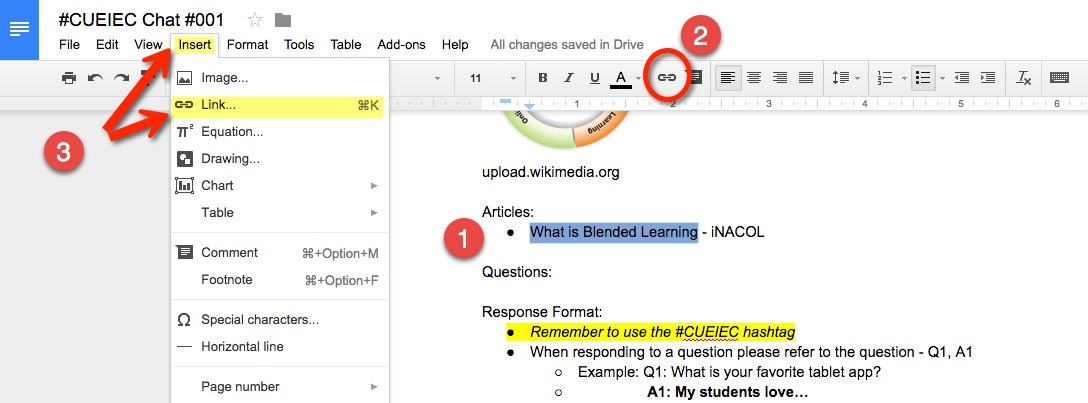
  2. Now that it’s copied to your clipboard (this is a virtual clipboard) navigate to your Google Doc. Find the word or phrase that will be connected with your site. Highlight the word or phrase. Now go to your menu bar and select Insert > Link
    link-2Or highlight the word or phrase then find the chain (or links) screen-shot-2016-10-02-at-7-39-33-pm in the toolbar.

    And there is always the keyboard shortcut. After highlighting the desired text, (PC) control + K or (Mac) command + K

  3. This will bring out a pop-out window which asks what you want the words to link to. Paste in the link. Go to Edit in the toolbar and select ‘Paste’.
    Keyboard shortcut – (PC) control + V, (Mac) command + V
    link-3
  4. And there you have it! A hyperlink in your doc.
    screen-shot-2016-10-02-at-7-59-51-pm