Understanding Subtraction with Pictorial and Expanded Models

Why Use Multiple Models?

By using a pictorial model alongside expanded notation, students get a visual and numeric understanding of subtraction. This helps them move beyond memorized procedures to truly grasp why and how regrouping works.

Let’s break it down step by step!

Step 1: Set Up the Problem

We’re working with 736 – 274.

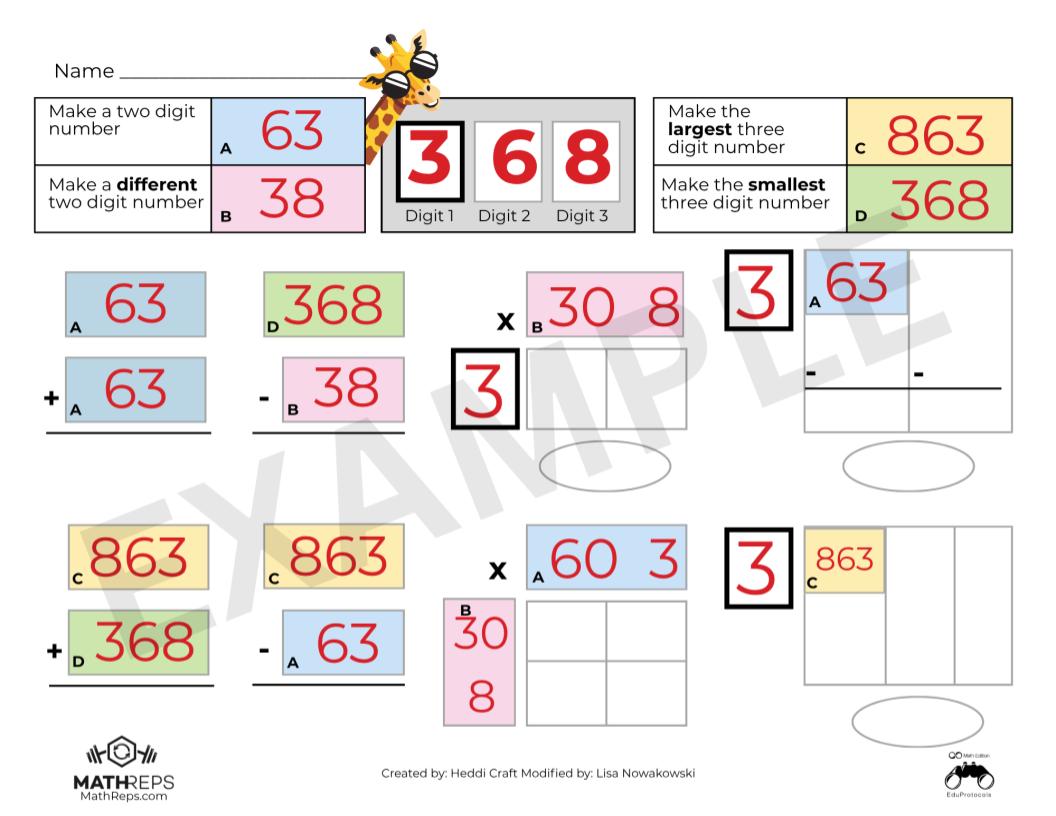
  • 736 is represented using pictorial models in a place value chart:
    • 7 hundreds
    • 3 tens
    • 6 ones
  • Below, we note in the corner of each place value column what we’re subtracting: 200 + 70 + 4 = 274

Step 2: Subtract Using the Pictorial Model

Subtract the Ones (6 – 4):

  • Cross off 4 ones (I like to use x to represent 1s).
  • That leaves 2 ones.

Regroup the Tens (30 – 70):

  • Uh-oh! We don’t have enough tens to subtract 70.
  • So, we regroup 100 into 10 tens (since 100 = 10 tens).
  • Now, we have 13 tens total (13 tens = 130)
  • We subtract 70 (or 7 tens) from 13 tens, leaving 6 tens (or 60).

Subtract the Hundreds (700 – 200):

  • After regrouping, we have 600 left in the hundreds place.
  • Subtracting 200 leaves us with 400.

Final Answer: 462

Step 3: Solve Using Base 10 Expanded Notation

Now, let’s represent the numbers in expanded form:

  • 736700 + 30 + 6
  • 274200 + 70 + 4

Subtracting step-by-step:

  • 6 – 4 = 2
  • 30 – 70 (not possible, so we regroup from the hundreds)
    • Moving 100 over to the 10s place, making it 130 – 70 = 60
  • 600 – 200 = 400

Final Answer: 462

The Power of Dual Modeling

Using both pictorial and expanded form models side by side helps students see:
✏️ Why we “regroup” in subtraction
✏️ How place value plays a role in regrouping
✏️ That both methods lead to the same solution, reinforcing accuracy

When students see and practice both models together, they build deeper number sense and mathematical confidence!

Try This in Your Classroom!

You can grab a free MathReps template at MathReps.com and start using this strategy with your students today!

💡 Bonus Resource: Wipebook offers workbooks with four MathReps for second grade, providing structured practice all year long. Check them out!

Watch the Full Tutorial Video

Effortless Speaker Notes: Voice Typing in Google Slides

I’m here to share another quick and easy Google Slides tip with you. Have you ever found yourself struggling to keep up with typing your speaker notes? Or maybe your thoughts come faster than your fingers can type? Well, Google Slides has a built-in voice typing feature that makes adding speaker notes effortless. No copying, no pasting—just speaking!

Let’s dive in and explore how to dictate your speaker notes in Google Slides.

Step 1: Expanding Your Speaker Notes Section

When you’re working in Google Slides, you’ll find a section at the bottom labeled Speaker Notes. This is where you can jot down key points, reminders, or even your full script for a presentation. If you need more space:

  • Click and hold the small bar above the Speaker Notes section
  • Drag it upward to increase the size

Now you have a larger, more comfortable space to work with!

Step 2: Activating Voice Typing

Instead of typing manually, you can dictate your notes using your voice. Here’s how:

  1. Click on the Tools menu at the top of Google Slides.
  2. Select Dictate Speaker Notes.
  3. A microphone icon will appear and turn red, indicating it’s recording your voice.
  4. Start speaking, and Google Slides will transcribe your words in real time!

That’s it—your notes are being typed automatically as you talk!

Real-World Use Cases

Voice typing isn’t just convenient—it can be a game-changer for students and educators.

I once had a student who used this feature while I was giving directions. This allowed her to capture everything I said, and she could go back and review it later. It’s a fantastic tool for students who need to reference instructions, as well as for teachers who want to create clear, accessible notes for their presentations.

Final Thoughts

Voice typing in Google Slides is quick, simple, and super efficient. Whether you’re preparing for a presentation, creating lesson plans, or helping students stay organized, this feature saves time and enhances accessibility.

Try it out and see how it improves your workflow!

Effective MathReps for Addition with Regrouping

Today, we’re diving into second-grade math with a MathRep that focuses on addition with regrouping.

In our previous posts, we explored using MathReps for addition and subtraction without regrouping. Now, we’re taking it a step further and tackling regrouping, helping students make the jump from pictorial models to expanded notation and the base 10 system.

So, buckle in—let’s get started!

Step-by-Step Guide: Regrouping with MathReps

Set Up the Numbers

For this example, we’re adding 682 + 234, and we’ll use a pictorial model to visually represent the numbers before transitioning into the expanded form.

Solve Using a Pictorial Model

1️⃣ Start with the Ones Place:

  • 2 + 4 = 6
  • No regrouping needed here, so we write 6 in the ones place.

2️⃣ Move to the Tens Place:

  • We add 8 tens + 3 tens = 11 tens, which equals 110.
  • Since 10 tens = 100, we regroup by circling ten tens and moving them into the hundreds place.
  • This leaves 1 ten (10) in the tens place.

3️⃣ Move to the Hundreds Place:

  • We now have 6 hundreds + 2 hundreds + 1 regrouped hundred = 9 hundreds.

Bringing it all together:
916

Transition to the Base 10 Model (Expanded Notation)

Now, let’s break it down using expanded form:

  • 682 → 600 + 80 + 2
  • 234 → 200 + 30 + 4

Adding the place values:

  • Ones: 2 + 4 = 6
  • Tens: 80 + 30 = 110 → Regroup into 100 + 10
  • Hundreds: 600 + 200 + 100 = 900

Total: 916

Alternative Thinking: Flexible Number Sense

Instead of regrouping immediately, students can leave the tens as 110 and think of the sum as:

800 + 110 + 6 = 916

This approach challenges students to see numbers flexibly before applying the standard algorithm, deepening their conceptual understanding.

Why This Works

MathReps provide a structured, visual approach that helps students bridge the gap between pictorial models and formal mathematical notation. By working through regrouping in different ways, students develop number flexibility and problem-solving confidence.

Get Your Free MathReps!

Want to try this in your classroom? Download your free MathRep template at MathReps.com and explore even more math resources.

💡 Bonus Resource: Check out Wipebook for workbooks featuring MathReps—each workbook includes four MathReps to last the entire year!

Watch the Tutorial Video

Insert Google Sheets Charts into Slides Effortlessly

Today, we’re diving into a simple but powerful feature in Google Slides—how to insert a chart from Google Sheets into your presentation without copy-pasting.

If you’ve ever needed to share data, track progress, or present reports to colleagues or board members, this tip will save you time and effort. Let’s check it out!

Step 1: Open Your Google Slide Presentation


Start by opening the Google Slides presentation where you want to insert your chart. Navigate to the slide where you need to add the data visualization.

Step 2: Insert a Chart from Google Sheets


Instead of copying and pasting, follow these steps:

  1. Click on Insert in the top menu.
  2. Scroll down to Chart > From Sheets.
  3. A window will pop up showing your available Google Sheets. Select the sheet that contains the chart you need.
  4. Once inside the selected spreadsheet, choose the correct chart by clicking on it (you’ll see a blue border appear).
  5. Click Import, and just like that—bam!—your chart is now in your Google Slide.

No extra formatting, no fuss—just an easy and seamless way to integrate your data.

Step 3: Why Use This Method?


There are several reasons why inserting a chart from Google Sheets into Google Slides is a game-changer:
No manual copy-pasting—saves time and effort.
Live updates—if your data in Google Sheets changes, you can refresh the chart in Slides with a single click.
Consistent formatting—ensures your reports look professional and well-organized.

This feature is especially useful when creating presentations for board meetings, tracking student fluency, or sharing progress reports with colleagues.

I told you it was super easy! Now you can insert charts from Google Sheets into Google Slides like a pro, making your presentations more data-driven and visually appealing.

If you enjoyed this quick Google tip and want to learn more, be sure to like, subscribe, and stay tuned for my next tutorial. Happy presenting, and see you next time!

Subtraction Made Simpler With MathReps

I’m here to show you how MathReps can make subtraction practice easier and more engaging for your students. In our last post, we explored how to use a MathRep for addition, and today, we’ll focus on subtraction.

This step-by-step guide will show you how to use the MathRep template in your classroom, helping students bridge the gap between visual models and abstract concepts.

See this MathRep in action!

Set Up the Numbers

For this example, we’ll work with 658 and 234. The subtraction problem is set up in a pictorial model, where the number 658 is represented visually, and 234 is broken down into ones, tens, and hundreds to subtract from each place value.

Use a Pictorial Model to Subtract

In the pictorial model, each section represents a place value: ones, tens, and hundreds.

  • Subtract the ones:
    • Start with 8 ones and subtract 4.
    • Cross out or erase 4 ones, leaving 4 ones.
  • Subtract the tens:
    • Start with 50 tens and subtract 30 (3 groups of ten).
    • Cross out 3 groups, leaving 20 tens.
  • Subtract the hundreds:
    • Start with 600 hundreds and subtract 200 (2 groups of 100).
    • Cross out 2 groups, leaving 400 hundreds.

Combine the remaining values:
400 + 20 + 4 = 424

Transition to the Base 10 Model

Now, transfer the pictorial model into a base 10 model by writing the numbers in expanded form:

  • 658 → 600 + 50 + 8
  • 234 → 200 + 30 + 4

Follow the same subtraction process:

  • Subtract the ones: 8 – 4 = 4
  • Subtract the tens: 50 – 30 = 20
  • Subtract the hundreds: 600 – 200 = 400

Bring it all together:
400 + 20 + 4 = 424

Why This Works

This activity helps students make meaningful connections between the pictorial model and the base 10 system, reinforcing their understanding of subtraction and place value. By bridging these two models, students gain confidence in solving subtraction problems and build a deeper understanding of the math concepts.

Get Started Today!

Ready to bring this subtraction strategy to your classroom? Head over to MathReps.com to download your free MathReps template and explore more resources for effective math practice.

With MathReps, subtraction doesn’t have to be overwhelming. By providing students with a structured and visual approach, you’re setting them up for success in their math journey. Let us know how it works for your students!

Engage Students with 2nd Grade MathReps Activities

I’m excited to share how MathReps can transform daily math practice into a fun and engaging activity for your students. Whether you’re a seasoned teacher or just starting your journey, MathReps are a fantastic tool to build fluency and confidence in math concepts.

For today’s demonstration, let’s dive into a 2nd-grade MathRep and explore how you can use it in your classroom. This template can also be found on Wipebook Workbooks and Kami!

Blank 2nd grade MathRep for addition or subtraction
Filled in example of the 2nd Grade MathReps template using addition.

Step-by-Step Guide: Using MathReps in Your Classroom

1. Set Up the Numbers

For this example, we’re working with 237 and 422. Begin by deciding whether your students will add or subtract these numbers. For this demonstration, we’ll focus on addition.

2. Use a Pictorial Model

Start by setting up the numbers in a pictorial model.

  • Creating a 100’s chart will help students represent each digit in the numbers.
    • Each x will represent the ones (I prefer x’s over dots as it can become hard to distinguish individual dots)
    • Each l will represent the tens
    • Each square will represent the hundreds
  • Count the ones, tens, and hundreds in each number:
    • Ones: 7 ones + 2 ones = 9 ones
    • Tens: 30 tens + 20 tens = 50 tens
    • Hundreds: 200 hundreds + 400 hundreds = 600 hundreds

Add these values together:
659

3. Transition to the Base 10 Model

Once students understand the pictorial model, encourage them to transfer the information to a base 10 model by breaking down the numbers into expanded form:

  • 237 → 200 + 30 + 7
  • 422 → 400 + 20 + 2

Have the students add the expanded forms:

  • Add the ones: 7 + 2 = 9
  • Add the tens: 30 + 20 = 50
  • Add the hundreds: 200 + 400 = 600

Bring it all together:
600 + 50 + 9 = 659

Why It Works

This activity bridges the gap between pictorial models and abstract math concepts. Students not only practice addition but also develop a deeper understanding of place value and number decomposition.

Get Started Today!

Ready to try this out in your classroom? Visit MathReps.com to download your free MathReps template and discover more resources for math practice.

By using MathReps, you’re helping students build foundational skills in a way that’s both structured and engaging. Give it a try, and let us know how it works for your students!

Check It Out In Action!

Add Image Placeholders to Google Slides Easily

Today we’re diving into a quick and practical tip for Google Slides—adding image placeholders to your custom themes or templates. This simple feature allows students to easily insert images into a set space, ensuring consistency and maintaining the design you’ve created.

In our last post, we discussed how to create custom themes for classrooms. Now, we’re taking it a step further with image placeholders. Whether you’re designing print-ready templates or interactive digital materials, this feature is a game-changer.

What Is an Image Placeholder?

An image placeholder in Google Slides is a designated space where users can easily insert an image. Unlike a regular image, placeholders don’t become part of the background—they’re dynamic and customizable. This makes them perfect for student templates where you want to guide where images should go, without students accidentally changing the layout.

How to Add an Image Placeholder

Adding an image placeholder to your template is super easy. Follow these steps:

  • Open your Google Slides presentation and go to the slide where you want to add a placeholder.
  • Navigate to Slide > Edit Theme. This opens the theme editor where you can customize layouts.
  • Select the layout you want to edit or create a new layout.
  • From the toolbar, click on Insert > Image Placeholder. You’ll see three options: rectangle, rounded rectangle, and oval.
  • Choose the shape that works best and drag it onto your slide to create the placeholder.

    And that’s it! You’ve added an image placeholder.

    How Students Use the Placeholder

    When students use your template, here’s what they’ll see:

    • The placeholder appears as a box labeled “Replace Image.”
    • Students can click on the box and choose Replace Image from the toolbar.
    • From there, they can insert images from the web, their drive, or other sources.

    Once the image is added, it might not fit perfectly. Students can double-click to adjust the size or reposition the image within the placeholder (using the blue outline). It’s intuitive and easy for them to use.

    Classroom Applications

    Image placeholders are especially useful in educational templates. For example:

    • Math Activities: Use placeholders for students to insert images representing equal groups, fractions, or geometric shapes.
    • Science Projects: Students can add diagrams or pictures for their reports.
    • Creative Assignments: Templates for digital art projects or storytelling.

    The placeholders ensure students stay within the layout, keeping the template neat and organized.

    Adding image placeholders in Google Slides is a quick and simple way to create interactive and visually appealing templates. This feature keeps your layouts consistent while giving users the freedom to add their own images.

    If you enjoyed this tip and want to see more, don’t forget to subscribe here or on my YouTube channel. Stay tuned for my next post to explore more quick tips using Google Slides. Happy creating, and see you next time!

    Create Custom Google Slides Themes: A Step-by-Step Guide

    Today’s tip is all about creating your own Custom Theme in Google Slides. Whether you’re designing presentations for your classroom, professional meetings, or digital work for your classroom, custom themes ensure consistency, efficiency, and a polished final product. Let’s dive in!

    Why Use a Custom Theme?

    Custom themes offer several benefits:

    • Consistent design across all slides.
    • Easy to replicate layouts for multiple presentations.
    • Prevent accidental changes by students in classroom settings.
    • Save time with reusable templates.

    Accessing the Theme Editor

    1. Open a Google Slides presentation.
    2. Go to Slide > Edit Theme.
    3. This opens the Theme Editor, where you can customize layouts, fonts, and colors.

    Customizing Fonts and Layouts

    • Select a layout from the left panel.
    • Click on any text element and change the font (e.g., Montserrat).
    • Changes will apply to all slides using that layout.

    Pro Tip: Stick to 1-2 fonts for a clean, professional look.

    Adding Design Elements to Layouts

    • Use shapes (e.g., circles, rectangles) for design consistency.
    • Customize with gradient backgrounds and border styles.
    • Duplicate shapes and align them for a cohesive layout.

    Creating Print-Ready Templates

    • Choose a Blank Slide Layout.
    • Use shapes and lines to design specific templates (e.g., Freyer models).
    • Customize with placeholders for consistent structure.

    Adding Placeholders

    Placeholders define editable and non-editable areas:

    • Text Placeholder: Editable text areas for user input.
    • Text Box: Static text areas for instructions or headers.

    To add a placeholder:

    1. Go to Slide > Edit Theme.
    2. Choose Insert Placeholder from the toolbar.
    3. Adjust its position and size.

    Creating a Student-Friendly Template

    For classroom activities:

    • Lock instructional text and static design elements.
    • Create editable sections only where students need to type.
    • Use gridlines for models (e.g., area models).

    Final Touches and Testing

    • Switch to the normal slide view. Select a slide from the left panel.
    • Test your template by adding a new slide.
    • Verify that only editable placeholders are modifiable.

    Creating custom themes in Google Slides is an excellent way to save time, maintain consistency, and improve the quality of your presentations and worksheets. Explore text and image placeholders in upcoming videos!

    If you found this guide helpful, don’t forget to check out my YouTube channel for more tips. Happy designing, and see you soon!

    How to Set Custom Dimensions in Google Slides for Printing

    How to Customize Page Size in Google Slides

    Welcome! Today, we’re exploring a super practical tip for Google Slides: Custom Page Size. Did you know you can set your slides to 8.5 x 11 inches? This makes them perfect for worksheets, handouts, or any printable materials. Let’s dive into this step-by-step guide and make your slides print-ready!

    Why Customize Page Size?

    Google Slides defaults to a widescreen format (16:9 ratio). While this is great for digital presentations, it’s not ideal for printed materials. Customizing your page size ensures:

    • Full-page printouts without unnecessary white space.
    • Better scaling and alignment for worksheets and notes.
    • Professional-looking handouts.

    Accessing Page Setup

    Follow these simple steps to customize your page size:

    1. Open your Google Slides presentation.
    2. Go to File > Page Setup.
    3. A dropdown menu will appear with default aspect ratios:
      • Widescreen (16:9)
      • Standard (4:3)
      • Widescreen (16:10)
    4. Select Custom from the dropdown menu.

    Setting Custom Dimensions

    When you select Custom, you’ll see input boxes for dimensions. Here’s how to set it up:

    1. Enter 8.5 x 11 inches (or reverse for landscape: 11 x 8.5).
    2. Click Apply.

    All your slides will now resize to match the new dimensions.

    Note: The custom size applies to all slides in your presentation—you can’t mix different sizes in one slide deck.

    Preview and Print

    After customizing:

    • Review your slide content to ensure everything fits properly.
    • Go to File > Print Preview to see how it will look on paper.
    • Adjust text, images, and elements if needed.

    Now, when you print, your content will fill the page without awkward white spaces!

    Practical Uses for Custom Page Sizes

    Custom slide sizes are perfect for:

    • Worksheets for classroom activities.
    • Printable newsletters or notes home.
    • Creative posters and flyers.
    • Customized certificates or templates.

    Final Tips

    • Double-check alignment before printing.
    • Use high-resolution images for the best print quality.
    • Save your customized template for future use.

    Customizing page size in Google Slides is a simple yet powerful tool. It eliminates printing frustrations and ensures your materials look polished and ready to go.

    If you enjoyed this tip subscribe here or on my YouTube channel for more Google Slides tricks. Happy designing, and see you next time!

    Elevate Your Slides with Custom Gradients

    Today, we’re diving into the world of custom gradients in Google Slides. Adding custom gradients is an excellent way to give depth and dimension to your backgrounds, shapes, or word art. Let’s explore how to create and customize gradients step-by-step. This guide is excellent for teachers, students, and professionals.

    Introduction to Gradients

    Gradients are a powerful tool for creating visually engaging designs. Google Slides offers two types of gradient options:

    • Preset Gradients: Pre-designed color transitions like light-to-dark or center-focused gradients.
    • Custom Gradients: Fully customizable gradients with multiple colors, stops, and directions.

    This guide will focus on creating custom gradients to unlock your creative potential.

    Applying a Gradient Background

    Start by applying a gradient to your slide background:

    • Click on the Background button in the toolbar.
    • You’ll see the default solid color options. Switch to the Gradient tab.
    • Choose a preset gradient color, such as green, and click Done. You’ll notice how the gradient adds depth, transitioning from darker edges to lighter areas.

    Customizing Gradient Colors

    To create a custom gradient:

    1. Go back to the Background menu and select the Gradient tab.
    2. Scroll down and select Custom under the Simple Light section to open the customization panel.
    3. Add and adjust gradient stops:
      • Click Add Stop to include additional colors.
      • Choose colors for each stop (e.g., start with light green, then add purple, and finish with dark blue).
      • Drag stops along the gradient bar to control the color transitions.
    4. Preview your custom gradient in the panel before applying it.

    Adjusting Gradient Settings

    Take your customization further by adjusting these settings:

    • Gradient Type:
      • Linear: Creates a straight gradient with customizable angles.
      • Radial: Creates a circular gradient radiating out from the center or another point.
    • Angle: Adjust the angle of linear gradients (e.g., 45 degrees) to change the direction of the gradient.
    • Radial Position: Choose center, edge, or other starting points for radial gradients.

    Once you’re satisfied, click OK and then Done to apply your gradient.

    Using Gradients with Shapes and Word Art

    Custom gradients aren’t just for backgrounds—you can apply them to shapes and word art as well:

    • Select any shape or word art.
    • Use the Fill Color tool and choose Gradient to apply a preset or custom gradient.
    • Access the Custom Gradient option to create unique designs.

    Sharing and Customization Tips

    Gradients can be a fun and engaging tool in classrooms or collaborative projects. Consider preparing several gradient templates for students or team members to explore and modify. Encourage experimentation to spark creativity!

    Creating custom gradients in Google Slides is a simple yet powerful way to elevate your designs. Whether you’re working on a professional presentation or a creative project, these tools will help your slides pop and shine.

    If you enjoyed this guide, be sure to subscribe to my blog, NowaTechie, or YouTube channel for more quick tech tips. Happy creating!