Not sure how to get started? This is a quick tutorial that will get you on your way.
Classroom
The Literacy Shed, ELD, and ELA
For a few years now I have been using The Literacy Shed, based in the UK, as a jumping off point for ELD lessons. These lessons blend seamlessly into ELA and writing. I was first introduced to the site by ELD specialist, Ana Alvarez. Unlike Ana, I was not consistent with its usage until this year.
The Literacy Shed is an amazing resource full of teaching ideas, videos, and in some cases, examples. What makes it so powerful for the ELL, is the simple fact that the videos are all non-verbal. This allows all students access to the idea, theme, and/or concept. The videos are of a high quality and visually pleasing. The site is broken up into ‘sheds’. The ‘sheds’ are “broadly thematic”. Some ‘sheds’ include: Inventor’s Shed, Thinking Shed, and Inspiration Shed.
As I’ve stated, it wasn’t until this year that I began using this site consistently. My partner teacher and I have been planning weekly lessons around one video or another. This week, we were in the ‘Inspiration Shed‘ and doing a lesson based on ‘The Windmill Farmer’ (second video on the page). We decided to have the students write a first person narrative based on the video. Before we let them loose on the writing, we did a lot of talking first. We viewed the video through once in its entirety, then talked about what we noticed. I was impressed when students noticed the music had changed with the seasons. We viewed it again stopping to talk at key points. We paid attention to the mood – based on music, visuals, and body language of the farmer. After viewing it one more time, without interruption, they split into groups of 2 to 3 students. They were to tell their story. As I circulated around, I was struck by how many had difficulty giving a first person perspective. We had discussed the pronouns to be used: I, me, and myself. While they were using the correct pronouns, they still weren’t putting themselves in the role of the farmer. I heard stories beginning with, “If I were the farmer and my windmills were destroyed…” With these groups I then began modeling what a first person narrative looked, and sounded, like.
When I was satisfied that the majority of the students had an understanding of what was expected, I invited students to share their stories with the class – thus further reinforcing what a first person narrative looks, and sounds, like. Their stories were rich with details. One student noted that the ‘chicken thing’ on top of the house “was going crazy”. At this point I did stop him to give a quick mini-lesson on weathervanes. I had front loaded vocabulary, but as it was a minor detail in the video, I didn’t pay much attention to it and failed to front load ‘weathervane’.
It was only after several periods that I allowed the students to begin their writing. This was such a successful lesson, that I am eager to see the results. They will finish their writings this week. Not only am I inspired to continue using The Literacy Shed, but I know that I WILL consistently use this resource for the rest of the year – and probably the rest of my career.
The lessons are not only inspiring, but align perfectly with the new ELD standards (California) and ELA Standards (CCSS). Even if you don’t teach ELL’s, this is a great resource.
Newsela + GDrive = Success!
Last week, Richard Byrne of Free Technology for Teachers wrote about using Newsela and Google Docs for differentiated collaborative reading. The idea was so brilliant, yet simplistic, that I had to try it.
Newsela is a free collection of current event articles. It contains relevant, non-fiction writings starting at grade 3. One of the options I like about Newsela is the feature to adjust the same article for varying reading levels. Another nice feature is ‘Quiz’. The Quiz questions are aligned to CCSS – according to the grade the selection is set to.
So taking this idea and running with it, I decided to use Doctopus to make workflow that much easier. I found an article of interest – What moves these big rocks across the desert floor? Hint: It isn’t UFOs – set the reading level to 4th grade (next time I’ll adjust it to each student’s level), copied and pasted the article in a doc, grabbed a few of the questions – requiring students to locate evidence by highlighting the text, and ran Doctopus. Before we began, I reminded the students how to comment (to annotate the text), highlight text, and use the favorite ‘undo’ button. We used ‘undo’ a lot today! As I gave each student ‘editing’ rights on the document, several accidentally erased or moved text when trying to highlight. 
The process was simple, and the outcome was #AwesomeSauce! Each question asked was highlighted in a particular color. For example, question 1 was highlighted in yellow. So question 1 evidence was highlighted in yellow in the text by the student. Question 2 was highlighted with a bright green. This was done so that I could ensure that the student could accurately match up the question with the evidence. And there is the added bonus that when I go to check their work, it’s super easy for me to find the evidence for each question. Makes checking a breeze.
The students were engaged, and actively reading! I loved this so much, I’m definitely going to do more of this.
Another great resource I plan to use is Dogo News. It too has relevant non-fiction text for students.
First Genius Hour of Year
Holy cow! Our 5th Graders really blew me away this week with their first ever Genius Hour! There was baking, Minecraft, Eiffel Tower, Goo Making, Robot researching, and much more. This year’s class not only looked forward to Genius Hour, but they really took it seriously.
What’s Different?
I saw the good in Genius Hour right away last year. The students were engaged, prepared on their own time, and organized themselves. It was great to see. So upon reflection, I wanted to make this year even more successful. So like any good teacher, I asked myself what I could do better/differently. The other 5th Grade teacher and I agreed; the students needed to do more research and have a plan in place before the actual day of. Our plan worked. The first week we had a group of students researching The Great Wall of China. They wanted to make a model of it. They soon changed their minds and switched to the Eiffel Tower. They created a document – and shared it with everyone in their group – took notes and saved pictures. One student was concerned about using a picture that was Free to Use or Creative Commons. How cool is that? Actively being responsible digital citizens!
Another advantage we had this year, is that this year’s 5th graders watched the previous year as last year’s class participated in Genius Hour. This group of students has been anticipating Genius Hour for almost a year. While they may not have totally understood everything that it entailed, they knew that they would get to learn things that were of interest to them.
What’s Ahead?
I have no idea where this is all going, but if they continue down this path Genius Hour will be an even bigger success than it was last year. I can’t wait to see the model of Paris and the Eiffel Tower, the robot that one student was researching how to build, and all the other various creations!
Best First Day EVER
Yup, I said it. Today was the best first day I’ve ever had!
First Thing:
All the students showed up, excited about their first day of 5th Grade. We started the day with a class selfie!
Team Building/Collaboration
Who says we can’t begin collaborating on Day 1? In the name of collaboration and team work, each table group (4 groups of 6 students) was challenged with building the tallest structure they could. I explained the challenge and gave the students 5 minutes to draw, discuss, and plan their towers. At the end of the 5 minutes, each group was given the materials: spaghetti and marshmallows.
The teams quickly worked together – and discovered – that their original ideas didn’t work so well. The teams quickly modified their plans, talked, and regroup. Some teams repeated this process more than 6 times. After a class reflection – discussion – they realized that they needed a solid base. Now I could have gone into some metaphor here, but I figured it WAS the first day, thought I’d give them a break.
The winning team constructed a tower that approximately 15 inches tall. It was such a hit, we will do this again, maybe building a castle or some sort of Roller Coaster.
Then There Were the Vokis
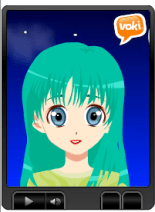
Voki – Animated Avatars! Now, I could have had students tell me about themselves on a
piece of paper. They could have written about themselves and drawn a picture, but come on, let’s face it – using a Web Tool is way more fun. And totally cool! So I showed them how to create one using the different characters, embellishments, and voices. And then, I let them go – free to create.
Oh my goodness, they made me laugh so hard. One boy figured out that if he wrote, “ha ha ha …” It made the character laugh. Then a few others joined in and we quickly had a chorus of animated laughter. That led to more real laughter.
In the end, we had a shark in the fire, monsters, people with purple hair, happy faces, and a whole host of other crazy avatars.
That was one AWESOME first day!
A Blessing In Disguise
Say What?
With the school year fast approaching, it was quite a shock to find out that the district was rekeying ALL locks in the district. I’m not sure how many locks that consists of, but seeing as there are 4 schools in our district, each with classrooms, offices, gates, cafeterias, etc, it’s safe to say that it’s a lot of locks – and keys. It was a bigger shock to find out that we, the teachers, would not be given our school keys until (as of right now) the first day teachers are mandated to report – the day before students arrive. We have access to our classrooms, via the lead custodian at our respective sites who will gladly open our classrooms when they are there. Many had the same reaction as I did…What? What if I need to come after the custodial staff is gone? How will I ever get my room ready? Why?
How Will It Work Out?
It will. It always works out. Most teachers went in and began setting up their classrooms within the confines of the times set by the custodial staff – who have worked hard and done a great job getting us cleaned and ready for the new school year.
How Is This a Blessing?
We, teachers, work way to hard. We give up much of our time during summer, weekends, and other school breaks. It’s high time we start enjoying our lives OUTSIDE of work. By having some of our control stripped, we have been forced to stay away. For some it is spent with family, others crossed off some items on their ‘to do’ list, still others spent time with friends enjoying their company, while some took advantage of the time and had a mini getaway vacation. The blessing lies in the district forcing us to be selfish and step away from our classroom.
A Pretty Classroom
So who is really impressed by that pretty classroom most of us spend preparing at the beginning of the school year? Who really appreciates all those pretty bulletin boards? What about the perfectly themed classroom? You, the teacher, that’s who. Oh sure, on the surface the kids and parents are in awe, but digging a little deeper they appreciate other aspects of our work. The parents are more impressed when you push their child, when you get them help, food, clothing; they appreciate the more meaningful aspect of our jobs. And the kids? Well, they appreciate a great lesson. You know, the ones that you spent hours preparing for. The ones that you are excited about. The ones appear like a game, are fun, and engaging.
This Blessing
So instead of being filled with anxiety and complaining, I welcome this. I have my lessons ready for the first week – I didn’t need to be in my class for that. Those lessons are fun, build team unity, and set a foundation for routines. The first week is filled with THEM creating the rules, creating Voki‘s, and problem solving with spaghetti and marshmallows. Doesn’t that sound way better than being wowed by a ladybug themed classroom and boring dittos (that is not to say that if you have a themed classroom, you have dittos)? Now if you are one of those amazing teachers who have awesome lessons and a cutesy themed classroom, hats off to you! I however, will enjoy my last weekend of summer vacation. Embrace those small blessings in disguise!
To My District
I say Thank You! You have forced me to look at things differently and enjoy life!
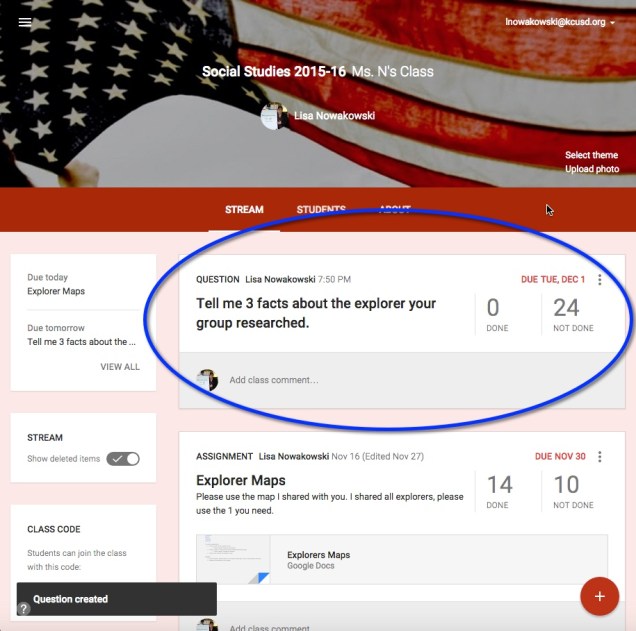
Google Classroom – Part 4
Grading Assignments:
In your stream, you can easily view returned assignments. Either choose the title of the assignment or ‘Turned In’. The left sidebar will show all upcoming assignments as well.
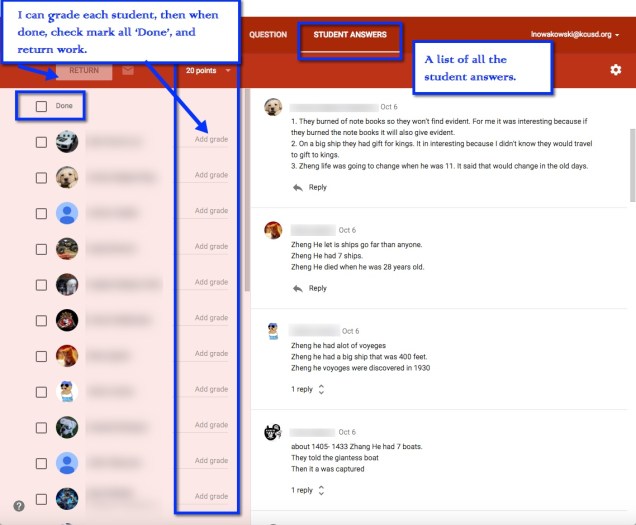
Student Submission Page:
This allows you to view the status of all students’ assignments, private conversations with students, set point value, grade, and return assignments.
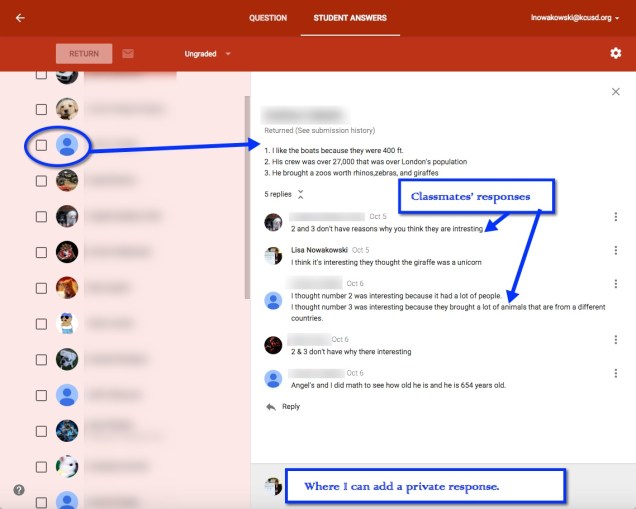
Private Conversation:
If the student has a comment or question, they can easily talk with you about it privately.
Scoring and Returning:
In Google Drive:
When you create a class, or students are enrolled in a class, Google automatically creates a Classroom Folder in your, and the student’s, Drive.
Student’s Drive:
In the Classroom Folder, the student is enrolled in 1 class, Class Demo 1. Whenever an assignment is created, it is automatically placed in this folder.
Teacher’s Drive:
In addition to the Classroom Folder and the Class Folder, teachers will also find that each assignment has a folder (within the assigned class) and a Templates Folder. The Templates Folder is a collection of all Google Created assignments for that class.
Google Classroom – Part 3
Now that you’ve set up your Classroom and created an assignment, what do the students do and see?
The Student Perspective:
Students can either enroll themselves by inputting a Class Code or teachers automatically enroll them. Currently students are NOT notified when they are enrolled in a class, if the teacher automatically enrolls them.
When a student first opens up their Classroom, it will look very much like the teacher Stream view, with a few differences
The students will also be able to see who is in their class.
See and Comment on Announcements:
Assignments:
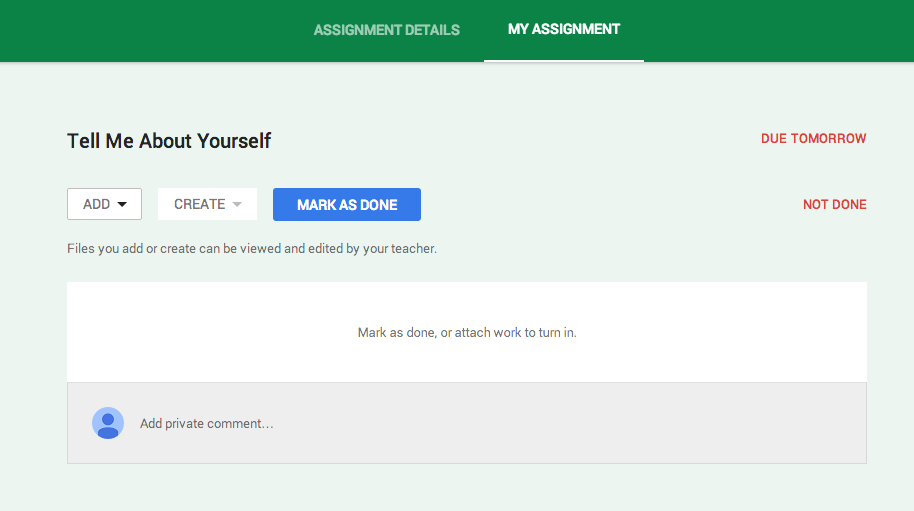
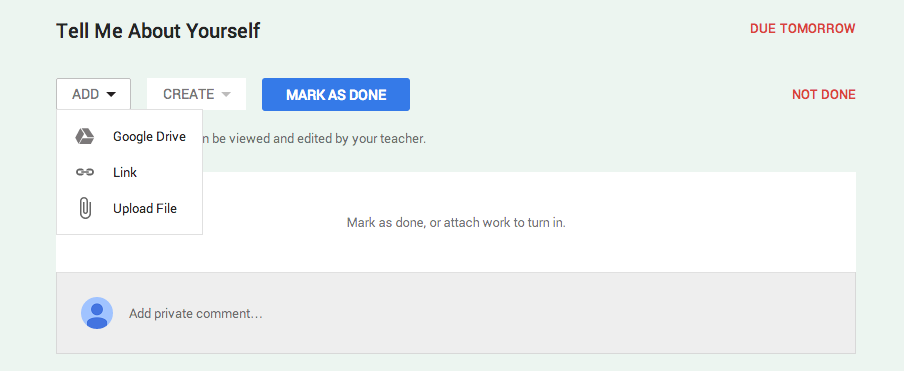
If the student needs to create the assignment – meaning the teacher did not create a document and share with student(s) – They have several options in which to upload or create.
If the student has a question or comment, it can be made in this stream privately.
IF the teacher shared a document with the student(s), then the document title can be chosen and it will open in a new window. The student(s) can then edit in that document. Once the assignment is completed, the student can turn in the document from the Assignment Page.
If the student realized that they made a mistake, they can ‘Unsubmit’ the assignment.
Viewing Score:
Once the teacher has graded the assignment, it will be ‘Returned’ to the student. The student will have full editing rights (the teacher will be given commenting rights). They can view the score and any comments in My Assignment page. When the student views the score from their Assignment Details page, they will only see comments made to the entire class. Private comments between the teacher and student are on My Assignments page. 
When the student has submitted an assignment, it will be noted in their Stream.
Other Information:
If an announcement or assignment is created while the student is in the Class, a notification appears.
Notification:
When an Announcement or Assignment is created, the student will receive an email notification.
Google Classroom – Part 2
Okay, so now that you have your Classes set, you want to start creating Announcements and Assignments.
Create Announcement
Once you are in the Class in which you would like to create an Announcement, make sure that you are viewing the Class Stream. The default is set to create Announcements, but you’ll want to make sure by looking for the downward notch is above ‘Assignment’. You can post your announcement solo or attach a file, something from Google Drive, a YouTube video, and/or a link. Select the blue ‘Post’ button, and you’re done.
Note: Students will have ‘View Only’ rights to any attachment found in your Google Drive.
Edit/Delete Announcement
Once you have created your Announcement, you can either edit or delete it by choosing the three (3) dots at the upper right corner of the Announcement.
Creating an Assignment
The process for creating an Assignment is very similar to that of creating an Announcement. You have the additional options to set a Due Date and Time.
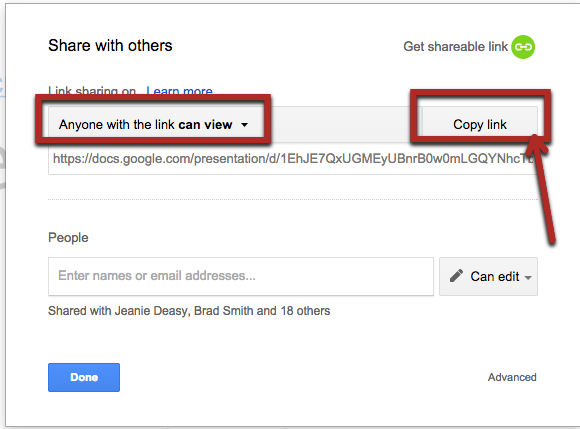
Note: You determine how items from your Google Drive are shared – view only, all students can edit the document, or make a copy for each student.
Same Assignment and/or Announcement: Several Classes
One nice feature is that you can share the same Announcement or Assignment in several Classes without having to post in each class. By choosing the drop down arrow at the lower right corner, you can select which Classes you would like it to appear.
Turned In Assignments
After you have posted your Assignment, you can easily see how many students have turned in the Assignment.
Edit/Delete Assignment
As with Announcements, you can Edit or Delete the Assignment by selecting the three (3) dots in the upper right corner of the Assignment.
Google Classroom – Part 1
What is Google Classroom?
In June, Google started sending out invitations to Beta testers for Google Classroom. Google Classroom is a management tool for your GAfE account. It allows users to create classrooms in which you can assign work – YouTube videos, links, anything from Google Drive, or other files you may have stored elsewhere. In addition, you can also create announcements where students can interact with you and each other.
Currently Google is gathering feedback from all users. I am sure in the true Google ‘Spirit’, they will continue to modify and iterate (they are the masters of iteration) their latest tool.
Getting Set Up
So here is a BASIC overview from the teacher’s viewpoint. When you first open Google Classroom, a folder (Classroom) is automatically created for you in your Google Drive. Once open, you will be taken to the ‘Home’ screen. Here I have a current class set up and have highlighted some of the features available. If it is your first time, you can easily set up a class by choosing the plus sign (+) next to your user information at the top right corner.
Creating a Class
Looking at how to ‘Create a Class’: A pop-out will appear, and you will be guided on how to create a class. You can then create classes for each class or period needed.
Inside a Class
Once your class is created you will be taken to the class ‘Stream’. This is where you can add students, create announcements and assignments. You will also be given the option to ‘Take a Tour’.
Change Picture
So you’re not fond of the purple bubbles? Not a problem. When your cursor hovers over the header, the option to ‘Change Picture’ appears in the lower right corner of the header. Once you choose that other options will appear.
Manually Assigning Students
As I am in an elementary self-contained classroom, I find it easier to sign my students up myself. However, if you are dealing with multiple classes, it might be easier to have them sign up via the ‘Class Code’.
Adding your own students only takes a few simple clicks. Start by switching your current view from ‘Stream’ to ‘Students’.
To manually add students choose the blue ‘ADD’ button. I can then either checkmark students from my contact list or select an entire ‘group’.
Join With a Class Code
When students go to their ‘Classroom’ for the fist time, they should choose the plus sign (+) at the top right corner next to their user information. This gives them the option to ‘Join a Class’ using the class code.