Prepared for CUE RockStar 2014 edition:
Author: Admin
Outta Site
Colour Lovers – create patterns from palette
Check out Scott Burt’s Sites info
Website
SLOCUE Connects – 10/4/14 (To view videos, go into Presentation Mode – upper right corner of screen)
Prepared for CUE RockStar 2014 edition:
Link for the collaborative document:
How to embed a NON-YouTube video on Google Sites:
Horizontal Navigation Bar:
Edit Sidebar:
Embed Blogger into your site:
Presentation Background Image
I have previously blogged about how to change the background color of a Google Presentation Slide Template. So this time, let’s take it up a notch. Let’s add a background image to your Slides!
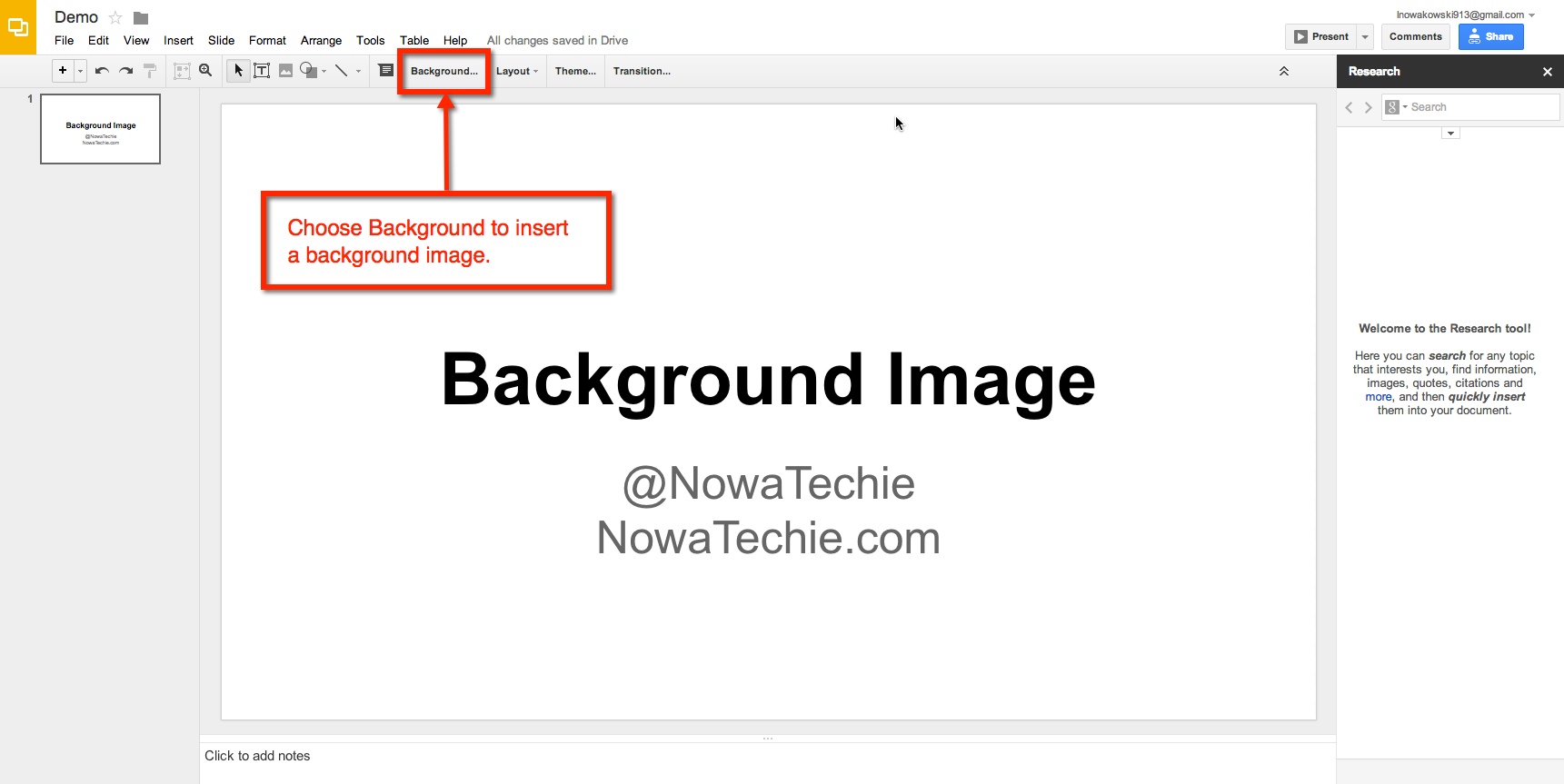
To begin, open Presentation, and choose ‘Simple Light’ as your template. Then from the tool bar, choose ‘Background’.
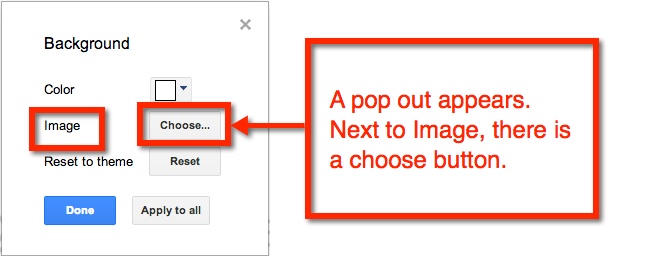
For this example, we will focus on uploading an image from your computer.
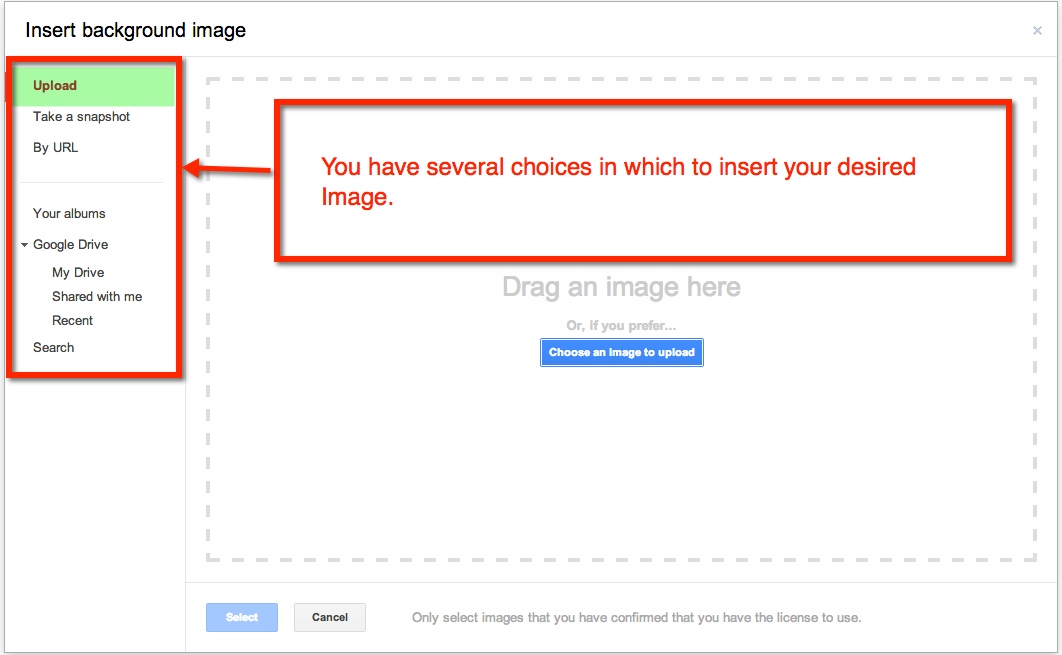
You can either drag the image or choose to upload from where the image is stored. Let’s look at how to upload the image.

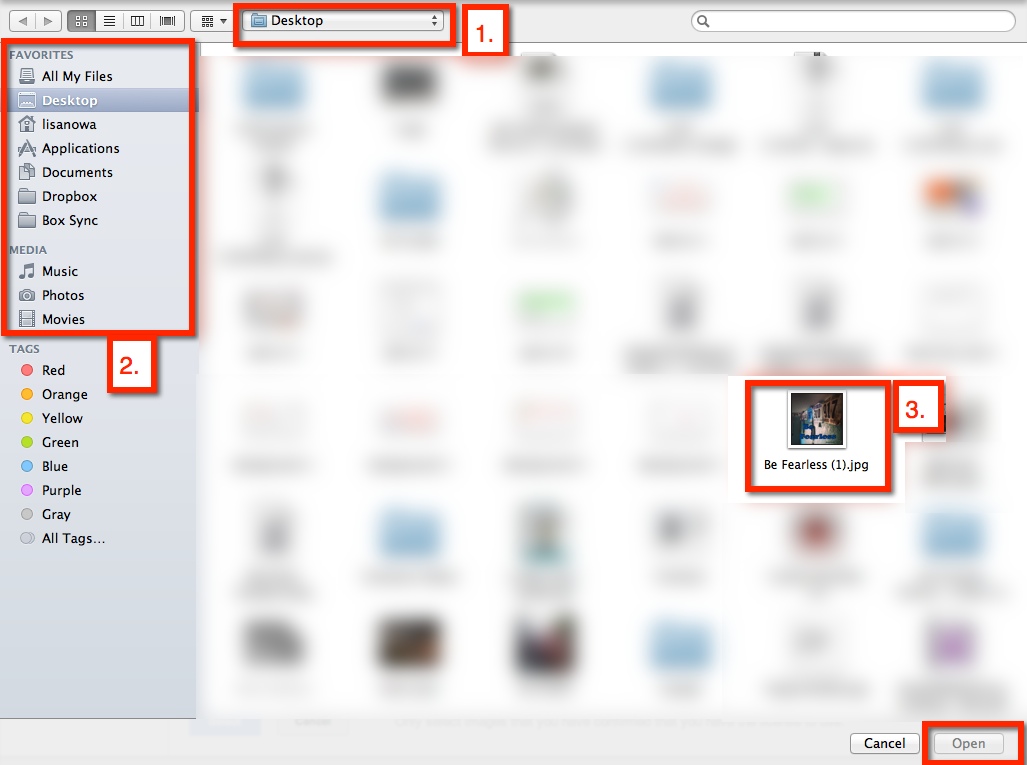
When I choose the blue ‘Choose an Image to upload’, a pop-out window appears. Mine automatically shows everything on my desktop (1.). I can also choose a different location on my computer (2.). The image I desire is on the desktop (3.), therefore, I choose it, and scroll down to the ‘open’ button (or I can double click the desired image).
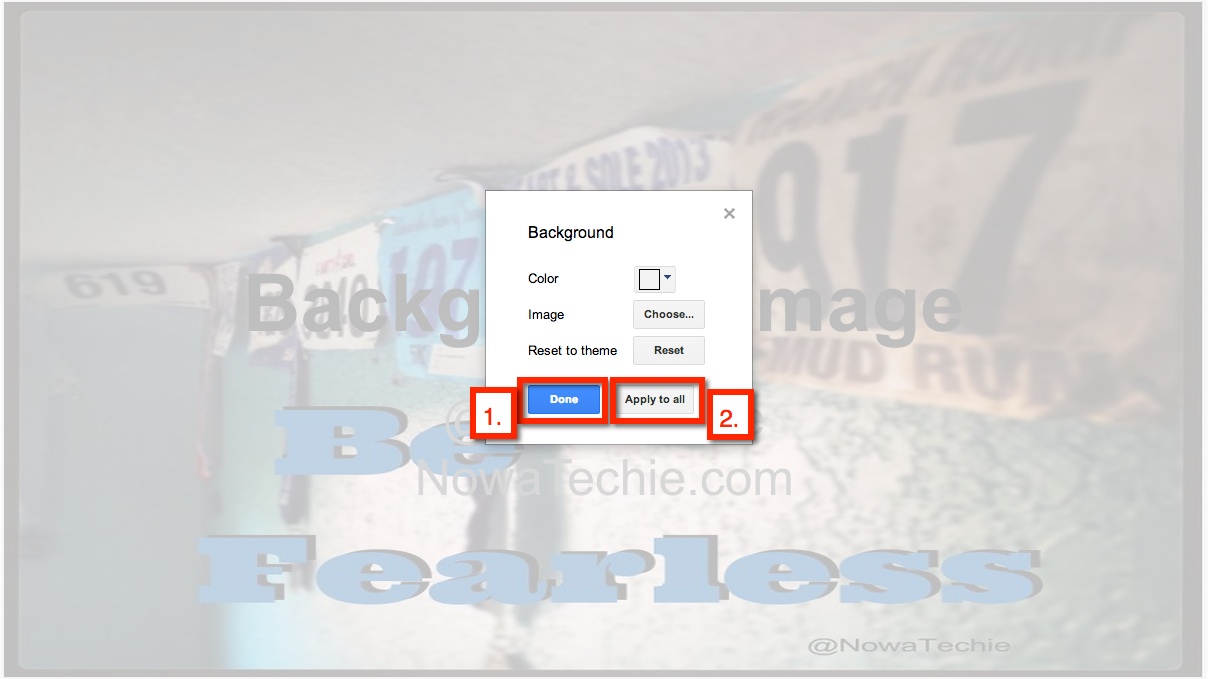
I am then given the option to add the image to current slide (1.) or to add image to all existing slides (2.).
And there you have it, a unique background to your Presentation!
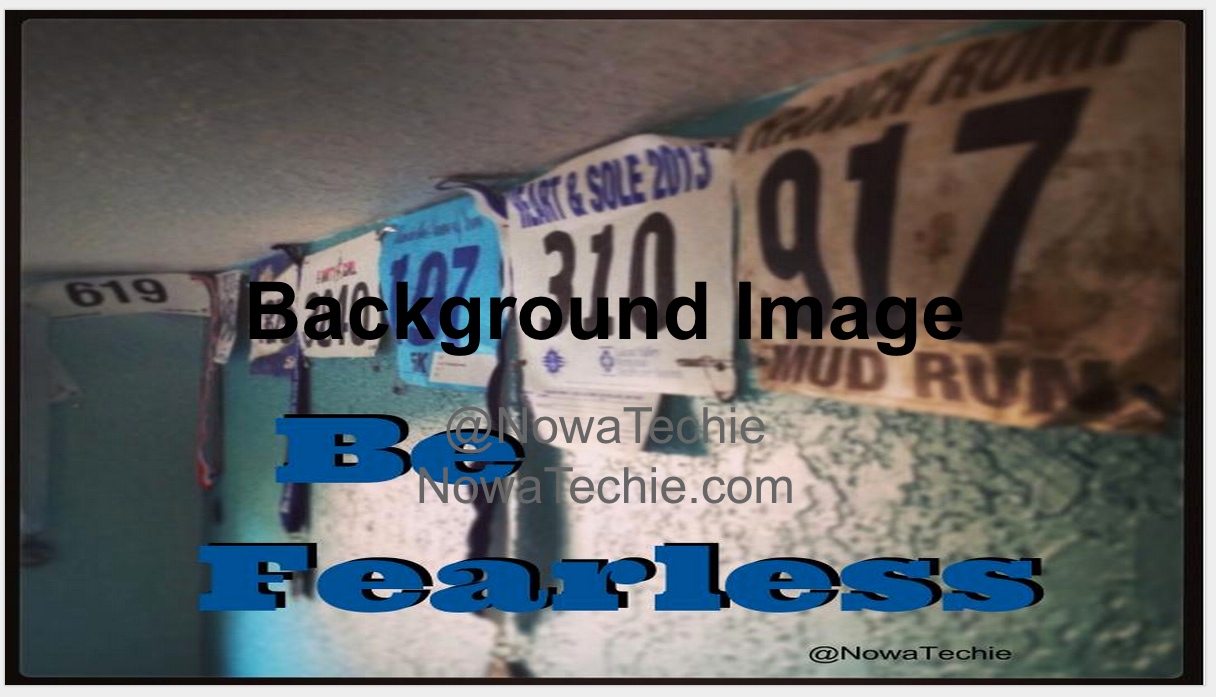
Table of Contents – Google Docs
This year I had my 5th graders writing their state reports in Google Docs. One of their tasks was to create a Table of Contents. Normally this is painful – mainly for me. While they understand the concept, they often list ALL the pages in a topic. This year I avoided that by using the Table of Contents feature in Google Docs. It was ridiculously easy!
In their state report they changed the text of each heading from ‘Normal Text’ to ‘Heading 1’
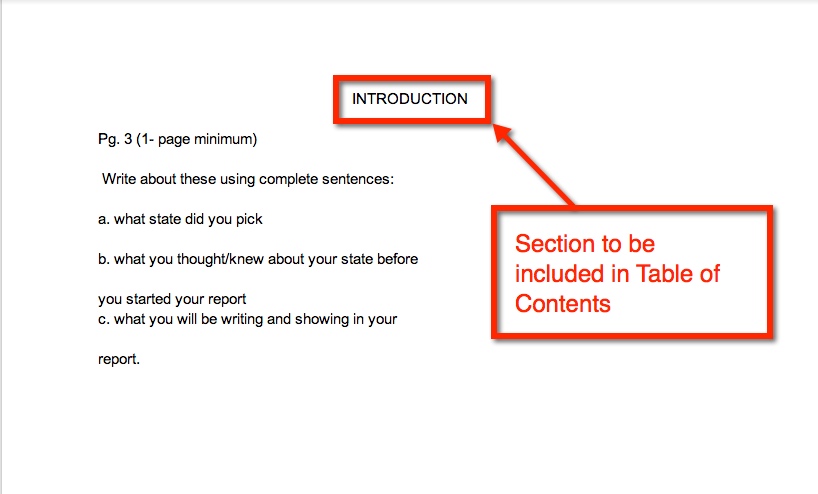

Repeat this process for all sections that need to be added to the Table of Contents. Once you have done this, you can now insert the Table of Contents. Go to the Table of Contents page and place the cursor where you would like the Table of Contents to be submitted. Then insert your Table of Contents.

This is what you get. You have hot links to the different sections in a document.

Add-Ons – Google Documents
There are many additions that you can add to your Google Drive. For this post, I will specifically talk about Google Documents. An Add-on is simply a tool that makes your life easier. Some examples are: Easy-Bib, Doctopus (great for teacher management – EDU), and a thesaurus.
So how does one get Add-ons? Well, it’s super easy:
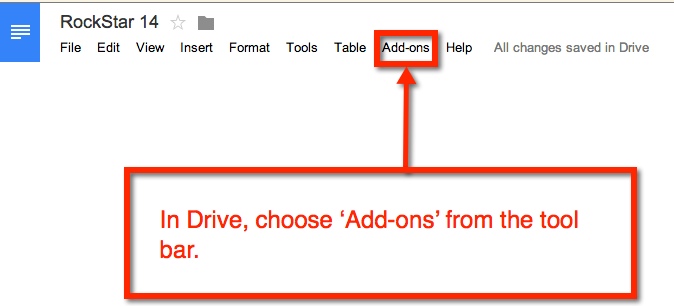

You can scroll through the options or do a search in the search bar (upper right corner or pop-out menu).

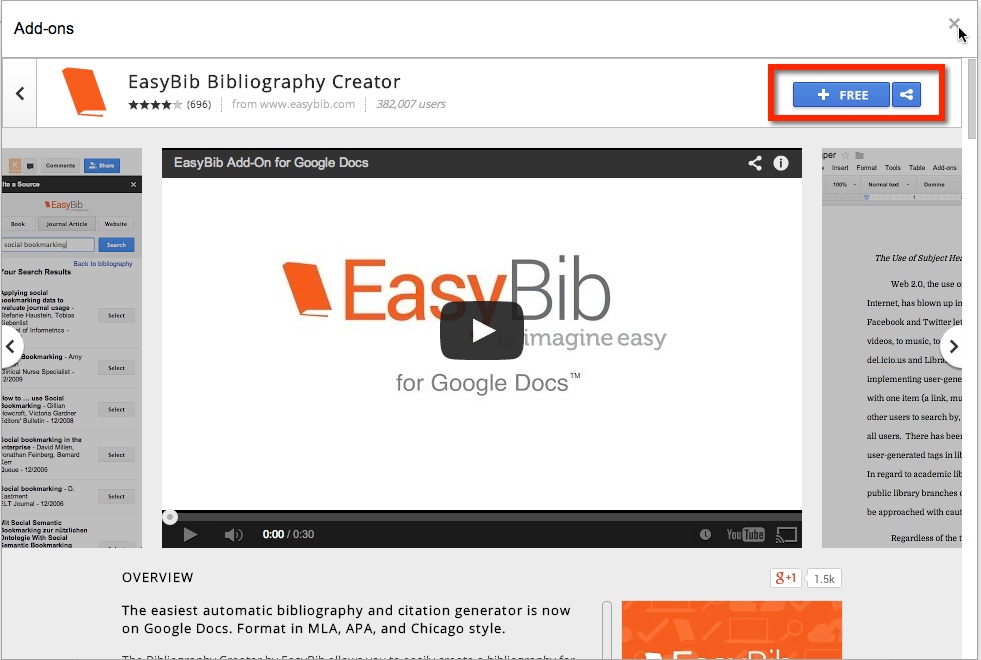
Once the desired Add-on is selected, you will need to add it. Simply select the blue ‘free’ (or if there is a cost, the amount will appear) bar located in the upper right corner of the pop-out menu.
Another pop-out menu will appear. It will request that you accept their terms.
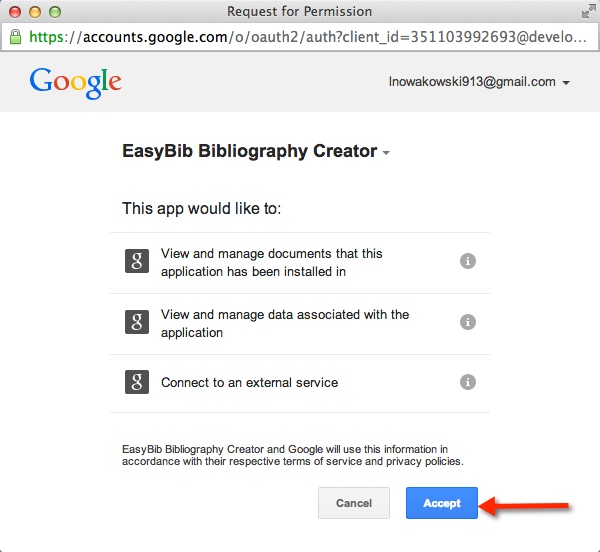
Once you accept, the Add-on will be found under ‘Add-ons’ in the tool bar menu.

Add Image to a Google Doc
Within a Google Document, go to TOOLS on the menu bar. Choose RESEARCH.

A side bar, on the right, will appear.
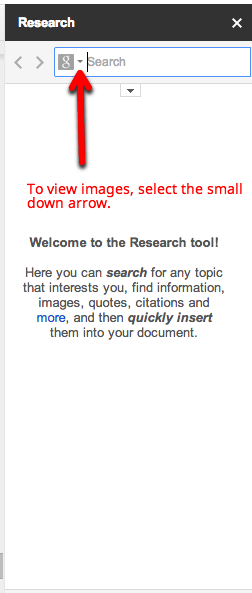

Remember to use ‘Free to use images’. Google allows you to search for these types of images.
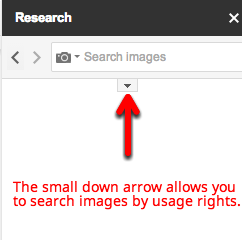

Type an image you are looking for in the Research Search Box. Drag the desired image to the document. Google automatically cites the image for you.

EasyBib Add-On
I think I’m in LOVE! Yes, I love the EasyBib Bibliography Creator in Google Docs (via Add-Ons). Back in the day when I went to school and wrote reports – only a few short years ago – I had to look up how to cite my sources in a book. Today, all you have to do is type a few bits of information, and the citation is created for you! See, you’re falling in love too, aren’t you?
My 5th graders have no idea how easy they have it. Here’s how it works:


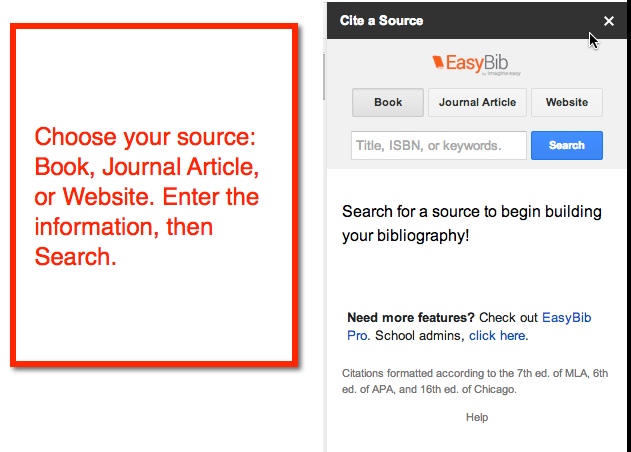

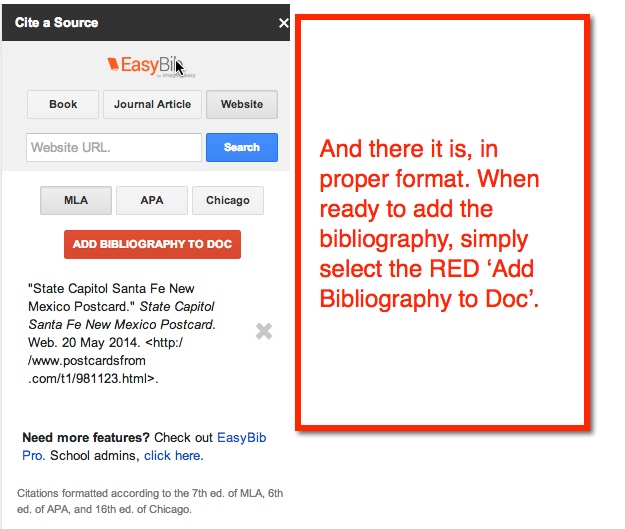
And in case you were wondering, it does save as you work. My 5th graders have been working on their State Reports for a few weeks. As they find resources, they add it to the EasyBib. When they are ready to add it to their Doc, it’s all there for them ready to insert. Pretty cool, huh?
Sharing Your Google Calendar
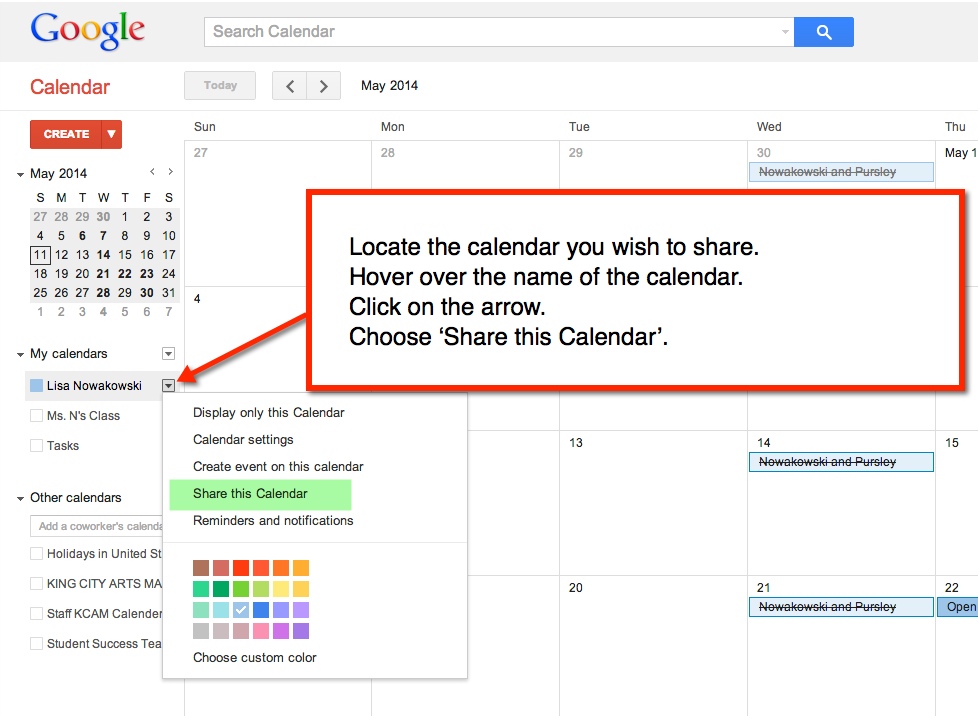
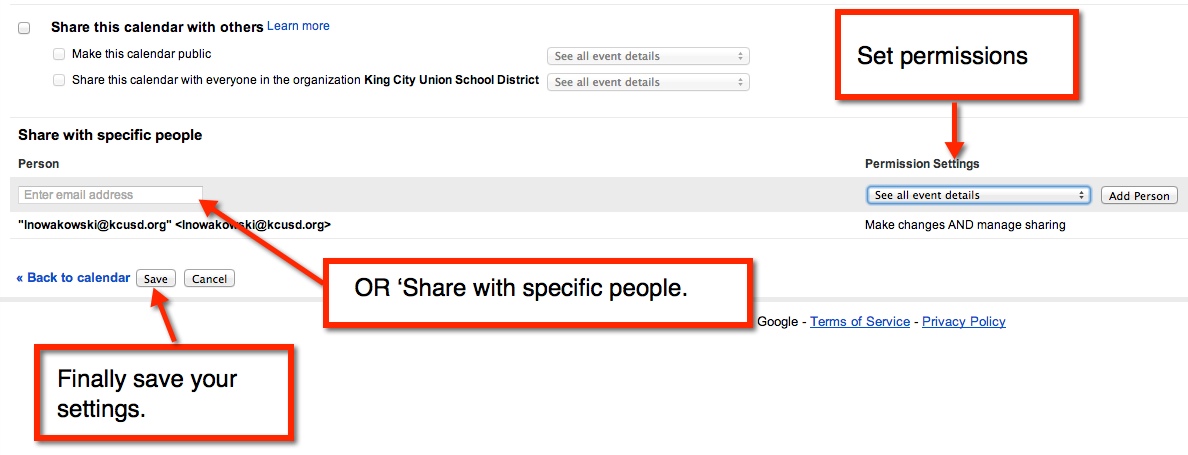
You can either make the calendar public, share with everyone in your GAfE domain, or with specific people. Sharing with the public or in your GAfE domain allows you to set event details: ‘See all event details’ or ‘See only free/busy (hide details).
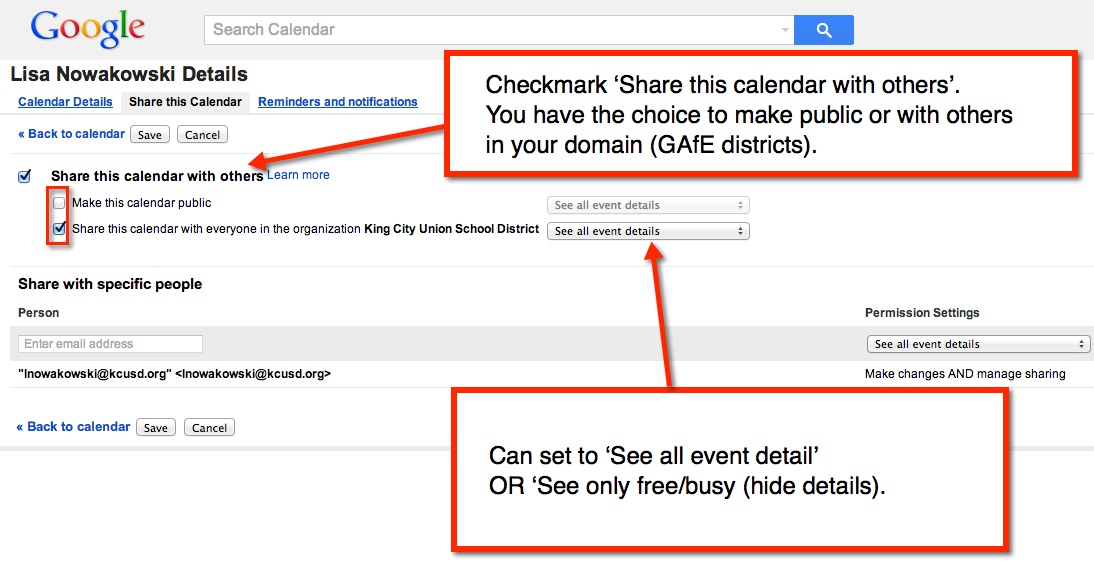
Sharing with specific people will allow you to give different permissions: ‘Make changes AND manage sharing’, ‘Make changes to events’, ‘See all event details’, and ‘See only free/busy (hide details).
Change of Plans
The other day I had an awesome lesson planned teaching coordinates. I was going to use geoboards (NOTE: I found the plan at Howard County Public Schools Wiki). While I was teaching the lesson, one of my more creative thinkers modified it and made it into a game. Yesterday, the student tried to explain the game to me. I’ll admit, I didn’t get it. After completing an assigned task on coordinates, he drug out two geoboards and showed another student how to play. Okay, they’re learning and focusing on the standard. Today, the same students begs me to show the class his game. I, of course, agree.
I’ll admit, I still don’t totally understand it, but I let him explain it to the rest of the class. Apparently, it’s just me. Everyone else seemed to understand what to do. So here’s how it goes…

Both players have geoboards and create a shape on their boards. Then each player tries to guess the coordinates of the shape – Battleship style. Now this is where I get confused. The player is to remember where they had a ‘hit’. If the player gets a ‘hit’ they get another turn. When a player has found all points, the rubber band is lost to the opposing player.
I got lost at ‘you just remember where you had a ‘hit”. Well, the students seemed to be up for it. As they played, they each modified it to fit their own needs. I, for one, used cubes to mark my ‘hits’. while others plotted them out on graph paper. And don’t even get me started on the intricate designs some of them came up with! All in all, a good time was had by all, and my creative student felt like a ROCKSTAR!
Some days, I REALLY love my job!
Accelerated Reader: The Kids Aren’t Fooled
Accelerated Reader (AR) seems to be all the rage in my district. All the elementary schools use it, and have for quite some time. Many teachers seem to be huge supporters of it, too. I however, have never been a big fan of AR. I will admit that my bias comes from personal experience rather than that of a pedagogical reason. I have never banned my students from using it, but never really pushed it either.
Their website states: “At its heart, AR is simple. Students read a book, take an AR Quiz, and get immediate feedback. Kids get excited and motivated when they see their progress.”

This lead me to wonder why my students aren’t taking AR tests. They read 30 min each day – a book of their choice. They read an additional 20 pages each night – a book of their choice. They are reading, and talking about what they are reading! So why aren’t they taking the tests at the end? They can earn prizes once they reach certain percent of their overall goal. What was the problem?
The Discussion
I truly did want to find out why the students weren’t taking the tests. So I sat down with them and had an open discussion with them. At first they were reluctant to answer, but once they got started, their answers blew me away! 10 year olds are way smarter than we give them credit for. They were so mature about the subject, I recorded their answers. Here’s a small sampling:
“I don’t think there’s any purpose in taking an AR tests because I read books to enjoy them, not take tests on them.”
“When I finish reading a book, I just don’t do the AR quizzes because I want to get to the next one [book] really fast so I can continue reading.”
“There’s no purpose for me, because I want to get to the next book fast. And anyway, what’s the point of getting a prize? … We don’t really need a prize.”
“…They’re giving you prizes just to make you read…”
“Instead of making us read, we should read because we want to.”
“We should be reading for the joy of books, not for prizes.”
“They need a wider variety of different genres of books.”
“The books I do have, are not AR books.”
“I just like to enjoy a book.”
What Have I Learned?
1 -My students are way smarter than I ever gave them credit for.
2 -By the age of 10, kids have figured out that AR is a scam.
3 -AR has NOT instilled a love of reading.
4 -Students gained a love of reading on their own, sans prizes!
5 -AR books and genres can be too limiting for some students.
6 -My students do not see eye to eye with the AR website. Clearly they are neither motivated nor excited by the AR quizzes.
Other Thoughts
Some students live for competition. Some students love the bragging rights they get when they have read the most (percentage) in the school. Some students enjoy receiving the prizes, although I would venture to say this is a greater motivator in the younger grades than upper. The idea that we are monitoring student comprehension is a good one, I’m not sure AR is the answer.
At the beginning of the year, I was having students create ‘Book Projects‘ when they finished reading a book. I soon became overwhelmed. I’m thinking I need to revisit this idea and rework it so that it works for me too. I had some great work produced by the students. It was more meaningful, and the students really got into it.

