Google Hangouts

ImageRecently Google has opened up Google+ to K-12 schools. This was welcomed by many in my district and me. Since I teach in a K-8 district, the district wisely chose to open it for staff only, and keep it locked for our students — as they are under 13. Within a week of this happening, a friend and I got together and tried it out…with our classes. She teaches 4th and I teach 5th, and we are located across town from one another. We thought the kids would get a kick out of it. And of course they did.

Her class was learning how to multiply two digit numbers by two digit numbers. I had told her about the lattice method my class likes to use. She gave us a call to have one of my students show and explain the lattice method to her students. It was such a hit, one of her students HAD to show us how to do it their way. 

When all was said and done, the students got to say, “Hi” to one another. Many of them have been on sports teams or in plays together. They found it exciting to see their friends. It was such a hit, that we are now planning on having Hangouts a few times a month. 

Another great learning tool in our Google Apps arsenal!

Google Search 1

So after attending Google Teacher Academy, I now have so much to share. I will start with some basic search features.

Information from Tasha Bergson-Michaelson.

Important tips

  • Use only key words — don’t use complete sentences.
  • For those students who need help finding the key words:
    • Have students draw picture of what want to search.
    • Only type words that were drawn — this helps students find key words.
      • example: search ‘What dogs come from China?’
      • student draws a dog or dogs and China. Only type those 2 words.
    • Older students may want to think about how they text friends or what words they would hashtag
  • Searches need to go beyond words.
    • Search images or video.

Sharing in Google

The easiest way to collaborate is by ‘sharing’ Documents in your Drive. We have talked about how to create Docs and folders. Now, just take it one step further and ‘share’ those to have dynamic, cross-grade, cross-district PLCs. It’s quite easy.

Sharing a Document (or presentation, form, spreadsheet, drawing):

Once you have created your desired document, click the blue share button.

Type the names of those you wish to share with. You can allow others to edit or view. The default setting is ‘edit’. If you would like to retain control over who is allowed to have access to your document, click on the ‘change’ link on the bottom right. Change the ‘share settings’ to ‘Only the owner can change the permissions’. When finished, click ‘Done’.

Sharing a Folder:

Now there are many times when you will want/need to have ‘shared folders’, with your PLCs. That is the same process as sharing a document. The advantage with sharing a folder is that whatever is placed in that folder, it is automatically shared with everyone.

First find the folder you would like to share with others, select it. Then click the ‘share’ icon at the top of the page.

You will then be taken to the ‘Share Settings’ to select others to share the folder with.

I currently have several shared folders. I share an ELD folder with prezos and documents with several teachers in my district. I also share a Math folder with homework forms.

I have shared documents with 10 other teachers to create one OUTSTANDING document. One document was created within 12 hours by teachers in a 50 mile radius. Several of us were creating, sharing, and editing at the same time. It was an amazing experience. This type of sharing makes our lessons better, makes us better teachers, and allows the creativity to seamlessly flow.

Create a Folder In ‘Drive’

In order to help you stay organized it is highly recommended that you create folders in your Google Drive. This is a very easy process.

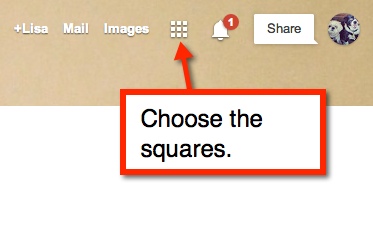
From Chrome

Folder 1

Folder 2


Once there, you will see a red ‘Create’ rectangle. Click on that and you will see your options. Choose ‘Folder’.


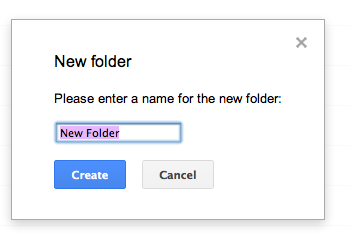
You will then name your folder


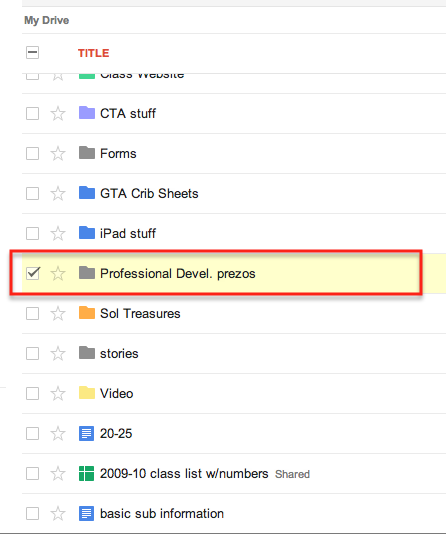
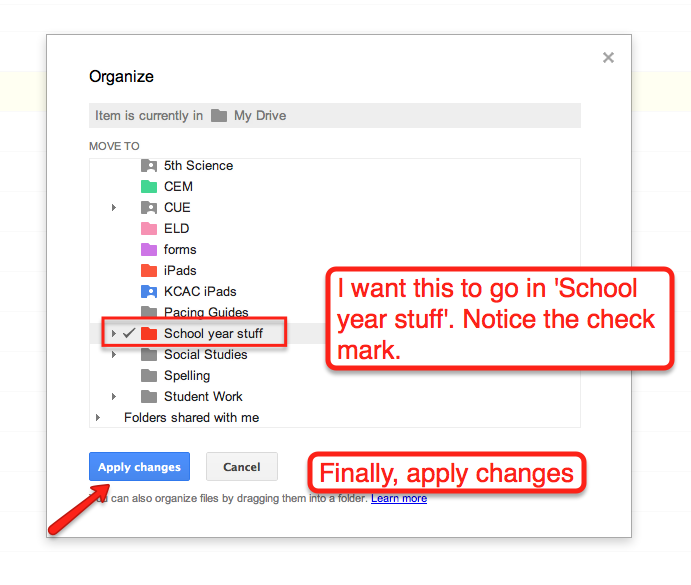
This folder will appear in your ‘Drive’ in the list located to the right. Once you have your folder created you can then place items into that folder. To do so, locate the file you wish to move. check the box to the left. This method allows you to choose as many files as you’d like to move at once. Then at the top of this window you will see a folder icon. Click on the icon and check the folder you would like to place your item. Remember to ‘Apply changes’ and you’re done. Yup, it’s that simple!


Google Teacher Academy

Well, I have just submitted my application for Google Teacher Academy New York 2012. As I was filling out the application and working on the 1 minute video I was nervous. However, that is nothing as to what I feel now…Super nervous! Then some self doubt entered. That was so not nice or welcomed! That silly little voice that says, “Google wants someone who can reach large crowds. You don’t.”

To that voice I say, “QUIET! I did more with 3rd graders than most teachers do with middle school kids 😛 I am an amazing teacher!”

Then that silly little voice says, “Good point.”

So all that aside, I’m nervous, but hopeful. I am a tech savvy teacher. I do amazing things in technology with 3rd graders. Now that I am going to 5th grade, the possibilities seem endless! My brain is spinning with all the project based learning that will happen.

Oh, and here is that video…