Some people I have talked to still aren’t sure how to create a Google Form. I say jump in and start clicking! Don’t worry, you won’t break Google. Start off small with a few questions and question types. Once you get more comfortable, try something new. In the meantime, here’s a quick tutorial on how it’s done.
Voice Typing in Google Docs
Not so long ago, I wrote about a handy Add-On for Google Drive called Speech Recognition, here. It allows the user to talk into the microphone and have their words transcribed. Google has now incorporated Voice Typing in their Tools Menu, which does the same thing!

A microphone icon will appear on the side of the d ocument. Click it. The first time you use this feature, you will be prompted to allow Google Docs to use your microphone. Choose allow and start talking.

Google Docs Now Has Templates
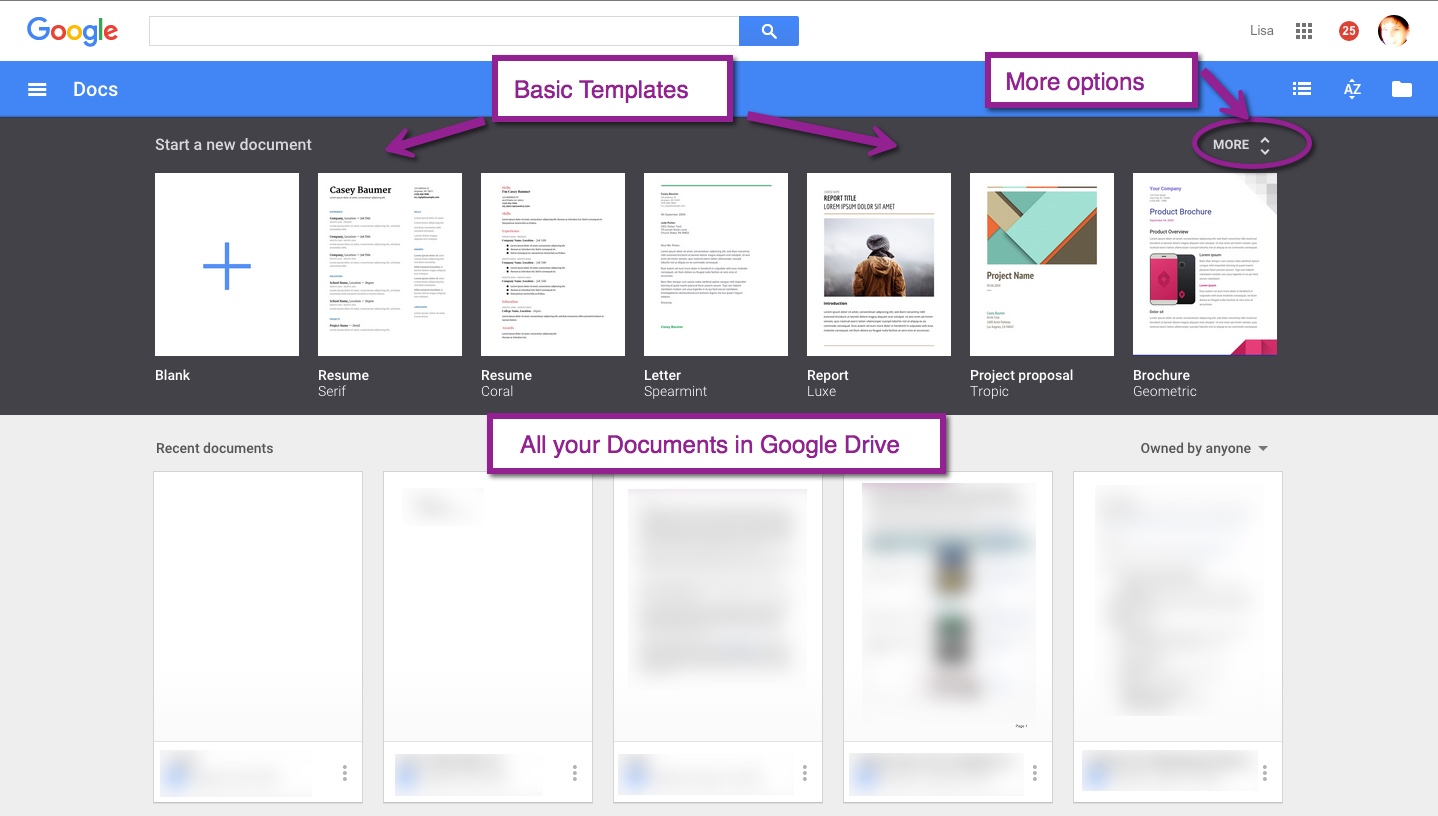
One of the best features of Google (and all that it encompasses) is that it is always changing and updating. This is true for Google Docs. You can now easily create a Document from a template.

You can also type: docs.google.com in the URL
This opens the home page for your Docs (documents). There is now a bar across the top with several template options. Not satisfied with those? Choose the ‘More’ option with several choices in each category.
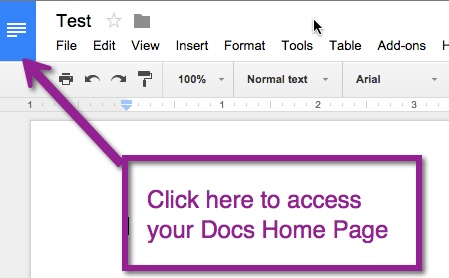
 If you are already in a document and wish to create a new one, you can quickly click the upper left corner. This will take you to your Docs home page.
Create Announcement in Google Classroom
Create Assignment in Google Classroom
Search Your Google Drive
I have heard several comment that it is hard for them to find items in their Drive. What many are forgetting is that Drive has powerful search options.
In Google Drive there is a ‘Search Drive’ option at the top. You can type in key words such as the title or known keywords in the item you are looking for. I did a search for ‘puppy’. I know I don’t have anything named that, but I wanted to see which items had ‘puppy’ mentioned. This is what I got:

None of the items are named ‘puppy’. So I wondered what ‘Rabbit’ had to do with puppy. So I went into the Spreadsheet, did a quick search (control + f on PC, or command + f on Mac) and this is what I found. Puppy is mentioned throughout the Spreadsheet.
I can also narrow my search by file type, opens with, or ownership. Choose the small arrow to the right on the Search Drive bar. So if I know the item I am looking for is in a Spreadsheet, I’d choose ‘opens with’ and select spreadsheet.
This should make searching for your items a bit easier. Happy Searching!
Speech Recognition Add-On
Today the Speech teacher asked if there was a way that Google could do an audio recording. I immediately thought of Google Voice. Then she explained that she needs to transcribe what was said. I changed my mind. While Google Voice does transcribe conversations, it requires a Google Voice Number. I’m not sure the teacher is ready for this. I was thinking in terms of what would be easiest for her, now.
Docs Add-Ons ‘Speech Recognition’
I currently have a student using this tool. He finds it difficult to get his thoughts from his head to his fingers. He’s been using this tool with great success. The tool is simple to use. Go to ‘Add-ons’ > ‘Speech Recognition’ > Start. A toolbar will appear on the right side of the screen. Press ‘Start’ and begin speaking. The text will appear in the space. Once you are done speaking, press ‘Stop’ and the text will automatically be inserted in the document.
Just like voice recognition texting, the speaker will have to say, “Period,” in order for periods to be inserted. So in the case of the school’s Speech teacher, she’ll have to go back and insert them herself, but hey that beats transcribing the whole conversation! I also suggested recording it on her phone for reference.
Get The Add-On 
Research Toolbar
Recently I gave a training on Digital Literacy. One of the points I illustrated, was how easy it is to cite a source or image using Google Docs Research Toolbar. Here is a quick overview on how the tool works:
Here is a copy of the document:
Google Classroom: Save Draft Assignment
You now have the ability to upload an assignment in Google Classroom and ‘Save Draft’; and assign when necessary.
Create an assignment as usual, but instead of ‘Assign’ choose ‘Save Draft’. It will then appear on YOUR wall as ‘Draft’. When you are ready to ‘Assign’ either click on ‘Draft’ or the arrow on the right. Then click the name of the assignment, a pop-out window appears where you can see the settings of the assignment and have the option to ‘Assign’ or ‘Save Draft’. This time ‘Assign’.
Google Classroom: Invite Another Teacher
Today Google Classroom has made yet another improvement! Teachers have been wanting to share their Classrooms with other teachers. Today, Google has given us this opportunity.
Invite Another Teacher
Choose the Classroom you would like to share with another teacher. Once in the Classroom, navigate to the ‘About’ page (1.). Once there the teachers the Classroom have been shared with are located on the left (2.). Notice that the owner of the classroom is listed first. Below the teachers is an ‘Invite’ button (3.). Once this is chosen, you find the teacher you would like to share the Classroom with – within your domain. It will send an Invitation to the teacher. All they have to do is accept.
 Nowa Techie