classroom
Create Assignment in Google Classroom
Classroom Updates August 2015
Quick Overview
Reuse Post
Create Question
Archive A Classroom
The new school year has just begun, and I have been asked by a few, “How do I delete all of my assignments from last year, and add this year’s class to Google Classroom?”
My answer: Archive the old and create a new classroom! It’s easy to do.
Navigate to your Google Classroom. Find the class you wish to archive. Click on the three (3) dots in the upper right corner. This will bring up a pop out menu. Here you have the choice to ‘Rename’ the class, or ‘Archive’ it.

No worries, you can always refer back to last year’s assignments in your archived classes:

Google Classroom: Save Draft Assignment
You now have the ability to upload an assignment in Google Classroom and ‘Save Draft’; and assign when necessary.
Create an assignment as usual, but instead of ‘Assign’ choose ‘Save Draft’. It will then appear on YOUR wall as ‘Draft’. When you are ready to ‘Assign’ either click on ‘Draft’ or the arrow on the right. Then click the name of the assignment, a pop-out window appears where you can see the settings of the assignment and have the option to ‘Assign’ or ‘Save Draft’. This time ‘Assign’.
Google Classroom: Invite Another Teacher
Today Google Classroom has made yet another improvement! Teachers have been wanting to share their Classrooms with other teachers. Today, Google has given us this opportunity.
Invite Another Teacher
Choose the Classroom you would like to share with another teacher. Once in the Classroom, navigate to the ‘About’ page (1.). Once there the teachers the Classroom have been shared with are located on the left (2.). Notice that the owner of the classroom is listed first. Below the teachers is an ‘Invite’ button (3.). Once this is chosen, you find the teacher you would like to share the Classroom with – within your domain. It will send an Invitation to the teacher. All they have to do is accept.
Google Classroom
Google Classroom – Assignments and Announcements
Google Classroom – Part 3
Now that you’ve set up your Classroom and created an assignment, what do the students do and see?
The Student Perspective:
Students can either enroll themselves by inputting a Class Code or teachers automatically enroll them. Currently students are NOT notified when they are enrolled in a class, if the teacher automatically enrolls them.
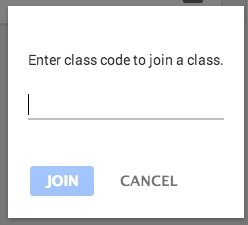
When a student first opens up their Classroom, it will look very much like the teacher Stream view, with a few differences
The students will also be able to see who is in their class.

See and Comment on Announcements:
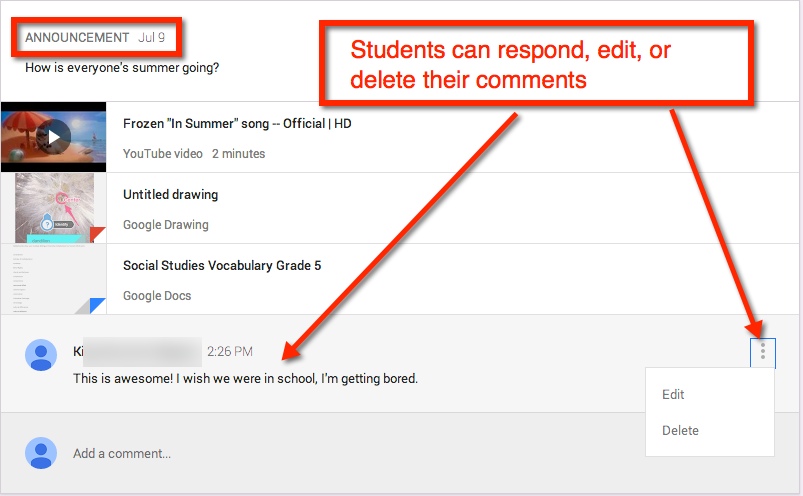
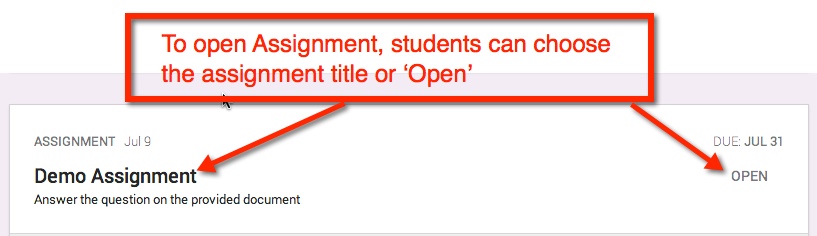
Assignments:
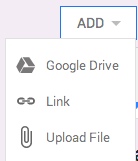
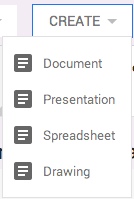
If the student needs to create the assignment – meaning the teacher did not create a document and share with student(s) – They have several options in which to upload or create.
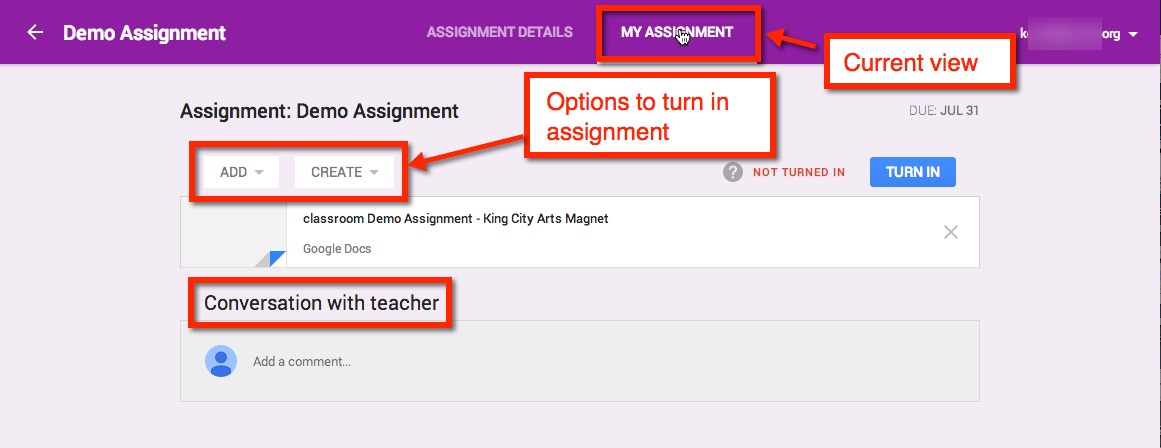
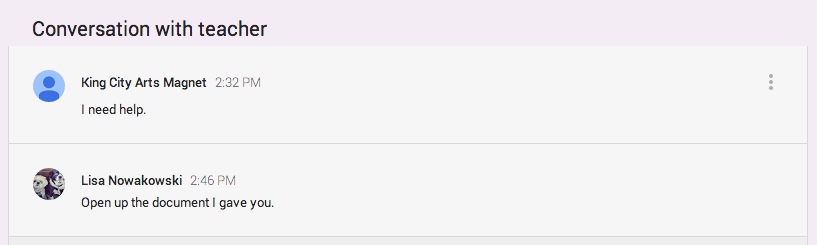
If the student has a question or comment, it can be made in this stream privately.
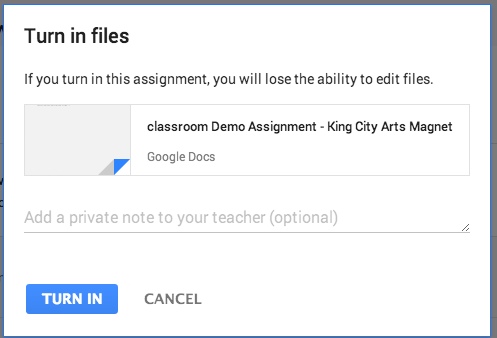
IF the teacher shared a document with the student(s), then the document title can be chosen and it will open in a new window. The student(s) can then edit in that document. Once the assignment is completed, the student can turn in the document from the Assignment Page.
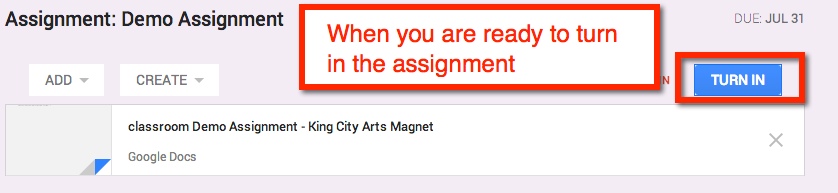
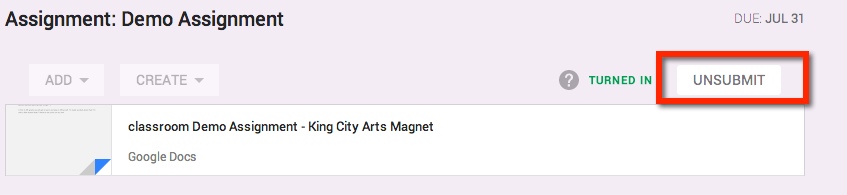
If the student realized that they made a mistake, they can ‘Unsubmit’ the assignment.
Viewing Score:
Once the teacher has graded the assignment, it will be ‘Returned’ to the student. The student will have full editing rights (the teacher will be given commenting rights). They can view the score and any comments in My Assignment page. When the student views the score from their Assignment Details page, they will only see comments made to the entire class. Private comments between the teacher and student are on My Assignments page. 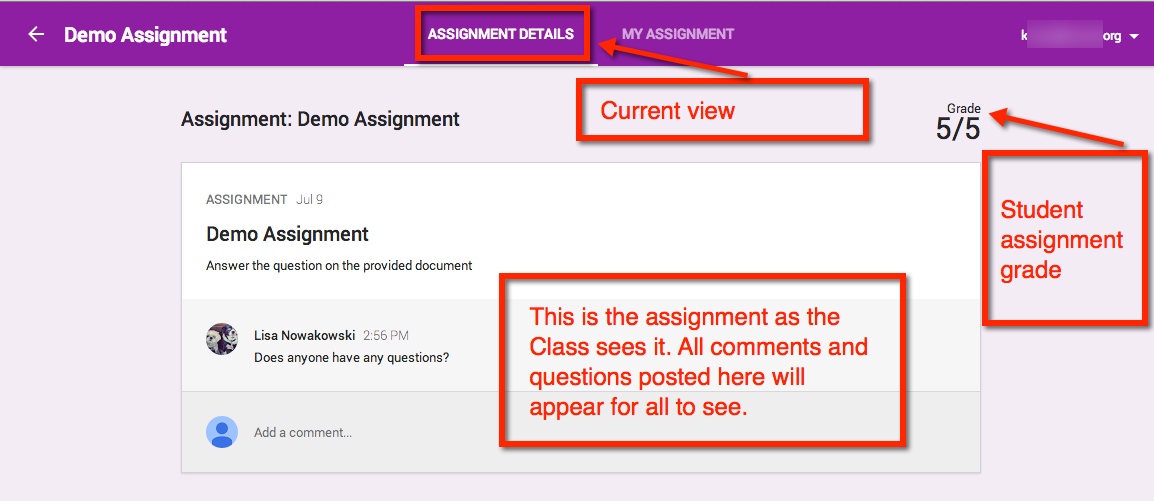
When the student has submitted an assignment, it will be noted in their Stream.
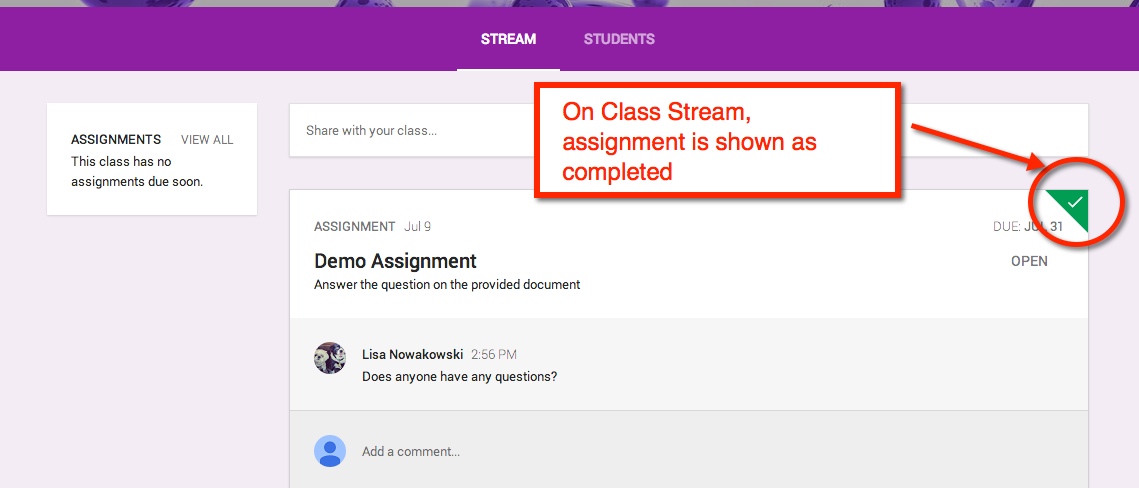
Other Information:
If an announcement or assignment is created while the student is in the Class, a notification appears.
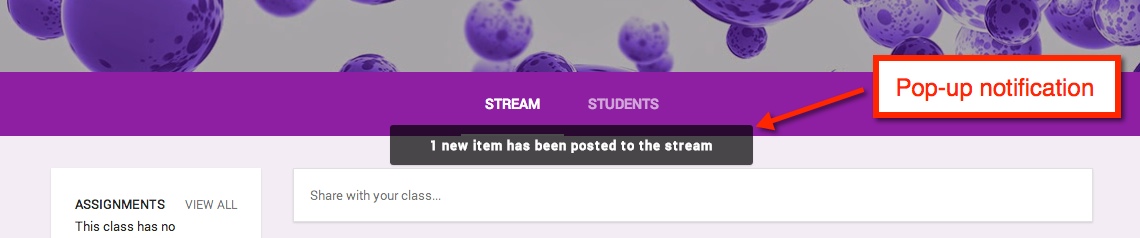
Notification:
When an Announcement or Assignment is created, the student will receive an email notification.
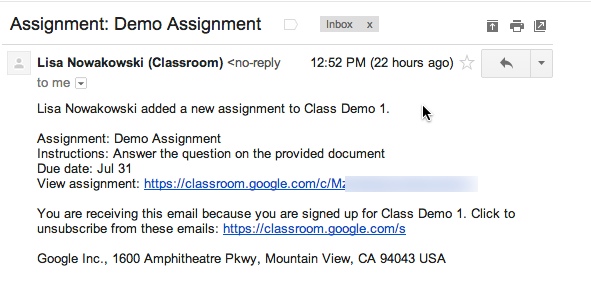
Class Rules
Well, today was Day 2 (178 more to go). Yesterday we began writing down our class rules. I began typing them into Google Docs and in the end shared the document with all the students. One rule the students came up with was No Hats In The Class. Now normally, I’m not too fussy if students wear hats in the class, so I was good with whatever they wanted to do. This one rule lead to a rather lengthy discussion.
This morning the students came in and were eager, yes eager, to begin working. Their first assignment was to COLLABORATE and edit the Class Rules document. I showed them how to insert comments. That’s all it took!

So while the conversation lacked any real depth, it was a great beginning. Hidden within the 20 comments were suggestions for your messy hair (get water and tame it). The deeper message most certainly got across; work together, collaborate, create (they changed the colors, fonts, and words) and communicate. I’d say this is a great way to begin the school year.

