Effortless Speaker Notes: Voice Typing in Google Slides

I’m here to share another quick and easy Google Slides tip with you. Have you ever found yourself struggling to keep up with typing your speaker notes? Or maybe your thoughts come faster than your fingers can type? Well, Google Slides has a built-in voice typing feature that makes adding speaker notes effortless. No copying, no pasting—just speaking!

Let’s dive in and explore how to dictate your speaker notes in Google Slides.

Step 1: Expanding Your Speaker Notes Section

When you’re working in Google Slides, you’ll find a section at the bottom labeled Speaker Notes. This is where you can jot down key points, reminders, or even your full script for a presentation. If you need more space:

  • Click and hold the small bar above the Speaker Notes section
  • Drag it upward to increase the size

Now you have a larger, more comfortable space to work with!

Step 2: Activating Voice Typing

Instead of typing manually, you can dictate your notes using your voice. Here’s how:

  1. Click on the Tools menu at the top of Google Slides.
  2. Select Dictate Speaker Notes.
  3. A microphone icon will appear and turn red, indicating it’s recording your voice.
  4. Start speaking, and Google Slides will transcribe your words in real time!

That’s it—your notes are being typed automatically as you talk!

Real-World Use Cases

Voice typing isn’t just convenient—it can be a game-changer for students and educators.

I once had a student who used this feature while I was giving directions. This allowed her to capture everything I said, and she could go back and review it later. It’s a fantastic tool for students who need to reference instructions, as well as for teachers who want to create clear, accessible notes for their presentations.

Final Thoughts

Voice typing in Google Slides is quick, simple, and super efficient. Whether you’re preparing for a presentation, creating lesson plans, or helping students stay organized, this feature saves time and enhances accessibility.

Try it out and see how it improves your workflow!

Insert Google Sheets Charts into Slides Effortlessly

Today, we’re diving into a simple but powerful feature in Google Slides—how to insert a chart from Google Sheets into your presentation without copy-pasting.

If you’ve ever needed to share data, track progress, or present reports to colleagues or board members, this tip will save you time and effort. Let’s check it out!

Step 1: Open Your Google Slide Presentation


Start by opening the Google Slides presentation where you want to insert your chart. Navigate to the slide where you need to add the data visualization.

Step 2: Insert a Chart from Google Sheets


Instead of copying and pasting, follow these steps:

  1. Click on Insert in the top menu.
  2. Scroll down to Chart > From Sheets.
  3. A window will pop up showing your available Google Sheets. Select the sheet that contains the chart you need.
  4. Once inside the selected spreadsheet, choose the correct chart by clicking on it (you’ll see a blue border appear).
  5. Click Import, and just like that—bam!—your chart is now in your Google Slide.

No extra formatting, no fuss—just an easy and seamless way to integrate your data.

Step 3: Why Use This Method?


There are several reasons why inserting a chart from Google Sheets into Google Slides is a game-changer:
No manual copy-pasting—saves time and effort.
Live updates—if your data in Google Sheets changes, you can refresh the chart in Slides with a single click.
Consistent formatting—ensures your reports look professional and well-organized.

This feature is especially useful when creating presentations for board meetings, tracking student fluency, or sharing progress reports with colleagues.

I told you it was super easy! Now you can insert charts from Google Sheets into Google Slides like a pro, making your presentations more data-driven and visually appealing.

If you enjoyed this quick Google tip and want to learn more, be sure to like, subscribe, and stay tuned for my next tutorial. Happy presenting, and see you next time!

Auto Copy in Google

I, like many teachers, like to share my creations and ideas. I believe that when we share – freely, not paid for (this is a different rant) – that we build a strong community of teachers. We want our students to collaborate, so we should be setting that example. As always, two heads are better than one.

Okay, now that my rant is over I will get back on topic. Some of you may have been in a session where the presenter wanted to share his/her work. If that work is on a GSuite product, like docs or slides, when you went to the URL you may have seen this screen:

copy 1
Auto Copy

If you have, you know that you simply select the blue ‘Make a copy’ button and your own copy is made in YOUR Drive! So easy! Here’s how it’s done:

Find the word ‘edit’ in the URL of your doc or slide or spreadsheet. Then replace the word ‘edit’ with ‘copy’.

copy 3copy 4 That’s it. Now take that URL and use a URL shortener like goo.gl (Google) or bitly  to share with others. When sharing, even this way, make sure that your document is viewable to others in your share settings. I like to have ‘anyone with the link can view.’

copy 2

One final note. I have noticed that when many people (maybe 50+) are trying to copy your document with this method at once, it is unsuccessful. A message appears stating that the item isn’t available. This was a fun fact I learned during a presentation (the first time I thought it was a fluke) and then later at another presentation. So this method works best with smaller groups or when sharing on your blog.

My Maps: Set Default View

Recently I was leading a session on Google My Maps (#cuerockstar #rOxnard) when a question came up: Can you set the view in My Maps? I said, “No, I don’t think so.” Well, I was WRONG. You can set a default view!

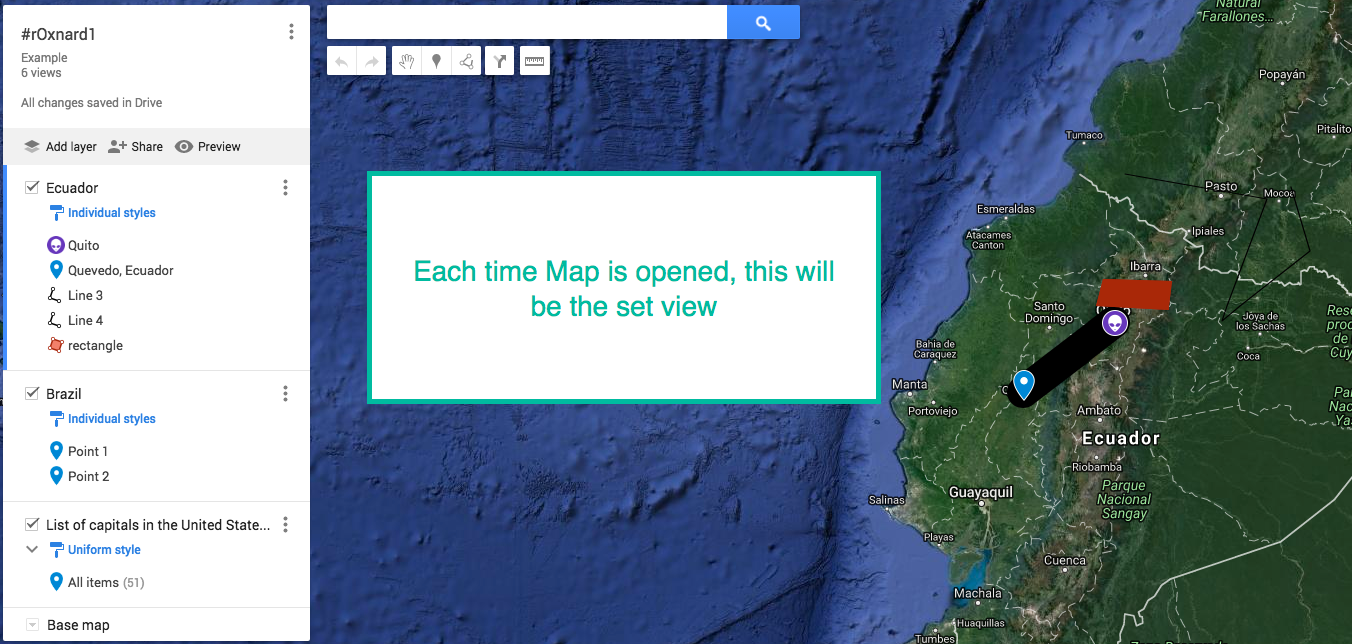
It’s so easy, I can’t believe I never noticed. When you first open My Maps, after placing several pins on it, the view is something like the first image. That is unless you have a select few pins in the same area. It’s a zoomed out view of the earth.

set view 0Before we get to HOW to change the view, set the view to how you would like it to look when the Map is first loaded. Once the desired view is on the screen, click on the 3 dots to the right of the Map Title (#rOxnard1 in this case), a pop out window will then appear with options. One of them is to set the default view.

Set view 1Simply select ‘Set default view’ and you’re done! Now everytime this map is opened, it will look like this: set view 2
New Google Sites Part 11: Preview, Share, Publish

Finally, you have your site ready to launch, but first, you want to make sure it looks great to your viewer. Not a problem. Google allows you to preview your site. Check out what viewers with large screens, tablets, and even phones will see. Unlike the old Google Sites where there could be more than one owner, the New Google Sites allows for only one owner, but transfering ownership is still a snap!


New Google Sites Part 10: Components

Wowwy, Wow, Wow! I love Google! I know that Part 10 is coming before Part 9 (scheduled to post later). However, when I was preparing the original Part 10 (Preview, Share, Publish – now Part 11), I noticed a new feature: Components. Right now there is just a divider bar, but I suspect that Google will add more Components later. I was so excited I HAD to make Components Part 10!