This week in Social Studies I have students using a Hyperdoc to research information on the Great Plains Indians (the information is then recorded on a Google My Map). This is the 3rd installment in a 4 part study series. In the first 2, I told the students to only use the information provided. I intentionally incorporated videos as a part of their resources knowing that this learning style suits some of my students better. However, this time, I left off any video resources and added the task of finding at least one of their own resources. They are to record information and the search query used.
Then this happened…

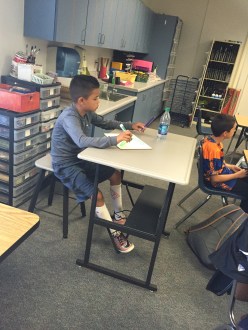
I know what you’re thinking, “Uh, huh. A student found a video and is taking notes. Um, wasn’t that the assignment?” And yes, yes it was. BUT…this is no ordinary student. This is the student that has declared (several times), “I hate reading! Don’t make me read. I’m not reading anything!” This is the student that will play around in order to NOT do work – I suspect much of it is too difficult for Student X. This is the same student that can’t sit still for more than 30 seconds. YET, after Student X stopped freaking out that I didn’t include a video and realized they could look one up, Student X then sat for 40 MINUTES watching the video and taking notes…away from the group…working the entire time.
THIS is what happens when we give students the Freedom to learn in a style that best suits them. Student X knew what style worked best for him/her. Student X researched and learned the necessary material in order to support the group project.
This was a HUGE win!
 Through this process, I was able to monitor relations, collaborative skills, leadership skills, attitudes, creativity, computer skills, and so much more. Now we have these great posters hanging in our room. It truly is their classroom!

 sday, they were ready for a challenge. We took them outside to see if we could land them in a target. We had a few obstacles in our way: the biggest one being the wind. This proved to be perfect for their collaboration and problem-solving skills. Using the

 Without a doubt! I have 16 days left in the school year and I need to finish 1 state test and START and complete 2 district ‘Benchmarks’. THEN if one of the district benchmarks is below a certain level I have to administer an additional assessment. Can we say, “Overkill”? If I’m feeling this way, I can’t image how over these assessments my students are.
