Manhattan Beach RockStar

Day 1:

MBRSWhat can we say? It was super awesome! The day began with many walking to Manhattan Beach Middle School. Upon arrival we were greeted with enthusiasm, eagerness, and an energy that was akin to that of a six year old. The room was abuzz with excitement for what the day had in store.

After all introductions – including that of CUE’s CEO, Mike Lawrence, the Shred Sessions began. If I hadn’t been a part of the faculty, I would have had a hard time deciding which to choose. Although, creating a website using Google Sites would have been a top choice.

I was so inspired by those creating their Sites. A few were not impressed with the templates they had chosen and wanted to customize their Site. Many went online to find patterns and palettes using ColourLovers, while others searched for Digital Scrapbook Paper. The result? Unique and beautiful sites. The participants were excited and lost in creation – we almost worked through lunch!

As with all RockStars, we enjoyed a 2 hour – catered – lunch in the sun. Oh, and ice cream! Everyone LOVES ice cream – or fruit pops in some cases.

After the day had ended, the connections continued at dinner. We went to a local restaurant, discussed, learned, and had a great time.

Yes, all in all, Day 1 was a HUGE success!

Day 2:

The day began with energized educators ready to learn more! Personally, I was inspired by the teachers I got to hang out with. We were creating movies to use in classrooms using Lego Movie Maker (iOS) and iMovie (iOS). The creativity was flowing! One participant needed to tweak her Gene movie she made in Lego Movie Maker. So I challenged her to import it into iMovie and do more editing. It was totally mean of me. She was a novice with both programs. She not only figured out how to create the movie she wanted, but taught me a thing or two about iMovie! I love when that happens. Other participants created a welcome video for 6th graders using the Trailer feature in iMovie.

That night we gathered at Dockweiler State Beach for music, S’mores, and a bon(d)fire – Thank you Jeanne Reed! It was so relaxing sitting by the ocean and getting to know those that gathered with us. It was also refreshing having many bring their families with them.

Day 3

Again I was inspired by all participants. There was one that was admittedly behind the times when it came to technology. We discussed Web Tools and how they can be used in the classroom – Animoto and Voki. Being a novice to all of this, I thought Animoto would be her choice. She surprised me by creating a Voki. It’s not that Voki’s (animated avatars) are that hard to make, Animoto is a simple and very easy video (trailer style) creation tool. Animoto is often referred to as the ‘Gateway tool’ for video creation. I asked why she chose Voki and her explanation warmed my heart and inspired me. She said that Voki would be the one her kids would really like. She was learning it for them – Special Day Class students. How awesome is she? Putting aside her inexperience, and putting the needs of her students first and just going for it!

Another participant, Paula Torres, and I sat back and fired off ideas on how each could be used in the classroom. She was a high school math teacher. Her ideas were amazing (Voki) – taking a snapshot of ones her students create and make them into trading cards to creating famous mathematician Vokis to an creating examples AND non-examples! If you’re not following her on twitter, you need to! Here is her Voki:

Paula Torres' Voki

CUE RockStar Saugatuck

Created by Casey Losik
Created by Kase Losik

MACUL (Michigan Association of Computer Users in Learning) and CUE (California’s MACUL counterpart) came together to bring an amazing Professional Development opportunity for educators from 5 states. Andy Losik, from MI, and Jon Corippo, CUE RockStar Baby Daddy, have been talking about bringing the wildly popular RockStar Camp to Michigan for a while now. Finally the stars and planets aligned, and over 100 educators gathered in Saugatuck, MI for three outstanding days of learning, connecting, and fun.

For those not familiar with RockStar Camps, it’s three days of hands-on learning and creating, with a TWO hour lunch. Yes, you read that right, teachers actually get a TWO hour lunch – with ice cream! Each day participants learn and create in small learning groups (10 people or less), and really dig into concepts and tools for 2 hours. There are only 2 sessions in a day.

This Professional Development is like no other. It is/has:

  • Affordable – ridiculously so
  • Has catered TWO hour lunches
  • Small group instruction
  • All hands-on, and creation based
  • Outstanding faculty and participants
  • Unique ‘After Party’ activities
  • Connections, connections, connections

The three days in Saugatuck were jam packed with joking, laughs, learning, and connecting. Drew Minock showed off the awesomeness of Augment Reality, Tammy Lind showed off the capabilities of Google Maps, and Jon Corippo, well he just brought it! To see all the sessions and notes, check out CUE RockStar Saugatuck.

 The Connections Continue:

Dunes at Saugatuck After days 1 and 2, Andy planned some unique experiences for everyone. Day 1 included Dune Rides. The Dunes in Saugatuck aren’t like the dunes you are used to. They are unique in that they were brought about by cutting down trees long ago. As a result, the top soil eroded leaving the sand, found underneath the top soil, exposed. When the winds kick in, sand gathers around trees and buildings. There is an actual town that was buried as a result. The views are breathtaking. At the highest point, you stand 300 feet above sea level and are surrounded by trees (actually it’s just the tops of 3 trees), grass, and sand.

Fenn Valley The west coast of Michigan has wineries – who knew? We were able to get a tour of Fenn Valley Winery in Fennville, MI. The evening was perfect. Not too hot, not too cool, and low humidity with a slight breeze. We were taken out to the vineyard where we sampled white wines and learned about the types of grapes that grew well in the area. For tasting reds, we went into the barrel room. We were truly treated like Rock Stars!

In The End

It is safe to say that everyone who was in attendance, learned a few things, made lasting connections, and had a great time. I truly hope that these RockStar Camps continue to grow in popularity throughout the country. They are just the jumpstart that I, and others, need to rethink, redesign, and challenge us as educators. As a teacher – and a RockStar Faculty Member – I crave this type of PD. Without this type of PD, I would very easily slip into being a complacent teacher: one that is never challenged. It has been through discussions with other educators at these events, that has helped to transform my teaching and educational philosophy.

NOTE: The first picture is that of a screen cleaner made by Andy Losik’s daughter. She is raising money in order to buy a dirt bike. And yes, that is the one I bought.

Google Classroom – Part 4

Grading Assignments:

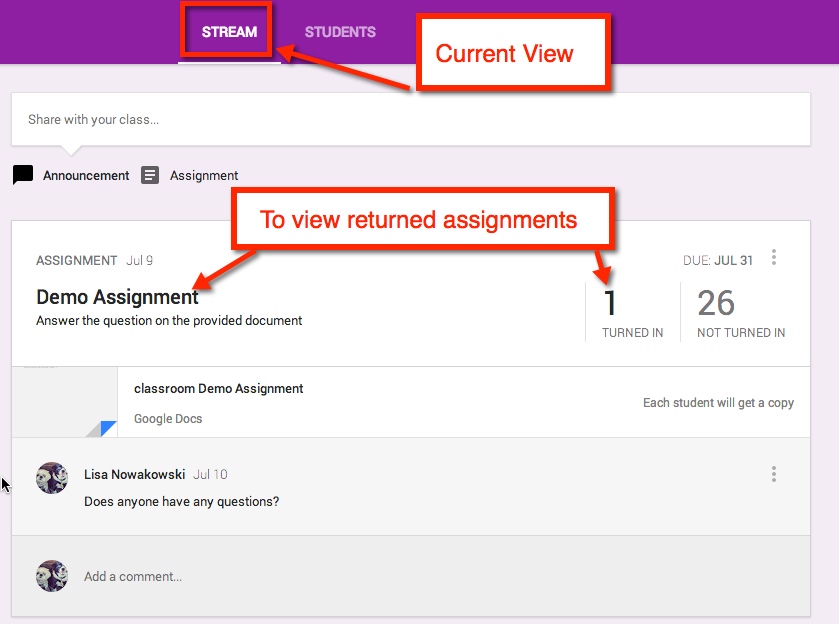
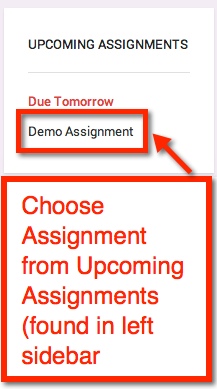
In your stream, you can easily view returned assignments. Either choose the title of the assignment or ‘Turned In’. The left sidebar will show all upcoming assignments as well.

Classroom RA1

Classroom RA10

Student Submission Page:

This allows you to view the status of all students’ assignments, private conversations with students, set point value, grade, and return assignments.

Classroom RA2


Private Conversation:

If the student has a comment or question, they can easily talk with you about it privately.

Classroom RA3

Classroom RA4

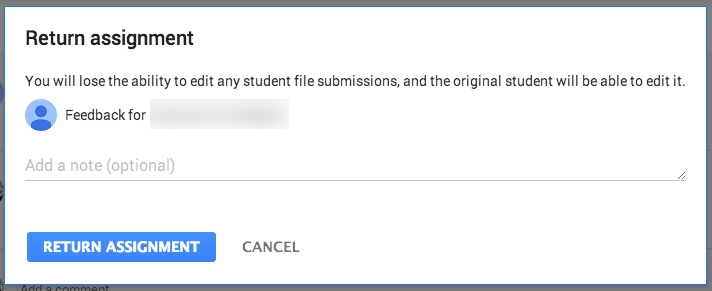
Scoring and Returning:

Classroom RA5


Classroom RA6

Classroom RA9


In Google Drive:

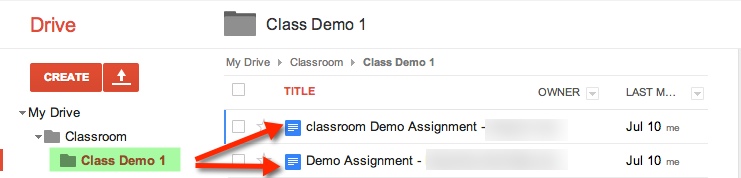
When you create a class, or students are enrolled in a class, Google automatically creates a Classroom Folder in your, and the student’s, Drive.

Student’s Drive:

In the Classroom Folder, the student is enrolled in 1 class, Class Demo 1. Whenever an assignment is created, it is automatically placed in this folder.

Classroom RA7

Teacher’s Drive:

In addition to the Classroom Folder and the Class Folder, teachers will also find that each assignment has a folder (within the assigned class) and a Templates Folder. The Templates Folder is a collection of all Google Created assignments for that class.

Classroom RA8


Google Classroom – Part 3

Now that you’ve set up your Classroom and created an assignment, what do the students do and see?

The Student Perspective:

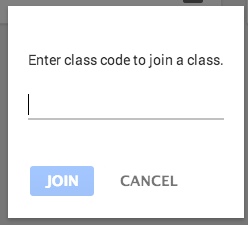
Students can either enroll themselves by inputting a Class Code or teachers automatically enroll them. Currently students are NOT notified when they are enrolled in a class, if the teacher automatically enrolls them.

Classroom S15

When a student first opens up their Classroom, it will look very much like the teacher Stream view, with a few differencesClassroom S2


The students will also be able to see who is in their class.

Classroom S3

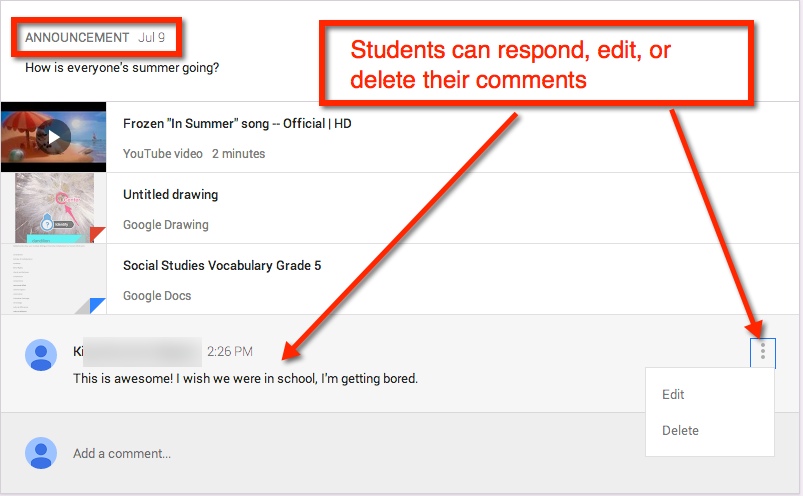
See and Comment on Announcements:

Classroom S4

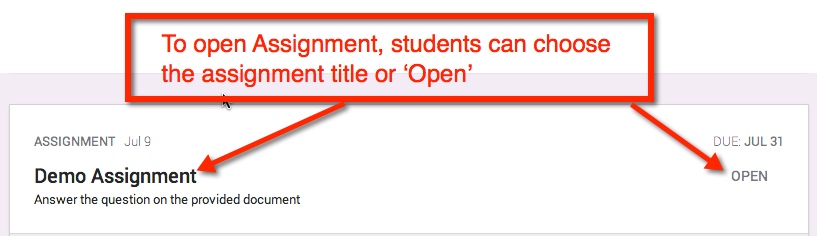
Assignments:

Classroom S5


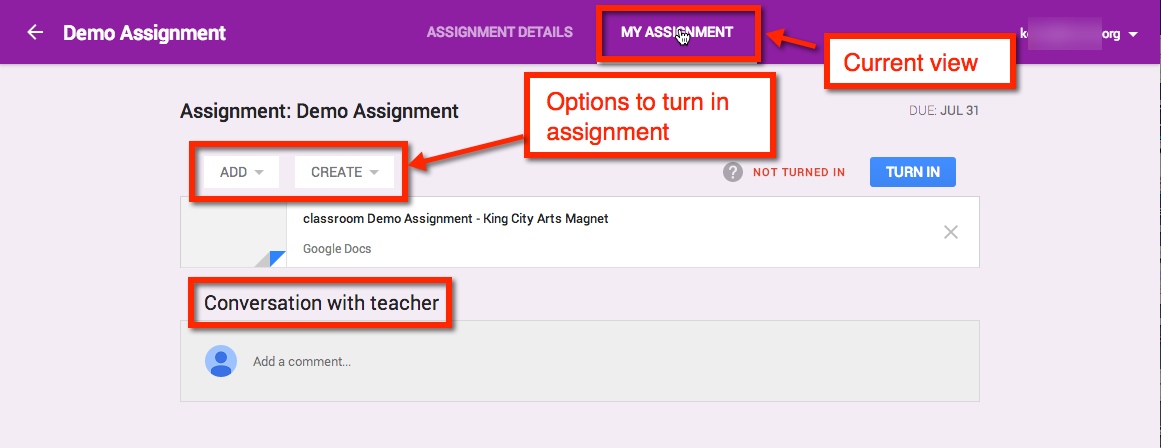
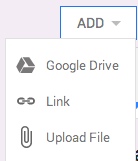
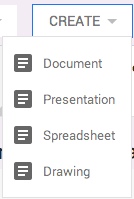
If the student needs to create the assignment – meaning the teacher did not create a document and share with student(s) – They have several options in which to upload or create.

Classroom S6      Classroom S7                                                             Classroom S8


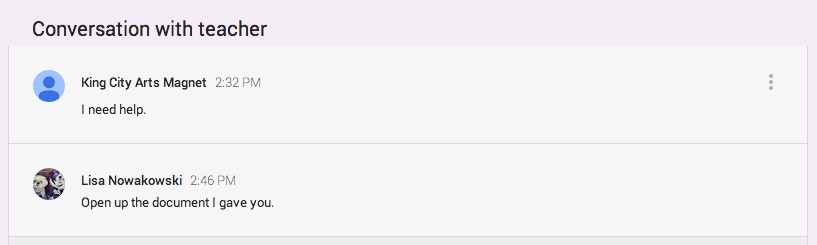
If the student has a question or comment, it can be made in this stream privately.

Classroom 9

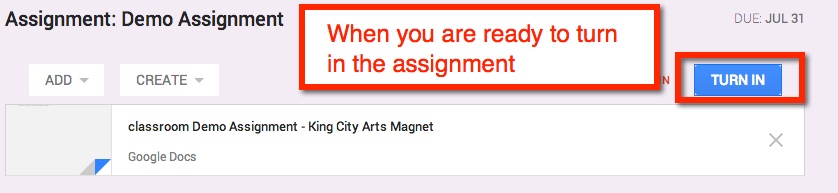
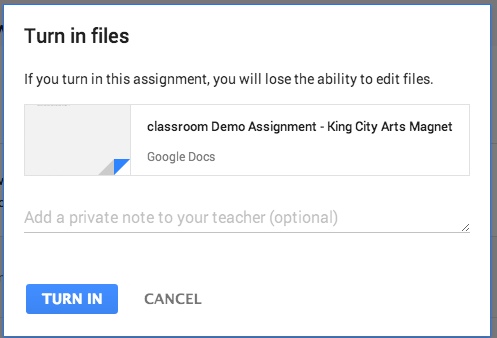
IF the teacher shared a document with the student(s), then the document title can be chosen and it will open in a new window. The student(s) can then edit in that document. Once the assignment is completed, the student can turn in the document from the Assignment Page.

Classroom S10

Classroom S11

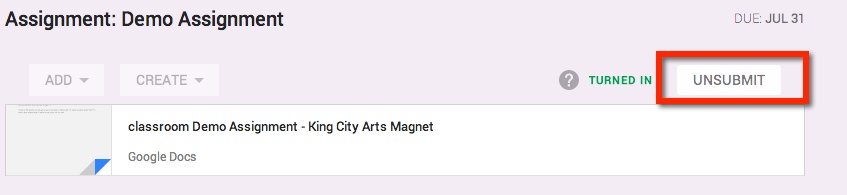
If the student realized that they made a mistake, they can ‘Unsubmit’ the assignment.

Classroom S12

Viewing Score:

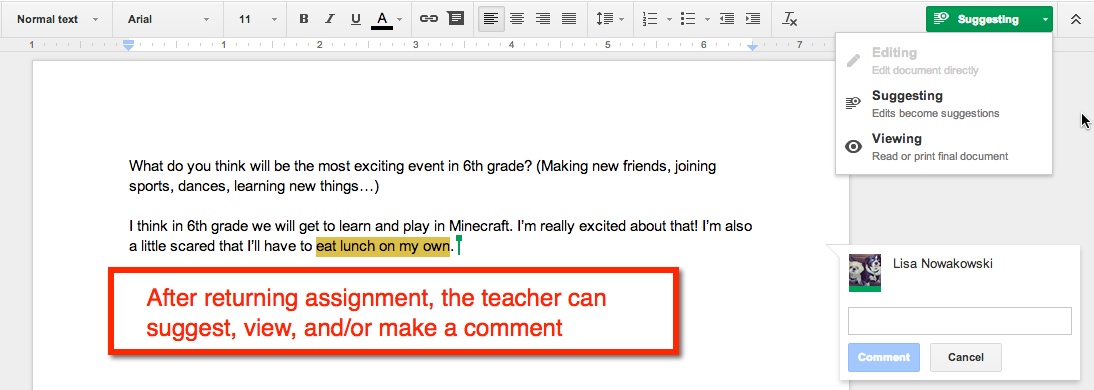
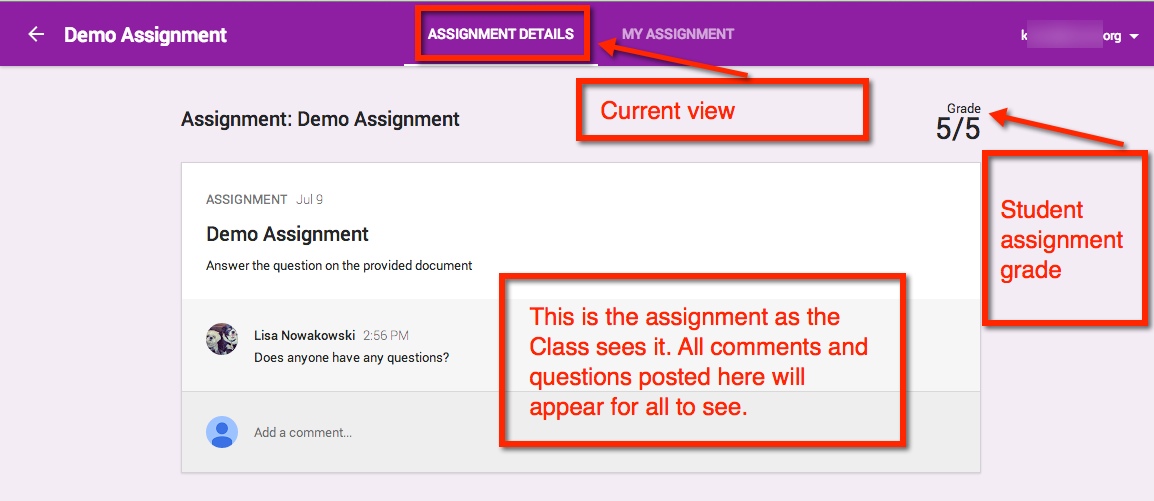
Once the teacher has graded the assignment, it will be ‘Returned’ to the student. The student will have full editing rights (the teacher will be given commenting rights). They can view the score and any comments in My Assignment page. When the student views the score from their Assignment Details page, they will only see comments made to the entire class. Private comments between the teacher and student are on My Assignments page. Classroom S13


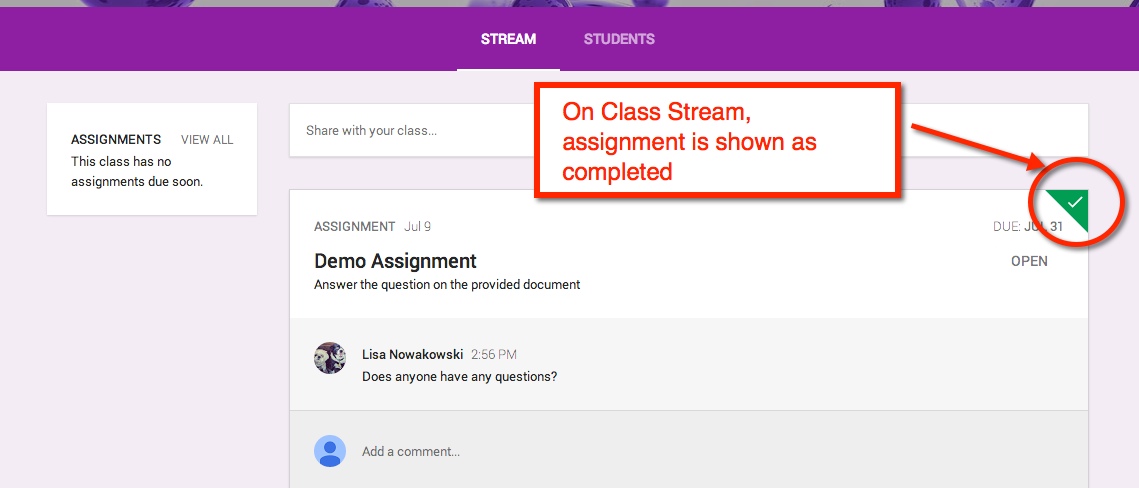
When the student has submitted an assignment, it will be noted in their Stream.

Classroom 14

Other Information:

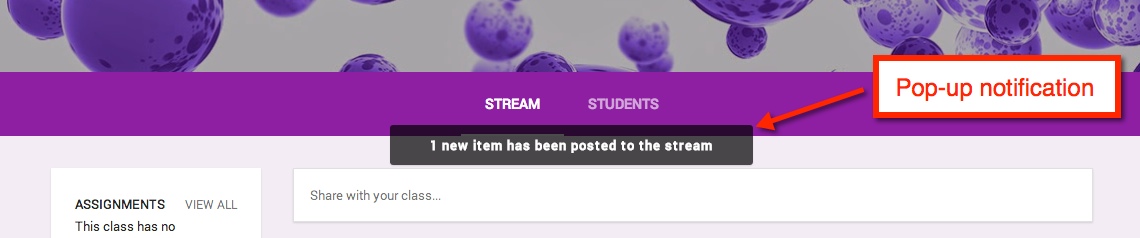
If an announcement or assignment is created while the student is in the Class, a notification appears.

Classroom S14


Notification:

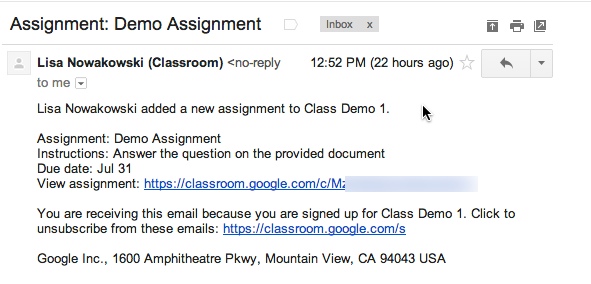
When an Announcement or Assignment is created, the student will receive an email notification.

Classroom S1


Google Classroom – Part 2

Okay, so now that you have your Classes set, you want to start creating Announcements and Assignments.

Create Announcement

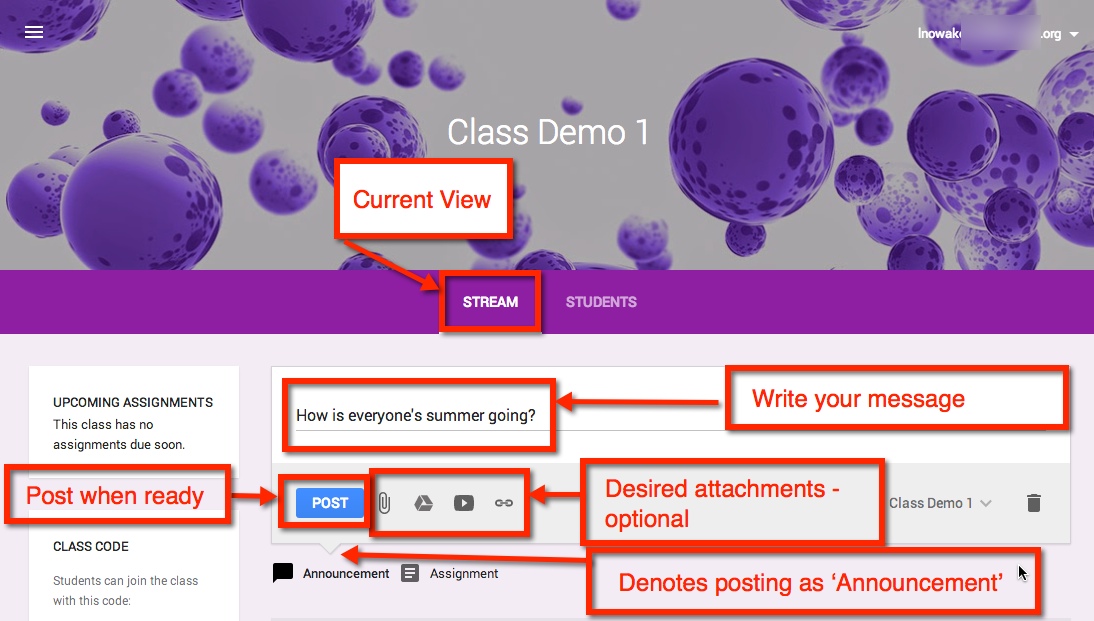
Once you are in the Class in which you would like to create an Announcement, make sure that you are viewing the Class Stream. The default is set to create Announcements, but you’ll want to make sure by looking for the downward notch is above ‘Assignment’. You can post your announcement solo or attach a file, something from Google Drive, a YouTube video, and/or a link. Select the blue ‘Post’ button, and you’re done.

Note: Students will have ‘View Only’ rights to any attachment found in your Google Drive.

Classroom A1

Edit/Delete Announcement

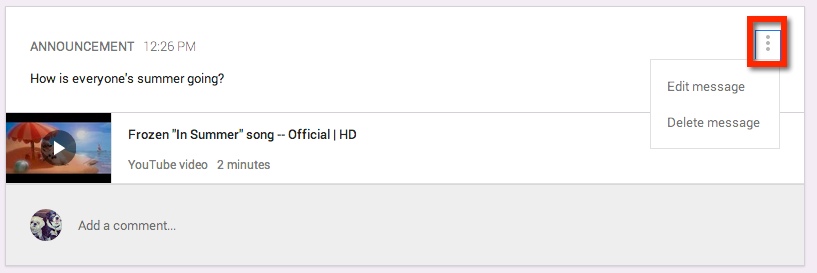
Once you have created your Announcement, you can either edit or delete it by choosing the three (3) dots at the upper right corner of the Announcement.

Classroom A2

Creating an Assignment

The process for creating an Assignment is very similar to that of creating an Announcement. You have the additional options to set a Due Date and Time.

Note: You determine how items from your Google Drive are shared – view only, all students can edit the document, or make a copy for each student.

Classroom A3

Same Assignment and/or Announcement: Several Classes

One nice feature is that you can share the same Announcement or Assignment in several Classes without having to post in each class. By choosing the drop down arrow at the lower right corner, you can select which Classes you would like it to appear.

Classroom A4

Turned In Assignments

After you have posted your Assignment, you can easily see how many students have turned in the Assignment.

Classroom A5

Edit/Delete Assignment

As with Announcements, you can Edit or Delete the Assignment by selecting the three (3) dots in the upper right corner of the Assignment.

Classroom 6

Google Classroom – Part 1

What is Google Classroom?

In June, Google started sending out invitations to Beta testers for Google Classroom. Google Classroom is a management tool for your GAfE account. It allows users to create classrooms in which you can assign work – YouTube videos, links, anything from Google Drive, or other files you may have stored elsewhere. In addition, you can also create announcements where students can interact with you and each other.

Currently Google is gathering feedback from all users. I am sure in the true Google ‘Spirit’, they will continue to modify and iterate (they are the masters of iteration) their latest tool.

Getting Set Up

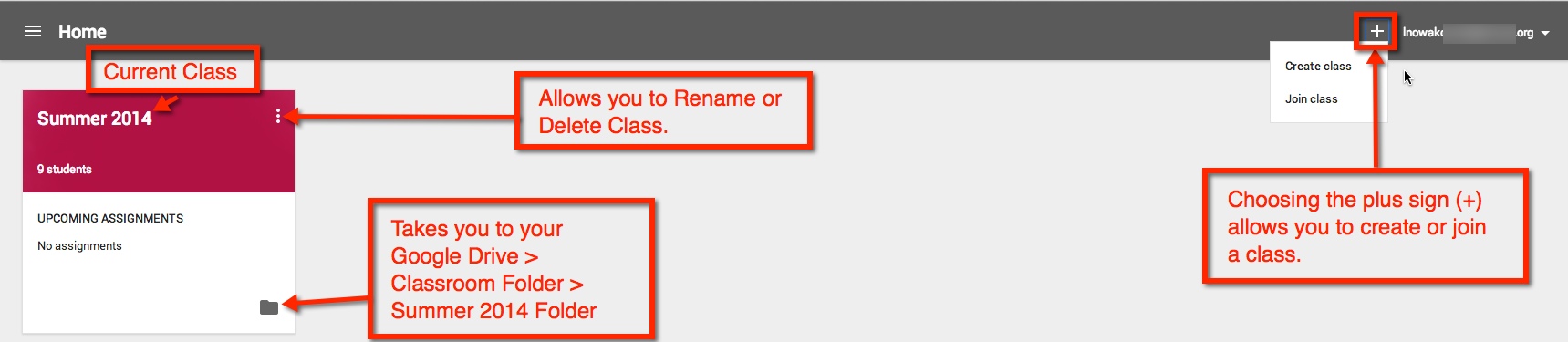
So here is a BASIC overview from the teacher’s viewpoint. When you first open Google Classroom, a folder (Classroom) is automatically created for you in your Google Drive. Once open, you will be taken to the ‘Home’ screen. Here I have a current class set up and have highlighted some of the features available. If it is your first time, you can easily set up a class by choosing the plus sign (+) next to your user information at the top right corner.

classroom 1

Creating a Class

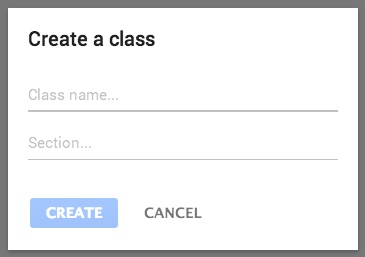
Looking at how to ‘Create a Class’: A pop-out will appear, and you will be guided on how to create a class. You can then create classes for each class or period needed.

classroom 2

classroom 3

Inside a Class

Once your class is created you will be taken to the class ‘Stream’. This is where you can add students, create announcements and assignments. You will also be given the option to ‘Take a Tour’.


classroom 4classroom 5


Change Picture

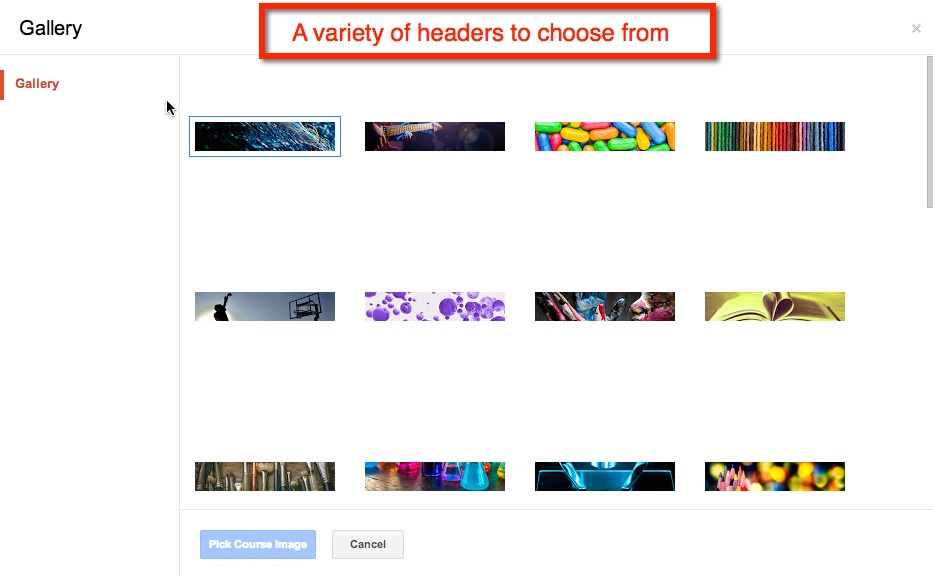
So you’re not fond of the purple bubbles? Not a problem. When your cursor hovers over the header, the option to ‘Change Picture’ appears in the lower right corner of the header. Once you choose that other options will appear.

Classroom 0

Classroom 00

Manually Assigning Students

As I am in an elementary self-contained classroom, I find it easier to sign my students up myself. However, if you are dealing with multiple classes, it might be easier to have them sign up via the ‘Class Code’.

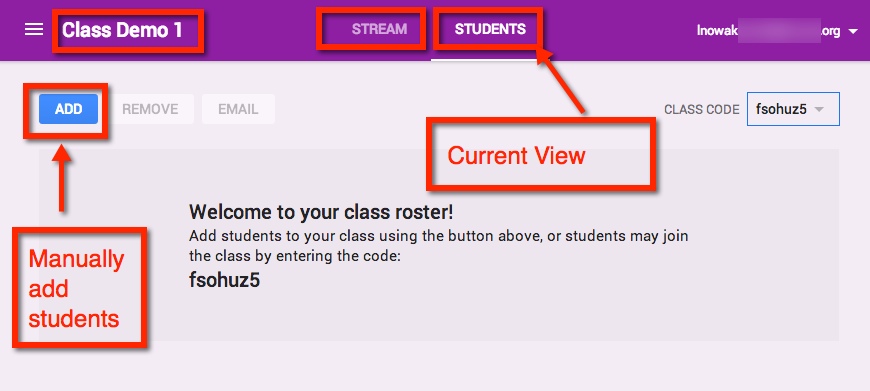
Adding your own students only takes a few simple clicks. Start by switching your current view from ‘Stream’ to ‘Students’.

classroom 6

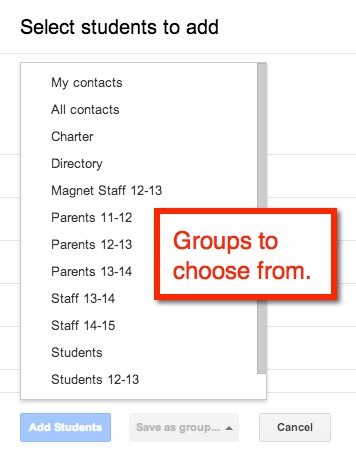
To manually add students choose the blue ‘ADD’ button. I can then either checkmark students from my contact list or select an entire ‘group’.

Classroom 7

Classroom 8

Join With a Class Code

When students go to their ‘Classroom’ for the fist time, they should choose the plus sign (+) at the top right corner next to their user information. This gives them the option to ‘Join a Class’ using the class code.

Classroom 9


CUE RockStar – Tahoe Edition

One of the best features of CUE RockStar events are the small sessions. Because the sessions are generally 10:1 – or smaller in some cases – AND 2 hours, attendees truly get individualized attention. Everyone gets to experience the tools and ideas first hand while surrounded by knowledgable educators. The energy in the sessions is amazing. We are all learning from one another!

For me, one of the most memorable sessions was one in which a high school teacher was inspired to recreate her assessments. She had her students reading The Glass Menagerie. After discussing different tools, she decided to play around with Animoto. One thing led to another and soon her excitement let to a whole new way of assessing her students on the book. She created a video for her students to watch. From here, her students will respond to the prompt creating a video using Animoto! It was such an awesome idea, and she was so enthusiastic and inspiring I just had to share this story.

This is why I LOVE CUE RockStar!

Unfortunately, I do not have the teacher’s example, but I do have an example of something that my students created on Animoto.