Google Classroom Evolves

Google has listened to teachers’ feedback yet again. Since Classroom’s Beta rollout last summer, Google has continued to ask teachers what WE want, what would make their product better. We spoke, and they responded…again.

Today Google announced a few improvements based on OUR feedback.

1. Groups Integration

If you use Google Groups, you can now pre-populate classes with this newest iteration.

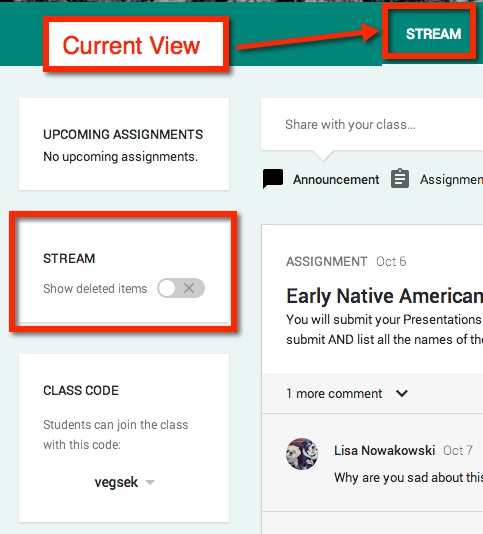
2. View Deleted Items

It’s a simple on/off toggle switch.
Classroom 1


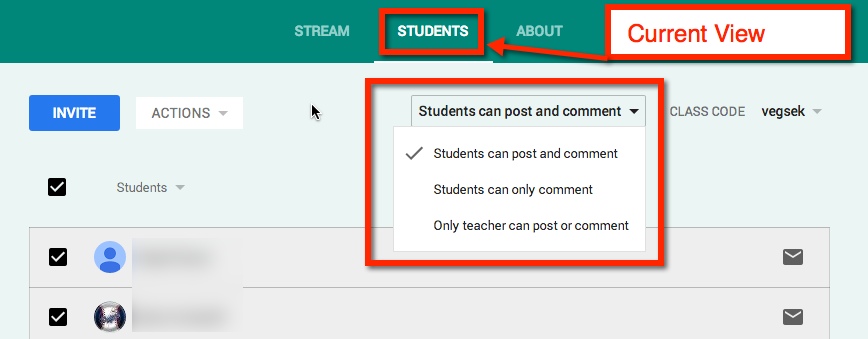
3. Control Class Commenting Feature

When in ‘Students’, you choose whether students can post, comment, or if the teacher is the only one with those rights. This feature will hold true for ALL students in the class. If you would like to control the ability for individuals to post/comment see below (number 4).
Classroom 2

 4. Mute Individual Students

Every now and then a student tests the waters, and drowns. You now have the option to Mute those individuals. Muted students will not be able to post or comment in the Classroom.

Classroom 10

5. Sort Students

Some teachers prefer to sort by last name, while others prefer first name. Google has given teachers the freedom to sort as we please.

Classroom 3

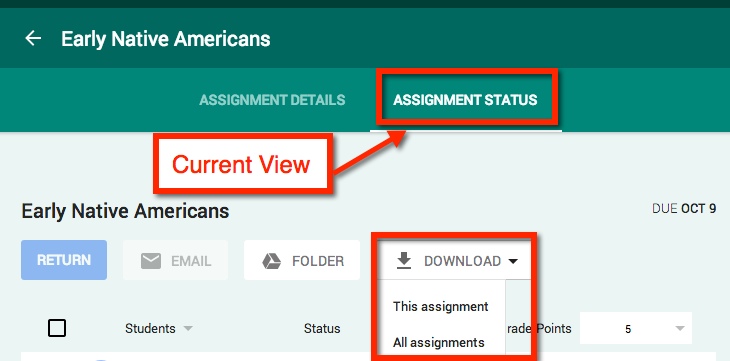
6. Downloading Grades

The ability to download ALL assignment grades at once (to CSV file) makes it easier to upload those grades into whatever grading program you or your district are using.
Classroom 4

7. Students Can Mark Assignments as ‘Done’

Recently I had my students working on a Presentation in groups. I posted the assignment, but only the owner of the Presentation needed (or had the rights) to ‘Turn In’ the assignment. This left 40 ‘Not Done’ assignments – which looked messy and inaccurate. Now those students can go into their Classroom, and mark the assignments as ‘Done’.

This feature is handy when assigning reading, viewing a video, or other tasks where nothing needs to be handed in.

Student View in their ‘Stream‘. It has marked the assignment as ‘Late’.

Classroom 5

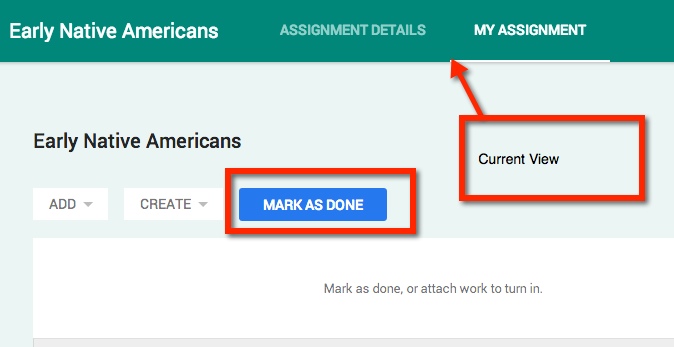
The student needs to ‘Open’ the assignment and ‘Mark As Done’.
Classroom 6

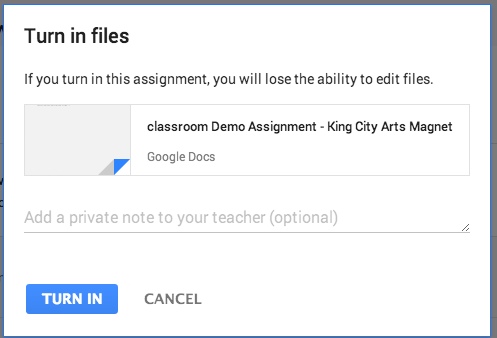
A pop-out window will appear asking if the student is sure this is the desired action. Notice the student can add a private message to the teacher.

Classroom 7


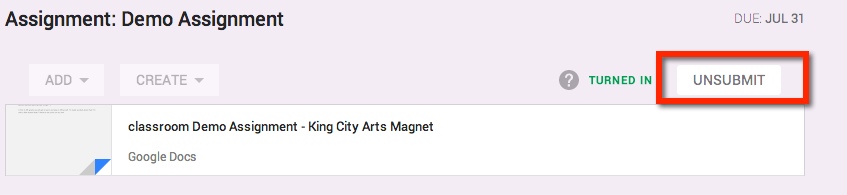
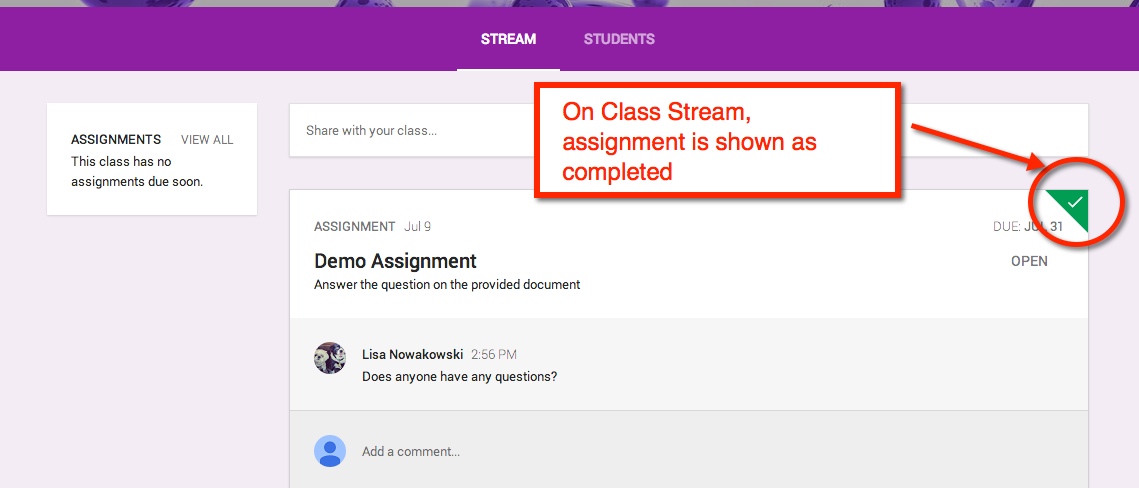
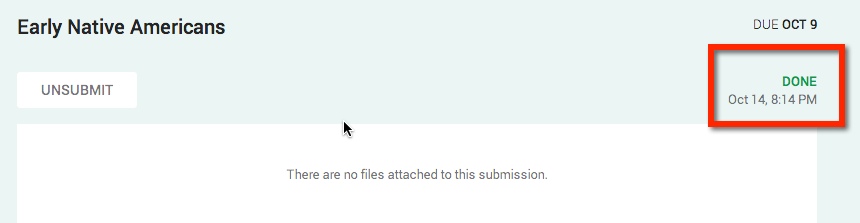
In their ‘My Assignments’ View the student has the option to ‘Unsubmit’. The completion of the assignment is noted in the right corner. It will also be reflected in their ‘Stream’ View.
Classroom 8


classroom 9

Customize Google Forms

Recently Google updated their Themes in Forms. I, for one, was happy to see this. I use Forms for homework and try to change the Themes as often as I can. This being said, if you’ve been using forms, you know how limited the Themes were. Now however, my choices are endless! The first time I customized a Form, I put a picture of my dogs on it. The next day, I showed my partner teacher (our students do the same Form for homework), and she put a picture of her baby on it. We’ve decided to start taking silly selfies and use them on our Forms.

So this is how to customize your Forms:

Choose the ‘Customize’ feature on any form:

Choose the area in which you’d like to customize:

Google Classroom – Part 4

Grading Assignments:

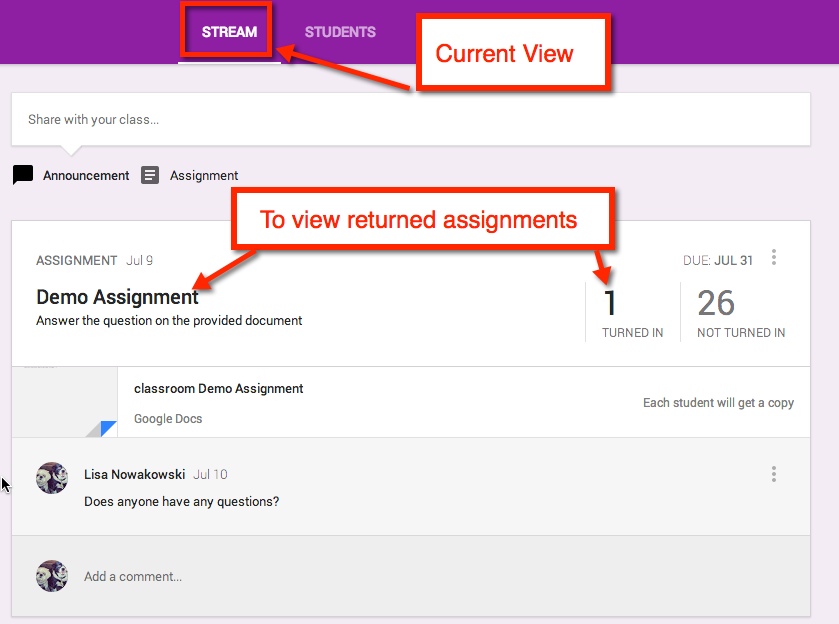
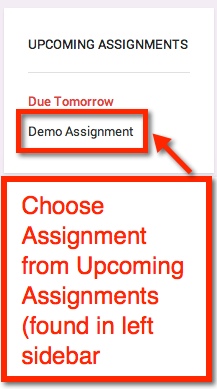
In your stream, you can easily view returned assignments. Either choose the title of the assignment or ‘Turned In’. The left sidebar will show all upcoming assignments as well.

Classroom RA1

Classroom RA10

Student Submission Page:

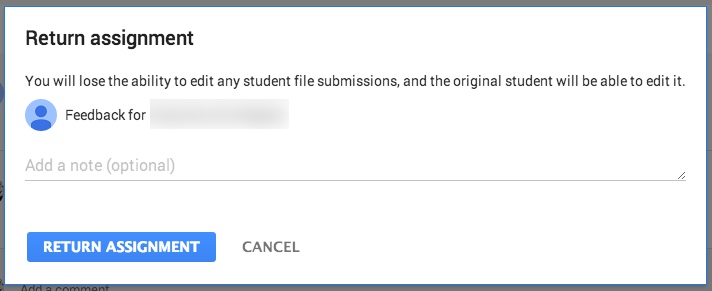
This allows you to view the status of all students’ assignments, private conversations with students, set point value, grade, and return assignments.

Classroom RA2


Private Conversation:

If the student has a comment or question, they can easily talk with you about it privately.

Classroom RA3

Classroom RA4

Scoring and Returning:

Classroom RA5


Classroom RA6

Classroom RA9


In Google Drive:

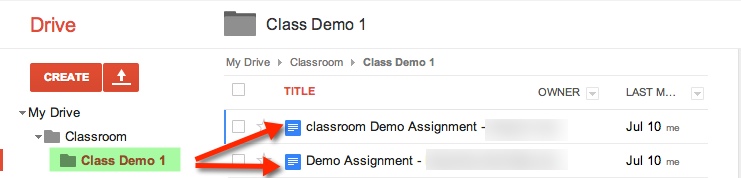
When you create a class, or students are enrolled in a class, Google automatically creates a Classroom Folder in your, and the student’s, Drive.

Student’s Drive:

In the Classroom Folder, the student is enrolled in 1 class, Class Demo 1. Whenever an assignment is created, it is automatically placed in this folder.

Classroom RA7

Teacher’s Drive:

In addition to the Classroom Folder and the Class Folder, teachers will also find that each assignment has a folder (within the assigned class) and a Templates Folder. The Templates Folder is a collection of all Google Created assignments for that class.

Classroom RA8


Google Classroom – Part 3

Now that you’ve set up your Classroom and created an assignment, what do the students do and see?

The Student Perspective:

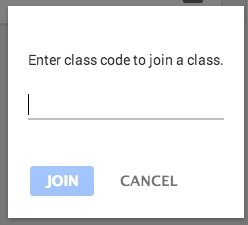
Students can either enroll themselves by inputting a Class Code or teachers automatically enroll them. Currently students are NOT notified when they are enrolled in a class, if the teacher automatically enrolls them.

Classroom S15

When a student first opens up their Classroom, it will look very much like the teacher Stream view, with a few differencesClassroom S2


The students will also be able to see who is in their class.

Classroom S3

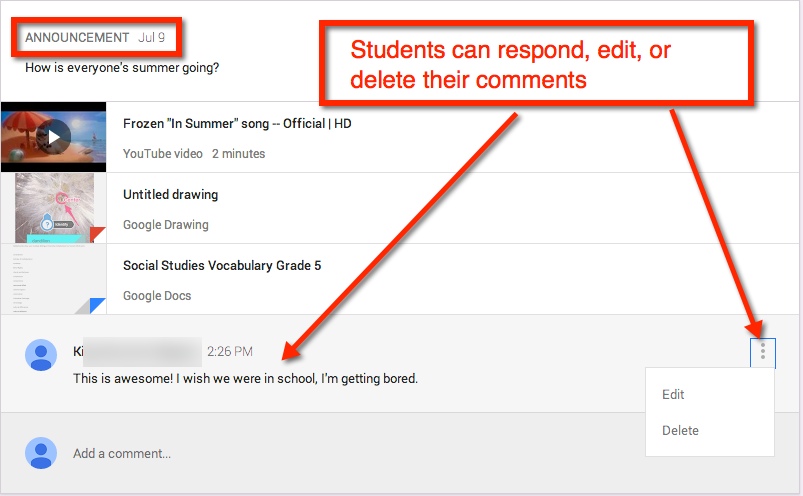
See and Comment on Announcements:

Classroom S4

Assignments:

Classroom S5


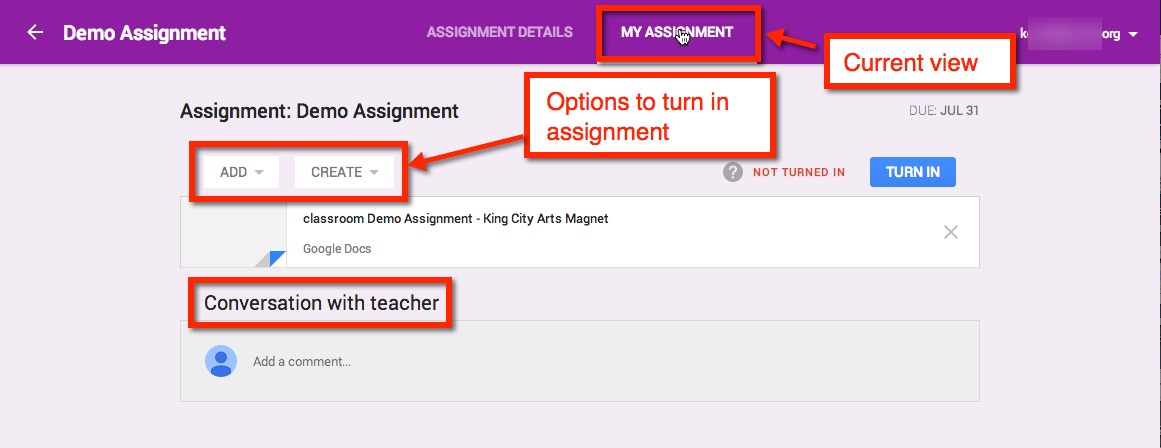
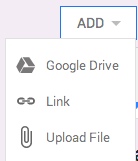
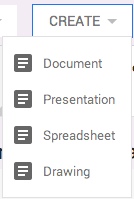
If the student needs to create the assignment – meaning the teacher did not create a document and share with student(s) – They have several options in which to upload or create.

Classroom S6      Classroom S7                                                             Classroom S8


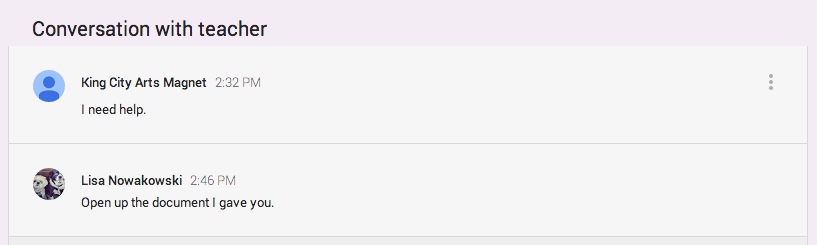
If the student has a question or comment, it can be made in this stream privately.

Classroom 9

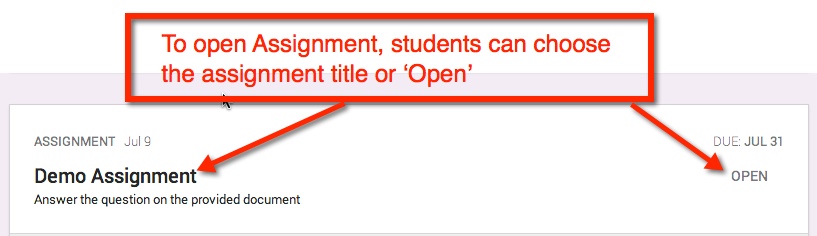
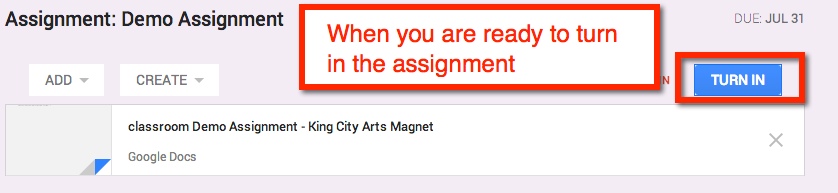
IF the teacher shared a document with the student(s), then the document title can be chosen and it will open in a new window. The student(s) can then edit in that document. Once the assignment is completed, the student can turn in the document from the Assignment Page.

Classroom S10

Classroom S11

If the student realized that they made a mistake, they can ‘Unsubmit’ the assignment.

Classroom S12

Viewing Score:

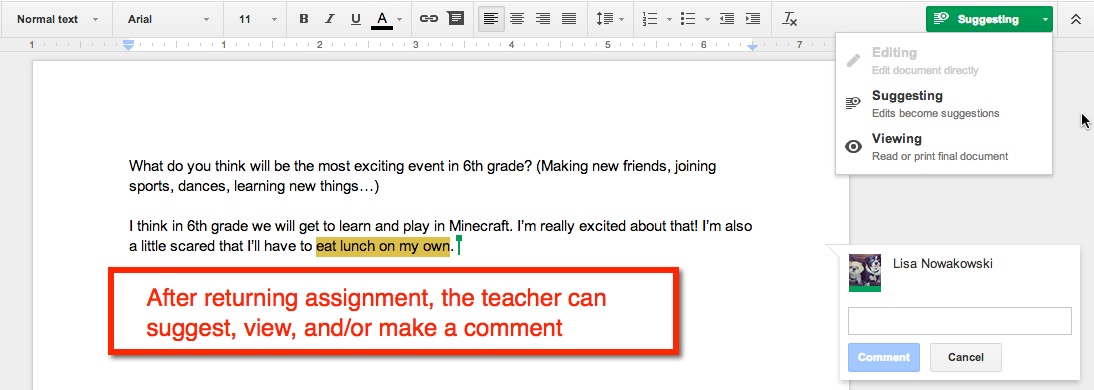
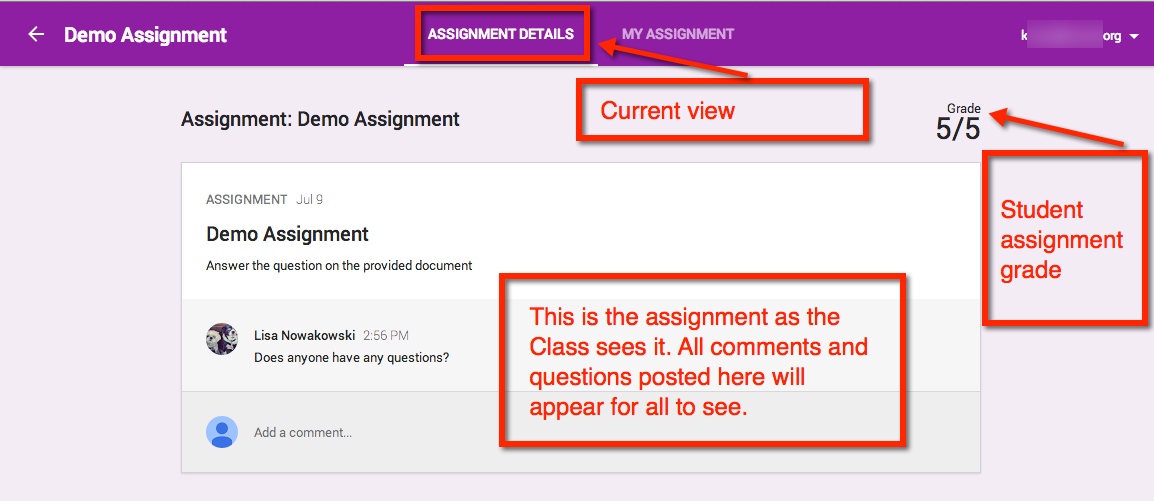
Once the teacher has graded the assignment, it will be ‘Returned’ to the student. The student will have full editing rights (the teacher will be given commenting rights). They can view the score and any comments in My Assignment page. When the student views the score from their Assignment Details page, they will only see comments made to the entire class. Private comments between the teacher and student are on My Assignments page. Classroom S13


When the student has submitted an assignment, it will be noted in their Stream.

Classroom 14

Other Information:

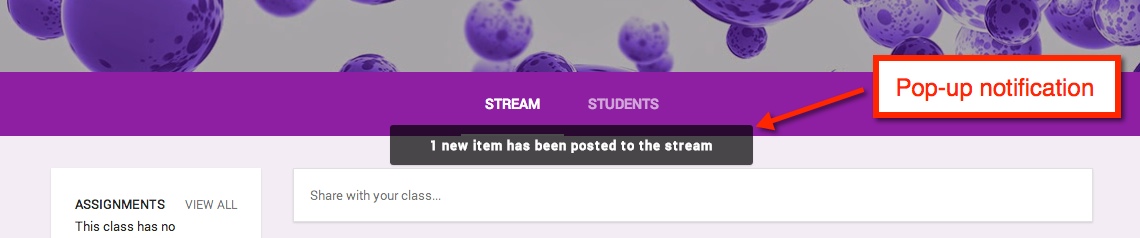
If an announcement or assignment is created while the student is in the Class, a notification appears.

Classroom S14


Notification:

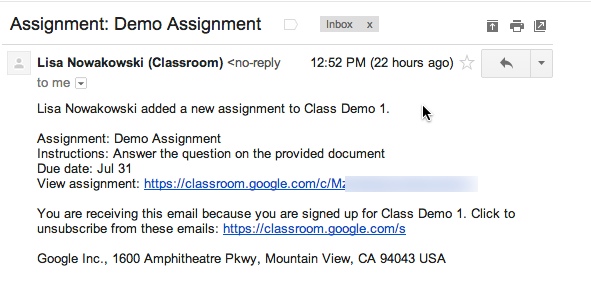
When an Announcement or Assignment is created, the student will receive an email notification.

Classroom S1


Google Classroom – Part 2

Okay, so now that you have your Classes set, you want to start creating Announcements and Assignments.

Create Announcement

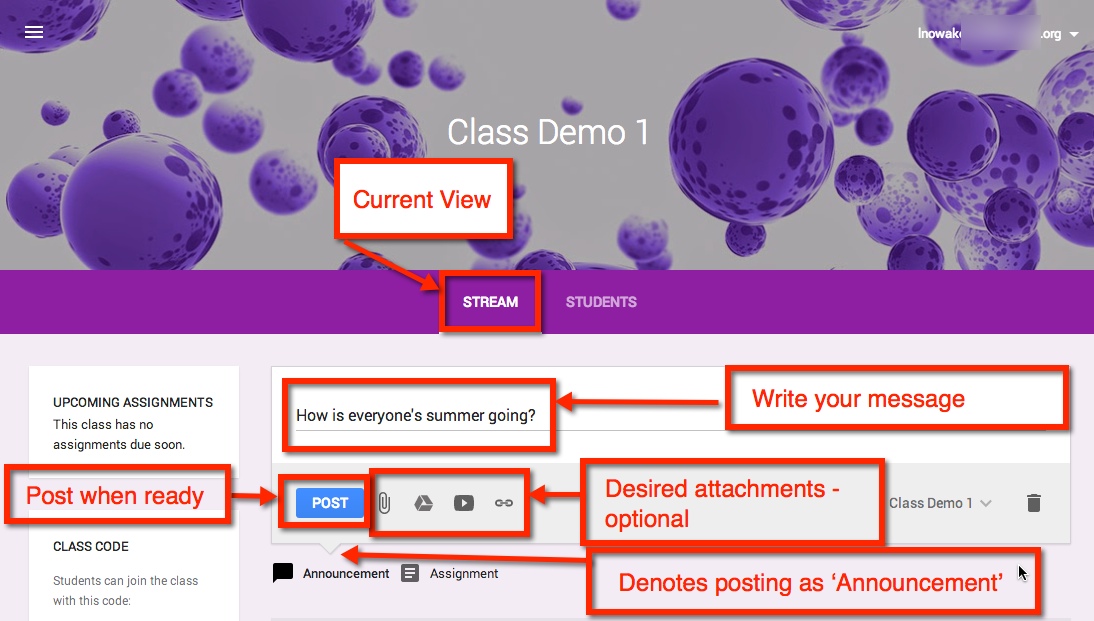
Once you are in the Class in which you would like to create an Announcement, make sure that you are viewing the Class Stream. The default is set to create Announcements, but you’ll want to make sure by looking for the downward notch is above ‘Assignment’. You can post your announcement solo or attach a file, something from Google Drive, a YouTube video, and/or a link. Select the blue ‘Post’ button, and you’re done.

Note: Students will have ‘View Only’ rights to any attachment found in your Google Drive.

Classroom A1

Edit/Delete Announcement

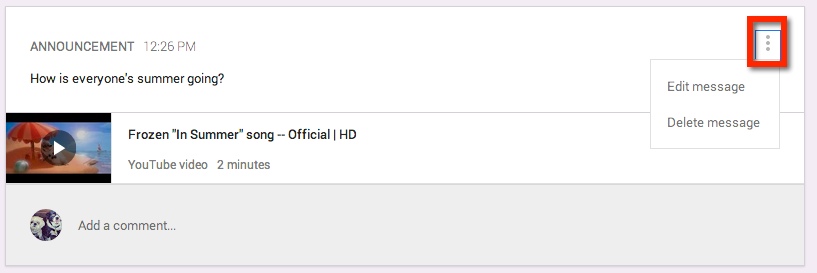
Once you have created your Announcement, you can either edit or delete it by choosing the three (3) dots at the upper right corner of the Announcement.

Classroom A2

Creating an Assignment

The process for creating an Assignment is very similar to that of creating an Announcement. You have the additional options to set a Due Date and Time.

Note: You determine how items from your Google Drive are shared – view only, all students can edit the document, or make a copy for each student.

Classroom A3

Same Assignment and/or Announcement: Several Classes

One nice feature is that you can share the same Announcement or Assignment in several Classes without having to post in each class. By choosing the drop down arrow at the lower right corner, you can select which Classes you would like it to appear.

Classroom A4

Turned In Assignments

After you have posted your Assignment, you can easily see how many students have turned in the Assignment.

Classroom A5

Edit/Delete Assignment

As with Announcements, you can Edit or Delete the Assignment by selecting the three (3) dots in the upper right corner of the Assignment.

Classroom 6