Late last week, I was creating a Hyperdoc for my students. I needed an image so I did my usual and went to Tools>Research. And that’s when I noticed it… Research was MISSING! I’ll admit it, I did panic a bit.

Then I noticed ‘Explore’ was new. So I clicked on it. Note: I say when curious, or in doubt, click on it. It’s not like I’m going to break the internet. And when it get too scary, exit out. That’s when the sidebar I was looking for appeared. Albeit a little different looking than what I’m used to, but it was there!

Some of the features are a bit different. I do like that I, and my students, no longer have to filter our image search to ensure that they are free to use. Now, Google finds the free to use ones. And just like before, when I drag the image into my document it automatically cites it for me. However, instead of the footnote that it use to be, it is now cited directly below the image.
The feature to cite a website is missing, hopefully, it will return. I do like the ‘Drive’ feature. This searches my drive for all items matching my search query.
Other ways to access ‘Explore’
Keyboard shortcut: (Mac) – command+option+shift+I
(PC) – control+alt+shift+I
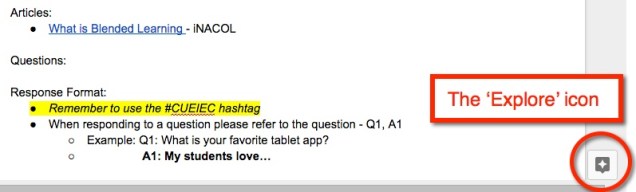
Icon on bottom right of screen:
Have fun Exploring!




 Nowa Techie