My district is trying to put together some great resources for teachers. At a recent meeting the 5th grade team looked at all the CCSS that have technology built in. From this we created a document that has possible suggestions and resources. Feel free to share and/or add your suggestions.
Classroom
Comment in Google
Another feature that allows for easy collaboration in Google Documents is the ‘Comment Feature’. This feature allows me to highlight a particular text and comment on it, for clarification or questions. It’s really very easy.
First, highlight the desired text (can be a word, phrase, sentence).

Now you can add your comment. There are 4 ways in which to access the ‘Comment Feature’:
1. From the Tool Bar icon
2. ‘Insert’ option on Tool Bar
3. Keyboard Shortcut
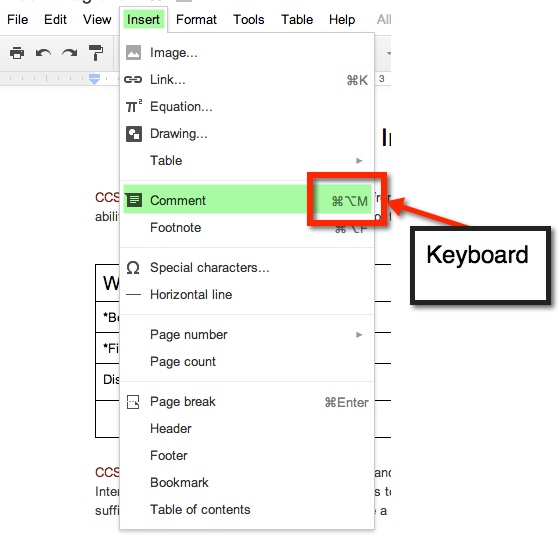
4. Gray Comments button next to Share button on top right.

A yellow comment box will appear to the right of the document. This is where you will type your comment.
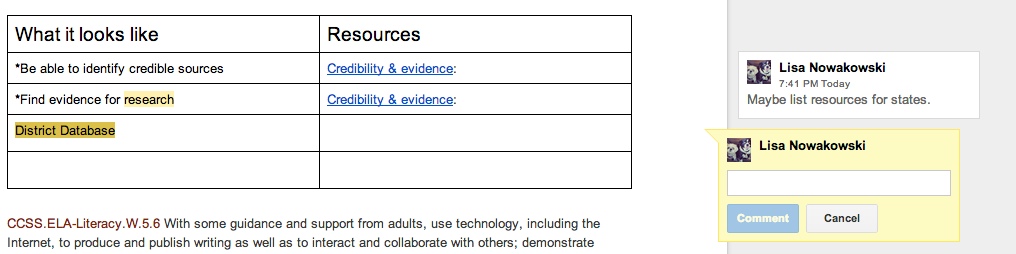
If more than one comment is on the document, and you are unsure of which comment goes to which highlight, simply click on either the comment or the highlighted section. If the highlighted text is chosen, then the comment will ‘pop up’ and show in the yellow box. If the comment is chosen, the highlighted text will become a darker yellow.
When you have finished making your comment, be sure to chose the blue comment button.

Research Tool
So Google has this handy little ‘Research Tool’ in Drive. I can research, AND it cites it for me, all in the document I’m working on.
Pen Pals

Last year a friend of mine, who teaches in Spain (Basque Country), contacted me with the idea about our students becoming pen pals. There were several issues that needed to be worked out before we could begin. Her students spoke very limited English, their 1st language varied from Spanish to Basque to Arabic. A group of her students were Gypsies and had little interest in school, and her school has VERY strict Internet policies for students.
Problems Solved:
Of course my initial response was to have my students use Google to communicate, but with her school’s policies, that wasn’t possible. Our next best idea was to use Dropbox. She had her students type letters on her computer which she then uploaded into a shared file in Dropbox. When all the files were ready, I passed them out to my students. The initial reaction was that of excitement. My students loved that they had a connection to a student in another country, on another continent.
Student Response:
While they were excited with the new activity, they were also intrigued to see that many of those in Spain were just like them. The boys (in Spain) that had written that they enjoyed soccer were the Pen Pals that my boys fought over. One student (Spain) wrote that her brother plays soccer, but she didn’t like it and went on to describe all the things that she liked to do. Of course, my girls all wanted to write back to her. Then there was one special student. My friend had told me about her. I chose a student who would be sensitive and write a quality letter back. This particular student was having a hard time assimilating to her new home in the Basque Country. She was from the Middle East and bullied at school. The student I chose to pair her up with was an outgoing and kind girl. When my student wrote her response, the bullied girl was envied because her Pen Pal had written so much. It also helped her to gain confidence.
All in all it was a success. The Spanish students were able to practice their English, and even the most reluctant student was completely engaged. My friend reported seeing a change in those students who had little interest in school. Some of her students asked to write. It was a first for many of them to want to do something school related.
So Now What?
Well, today I was pleasantly surprised with an email from my friend. It seems that her current group of students are aware of the Pen Pal program we had going and asked her when they get to do it! So here we go, our second go-around with this. We are even thinking of doing videos this year. There are still the same strict policies that she must adhere to, but we think we can work it out. We will be using Dropbox again. Today I shared with my class what we will be doing. They seem eager and on board.
CCSS Math, Web Tools, & You – GIE Napa 1:1 Institute
While these Web Tools can be used with any subject, I focused this session on how you can incorporate them in your K-5 Math class.
Please add your ideas to the document. You will need to go to the document in order to add your thoughts.
Student Presentation Example:
Shop ‘Til You Drop
Recently I have begun to incorporate projects more and more into my classroom. The latest was ‘Shop ‘Til You Drop’. This activity gave students real-world experience adding and subtracting decimals (This is a 5th grade Common Core Standard – NBT.7). It also incorporates 4 other Common Core Standards. It was a project that my partner teacher found online. And like any good teacher, I have had time to reflect on the project; take note of what went well, and what I will do differently next time.

What went well:
- Students begged to work on the project.
- Students took the assignment seriously.
- Students asked for help with subtracting across zeros – I need to go back and reteach.
- Students helped one another solve problems and find gifts.
- Many quality presentations were made.
- Many students viewed their project on the TV, seeking feedback.
- Students took feedback and made adjustments – even after their presentation was given.
- Templates were used and modified.
Things that need improving:
- Work space on paper (just to make sure they’re not using a calculator).
- Rubric/Scale that fits my needs – Marzano based.
- Give more time. Took longer than I anticipated.
- Ask what student would do with left over money. While some volunteered this information, many did not. It wasn’t something that I thought about until one student shared her thoughts – she wanted to donate the rest to a charity.
And because I am a firm believer in sharing, here is the lesson – templates included. I have included the NETS-S as well. Feel free to share, modify, and use.
Paper Minecraft
Earlier this year, I instituted Genius Hour. It has become the students’ favorite time of the week. I blogged about it recently, and you can read it in Why Genius Hour.
One of the biggest successes has come from Isaac. He is a creator by nature – tape and paper are his mediums of choice. In the past (I taught Isaac a few years ago) he would cut, tape, and draw on his creations. Well, he has since discovered Minecraft and Papercraft – the paper version of Minecraft. At first, he would have me print out Papercraft creations he found online. Much like this:
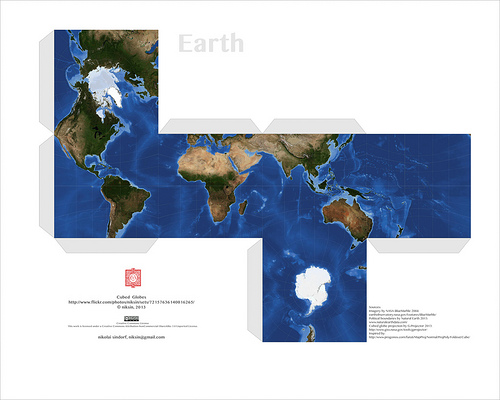
Photo Credit: niksin via Compfight cc
Those are pretty cool and all, but then I showed Isaac Google Draw. That was it for him. His creativity kicked in and he hasn’t asked me to print out a prefab one in a while. Why? Because he now creates his own! At first they were pretty basic as he was getting to know the program. I showed him some simple tricks, like copy and paste, so that he could have congruent figures.

Okay, so the sword is pretty cool, and not so basic. Since this one, he has started putting faces on his creations, and becoming a bit more precise.

I can’t tell you how to put them together, but then again, I’m not into Papercraft. Isaac, however, is thrilled to have his creations brought to life. When I asked him about putting tabs on them and writing instructions for those like me; he says that it’s easier for him without the tabs and never really answered me about directions – I’ll take that as a ‘Not going to happen’.
It has been more than thrilling to watch Isaac’s progress. When I asked him if I could write about him on my blog, and share a few of his creations, his eyes sparkled and a HUGE grin spread across his face. I told him that he would get full credit for all of his work. He then told me that I had to put his full name on his creations. Yeah, after reminding him about Internet safety he was okay with just his first name and my name – so that no other Isaac could take credit.
I can’t wait to see what creations he will have for us in the new year!
Blogging Intro
This Presentation was prepared for use for King City Arts Magnet School on December 4, 2013.
Fractions and Recipes
 Combining a fractions lesson and recipes is a natural combination. It connects the real world with a student’s learning. For the past month or so, my students have been learning about fractions: what they are, adding, subtracting, and multiplying them. Combine that with a teacher who is easily board with the norm, and you get a FANTASTIC lesson. One in which students ASK, “Can we work on our Recipe Project now?” Yes, students wanting to learn and were engaged.
What did we do? Well, we found some recipes. Okay, actually I found them in a cookbook that I had, from when I was a kid. They definitely weren’t the most healthy, but they were kids’ cookbooks, and worked well. I went through and found several recipes that involved fractions. Some had 2 fractions, others had 5 or more and included mixed numbers. Our student teacher handed out the recipes. Because there were various difficulties with the recipes, this allows the teacher to differentiate based on a student’s ability. The students were allowed to work together, but must hand in his/her own paper. The students had to: list the original ingredients, double the original recipe, cut the original recipe in half, and then make exactly 28 servings – one for each student, the student teacher, and myself. This took a few days. Fortunately, I do have a student teacher in my room so we were both able to filter around and help struggling students. Once they were done with the math portion, they had to create a presentation to show off to the class – and put in their ePortfolios.
We worked on this project for 3 or 4 days, including polishing the presentations. Each day the students would ask, “Can we work on our Recipe Project now?” Even the most reluctant, insecure math student was completely engaged. There were students strewn throughout the classroom at desks, under desks, and sprawled out on the floor. One group of boys worked outside to create a cardboard oven for their presentation. Other students chose to use Animoto and Google Presentation. They projected their ‘work in progress’ presentations on a big screen TV to get input from others. The room was so engaged and buzzing with creativity and learning, I HAD to call my principal down to see. He was impressed, and began asking the students questions about fractions, their algorithms, and gave suggestions for their presentations. The lesson was such a hit, my students told the other 5th grade teacher that she HAD to do it with her class, because it was so much fun. My students were happy to hear that her students had begun the project too.
Presentations will be next week. I admit, this was so much fun and worthwhile, that I am on the hunt for more lessons like this. Anything I can do to engage my students, I will. THIS is what Common Core is about: the four C’s. And this lesson had them all! Here is the lesson: Adjust a Recipe
This group will be incorporating an Animoto video into their presentation. Last week, they were practicing what they were going to say along with their video.
Yes, I found the lesson online. It is my belief that there is a plethora of information, lessons, and ideas out there. I do not need to reinvent the wheel. I am thankful to all who FREELY share. In turn, I FREELY share what I have found, my knowledge, and lessons I create. We are all here to help one another, and to help our students learn.
Why Genius Hour
What is Genius Hour?
A fun, creative, messy, engaging, and active hour! This is a time for your students to research, learn, and construct what they are interested in. It’s an amazing time for all. Students are put in charge of their own learning experience for the hour. The teacher stands back and watches the students go! 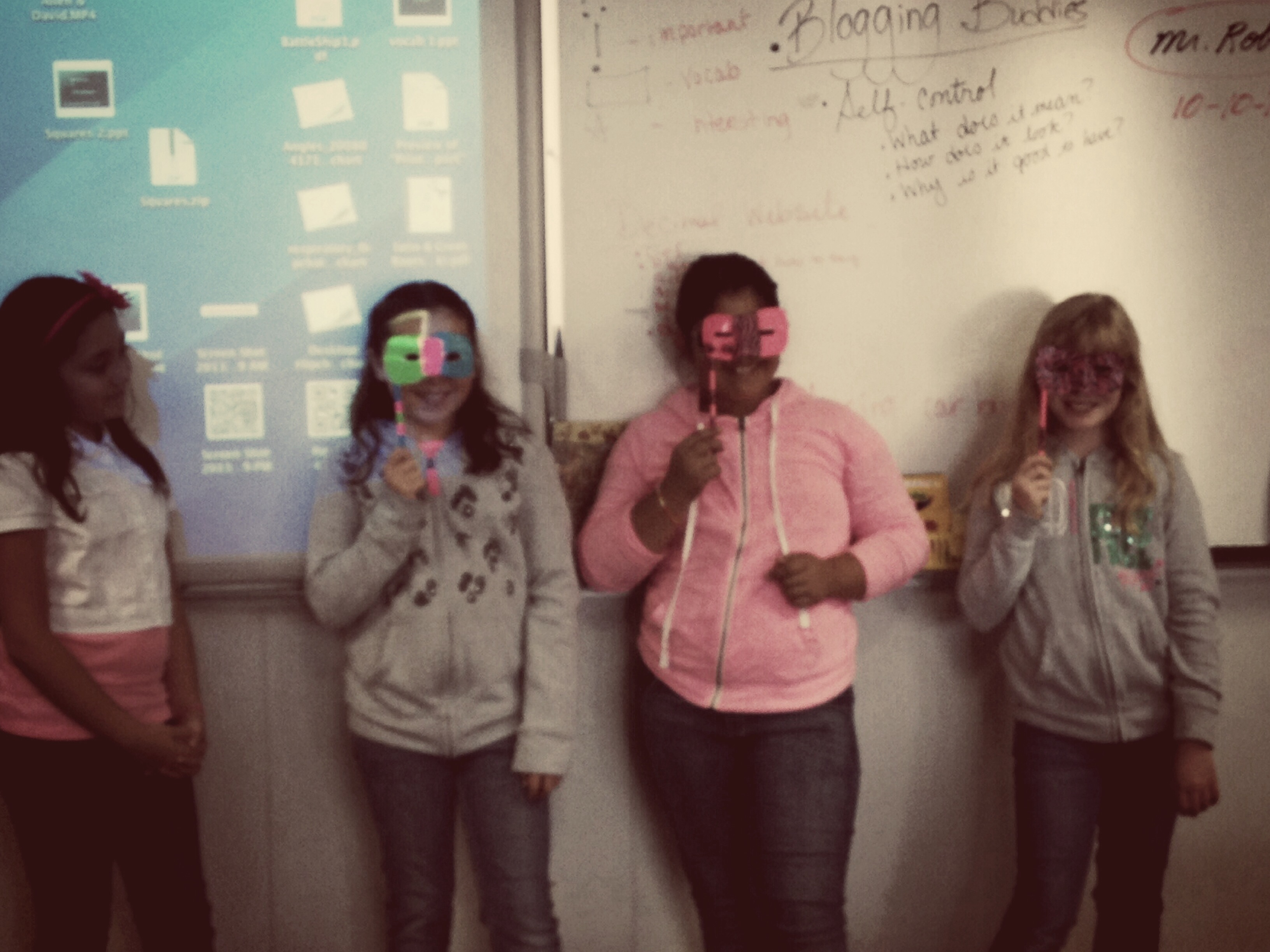 There are many resources to find out how to get started. Some are Kate Petty’s 20 Time In Education and Joy Kerr’s Blog.
Why I Chose to incorporate Genius Hour This Year
The shift to Common Core Standards invites creativity, freedom, and deeper thinking and understanding. I have long been an advocate of a student-centered classroom. Allowing students to discover and explore their passions is the epitome of a student-centered classroom. After reading about and attending conference sessions on the topic, I decided to give it a go. I shared my research and acquired knowledge with my principal, and he was on board. Once I understood what Genius Hour was, I realized that I had participated in this a few years ago – well, to some extent. 2 years ago, I showed my 3rd graders how to set up a Google Site. That year, I had 4 girls get together to create one site. They created bracelets, keychains, and necklaces. They sold their product at school and used their Website to promote their project. They took pictures, listed prices, and used a Google Form to take online orders. In the end, they raised $125 which they donated to St. Jude’s Children’s Hospital. After discovering that I had done Genius Hour before, I knew that I could do it, and that it would be successful. And I was right!
The First Few Weeks
The first week was more of an explanation of what Genius Hour is. We created a Google Doc and brainstormed things that we were interested in. We looked at DIY.org for additional ideas. We watched a few videos that focused on students participating in Genius Hour. They were excited! Then came the first week students participated in Genius Hour…To say that they were a bit lost would be an understatement. They wanted to participate, but just weren’t sure how to get started. Some knew what they wanted to learn. Student 25 knew he wanted to learn more about D-Day. He immediately began researching and creating a diorama. However, most students were at a loss. I walked around in order to help guide students. THAT was the first week. Since then, productivity has improved – greatly. I now have a group of boys who work together creating structures in MineCraft, students who create ‘forts’ out of cardboard boxes (although I suspect they enjoy going in the recycling dumpster more than the creating), and a miriad of duct tape projects. It’s messy, noisy, and my favorite part of the week! 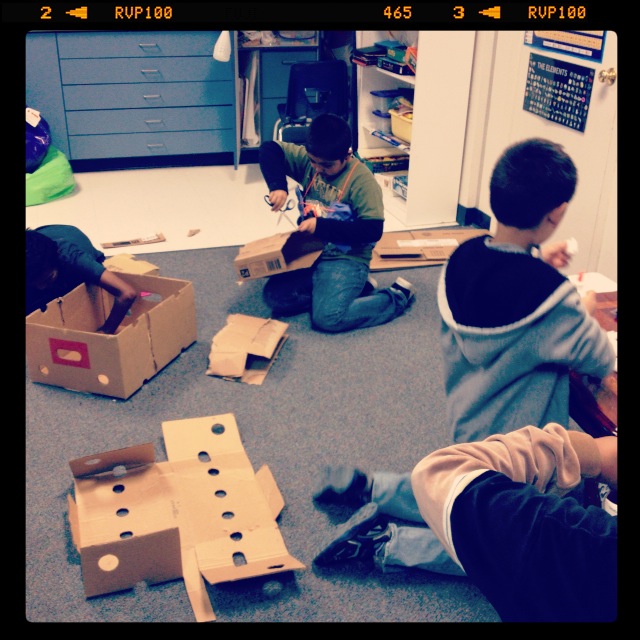
What Students Have To Say
One Friday before school, there was a small group of students in the classroom. They were hanging out and getting organized for the day. As they organized, one girl looked at another and asked, “What’s your favorite part of Fridays? Art or Genius Hour?” Without hesitation, the other girl answered, “Genius Hour.” The first girl agreed with her friend. Intrigued by this, I asked why. I asked not only because I was curious (and secretly thrilled), but because the girls that were discussing it love art. To my surprise, they said all the things that I had read: it allowed them to “Do what we want”. Yeah, I was thrilled
Final Thoughts
If you’re not sure you should (or want) to start this in your classroom, just do it! You will be amazed and what the students will do. Here’s a glimpse of what might happen. This video was a Genius Hour project one week. A few girls decided to create an Animoto video on Genius Hour.

