A quick guide:
Month: September 2015
Presenting Genius Hour Projects
Genius Hour
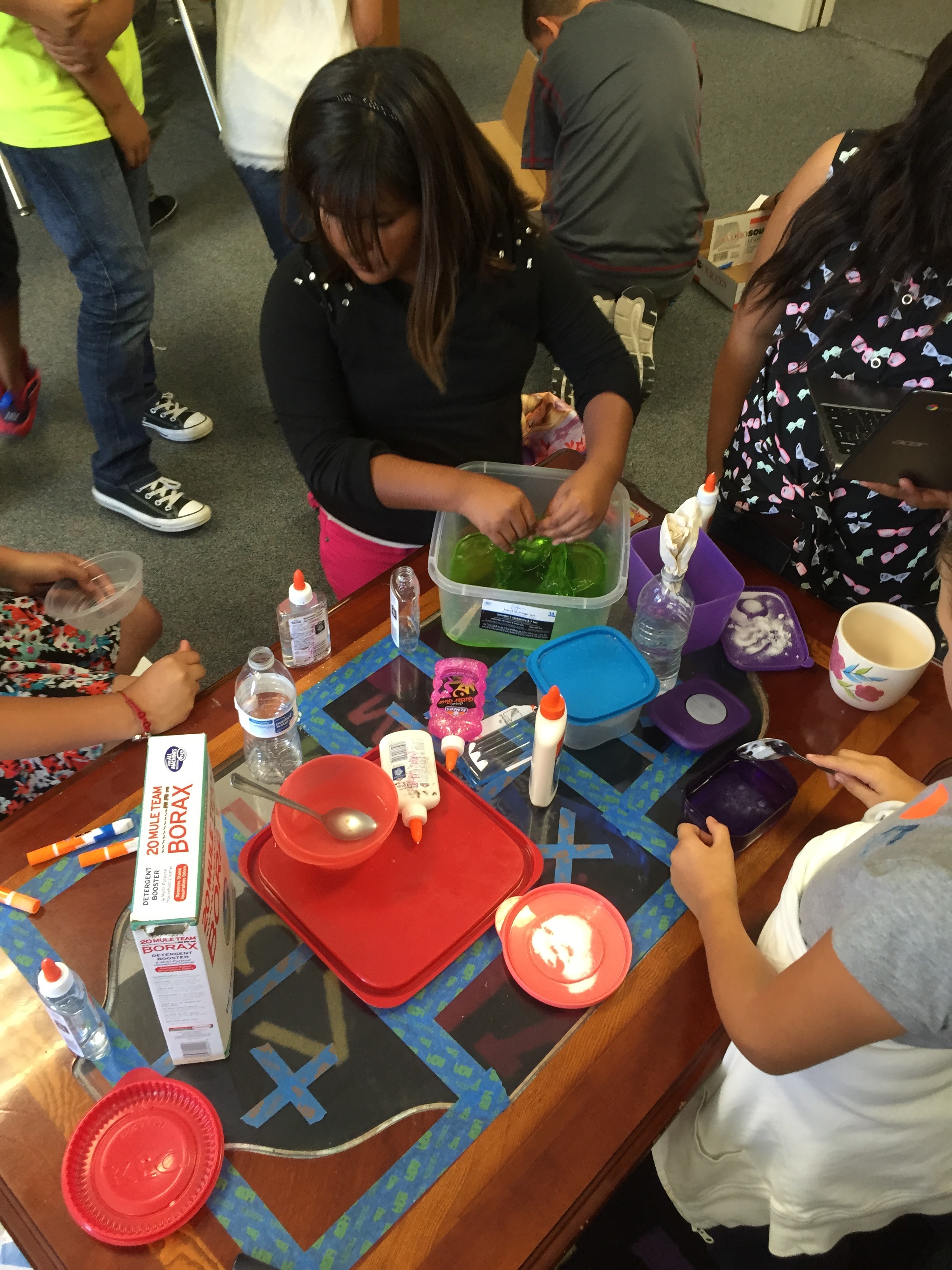
I have had my class participating in Genius Hour for the past 4 years. I love it. Admittedly, I struggle with aspects of it. One aspect that I have struggled with for a while now is the presenting part. They have no problem creating but, have some ‘issues’ listening to one another when it comes time to present. They all want to present, just not listen. Frustrating!
I Am A Genius!
And when I say ‘I’, I really mean Jon Corippo. In one of his presentations, he explained how he had students giving scores to one another during presentations – American Idol style. So this year when Genius Hour began, the same issues were occurring. Then this past week, I implemented the scoring system (albeit tweaked to better meet my needs).
Scoring
I am using a dual scoring approach. Based on our school’s Speaking & Listening Rubric (a work in progress), I have 5 small whiteboards we use as score cards. 4 score cards are in the audience and 1 is left with the presenters. The 4 audience score cards are – Volume, Eye Contact, Vocabulary, and Clarity. These circulate around the room (1 person scores per presentation per card) so that several students have the opportunity to score after a presentation. The presenter’s score card is Listening.
Did It Make A Difference?
Yes! When a score card came back with a lower score, the ‘judge’ explained what skill the presenter (or audience) needs to practice. There was definitely more ownership on both sides this week.
Success In Math
Did you ever have one of those days, in teaching, where you thought, “YES! This is what it’s all about”? Yeah, I had one of those moments today.
We have been talking about place value and really digging in deep in math. Today we organically began talking about exponents. I say organically because while I’ve touched on the subject before, the students really hadn’t grasped the concept. Yet today, they began making connections. And THAT was super cool! We really only focused on exponents as they relate to the base ten number system. For example 10 x 10 = 100 = 102
This led to one student wondering if exponents “only work” with 10 or does it work with other numbers. We briefly discussed this. Then another student started making connections about the number of zeros and the exponent.
THIS is exactly what Common Core Math is about – looking deeper into the systems and the ‘why’ and discovering the connections and shortcuts. Knowledge IS power!

SLOCUE Connects – Classroom
Learn to:
- Set up your classroom
- Navigate classroom
- Invite students
- Create assignments
- Create announcements
Here are some tutorials to help you
SLOCUE Connects
Prepared for SLOCUE Connects Event 9-12-15
Let’s start off with a race…
Ninja Level 1 Challenge – Take a photo and insert into your map.
Ninja Level 2 Challenge – Take a video, upload to YouTube, insert into your map.
Extensions: Making Your Life Easier
Here are some great Chrome Extensions. You can save the actual document if you’d like. Please share out any awesome ones that may have been missed.
Create A Google Form
Some people I have talked to still aren’t sure how to create a Google Form. I say jump in and start clicking! Don’t worry, you won’t break Google. Start off small with a few questions and question types. Once you get more comfortable, try something new. In the meantime, here’s a quick tutorial on how it’s done.
Voice Typing in Google Docs
Not so long ago, I wrote about a handy Add-On for Google Drive called Speech Recognition, here. It allows the user to talk into the microphone and have their words transcribed. Google has now incorporated Voice Typing in their Tools Menu, which does the same thing!

A microphone icon will appear on the side of the d ocument. Click it. The first time you use this feature, you will be prompted to allow Google Docs to use your microphone. Choose allow and start talking.

Google Docs Now Has Templates
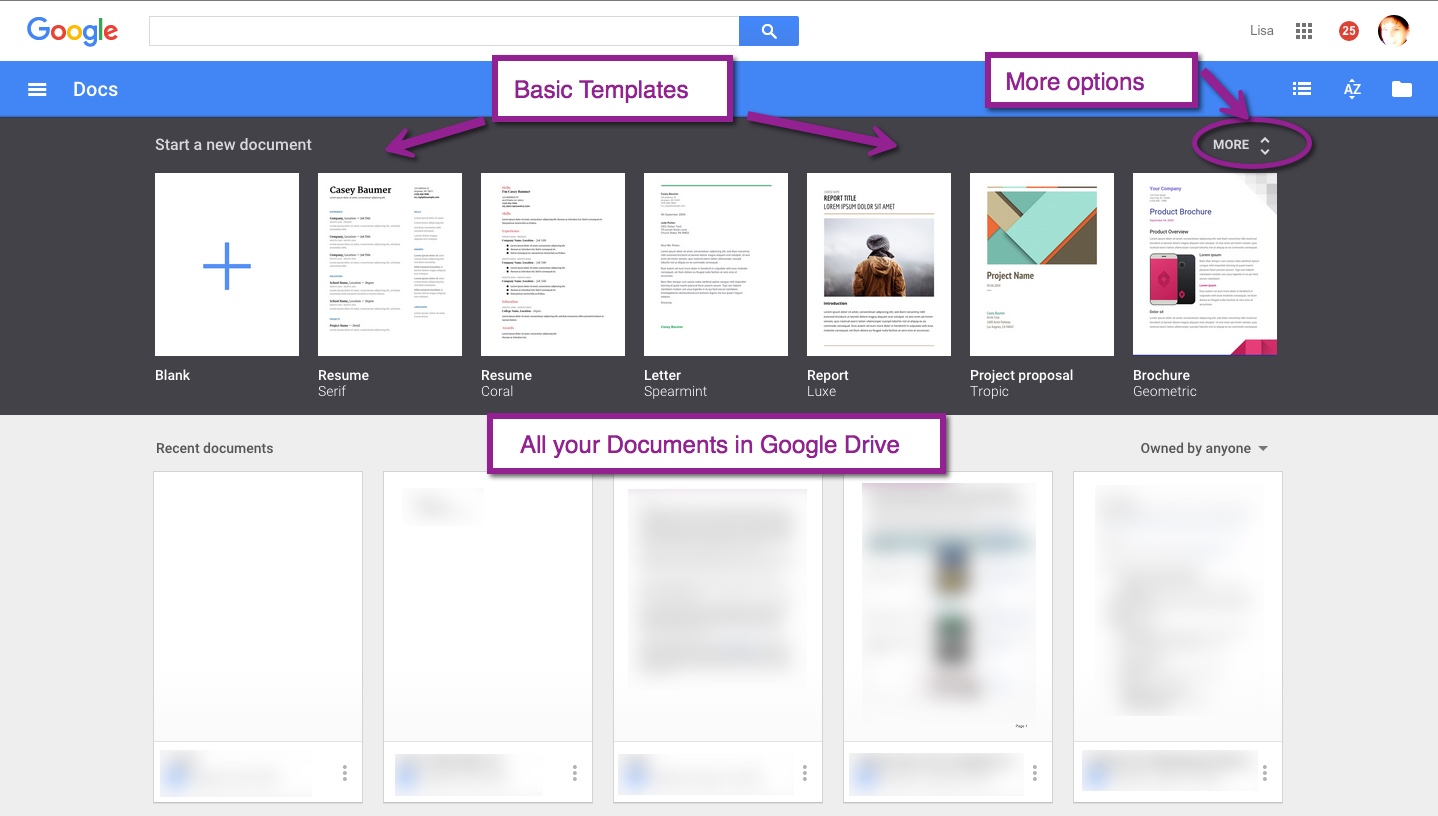
One of the best features of Google (and all that it encompasses) is that it is always changing and updating. This is true for Google Docs. You can now easily create a Document from a template.

You can also type: docs.google.com in the URL
This opens the home page for your Docs (documents). There is now a bar across the top with several template options. Not satisfied with those? Choose the ‘More’ option with several choices in each category.
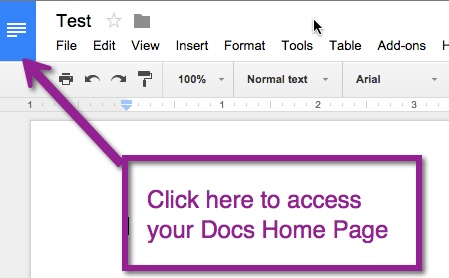
 If you are already in a document and wish to create a new one, you can quickly click the upper left corner. This will take you to your Docs home page.
 Nowa Techie