Learn to:
- Set up your classroom
- Navigate classroom
- Invite students
- Create assignments
- Create announcements
Here are some tutorials to help you
Learn to:
Here are some tutorials to help you
Prepared for SLOCUE Connects Event 9-12-15
Let’s start off with a race…
Ninja Level 1 Challenge – Take a photo and insert into your map.
Ninja Level 2 Challenge – Take a video, upload to YouTube, insert into your map.
Here are some great Chrome Extensions. You can save the actual document if you’d like. Please share out any awesome ones that may have been missed.
Some people I have talked to still aren’t sure how to create a Google Form. I say jump in and start clicking! Don’t worry, you won’t break Google. Start off small with a few questions and question types. Once you get more comfortable, try something new. In the meantime, here’s a quick tutorial on how it’s done.
Not so long ago, I wrote about a handy Add-On for Google Drive called Speech Recognition, here. It allows the user to talk into the microphone and have their words transcribed. Google has now incorporated Voice Typing in their Tools Menu, which does the same thing!

A microphone icon will appear on the side of the d ocument. Click it. The first time you use this feature, you will be prompted to allow Google Docs to use your microphone. Choose allow and start talking.

One of the best features of Google (and all that it encompasses) is that it is always changing and updating. This is true for Google Docs. You can now easily create a Document from a template.

You can also type: docs.google.com in the URL
This opens the home page for your Docs (documents). There is now a bar across the top with several template options. Not satisfied with those? Choose the ‘More’ option with several choices in each category.
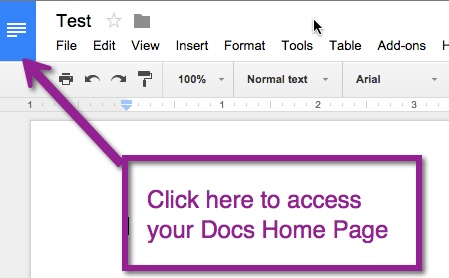
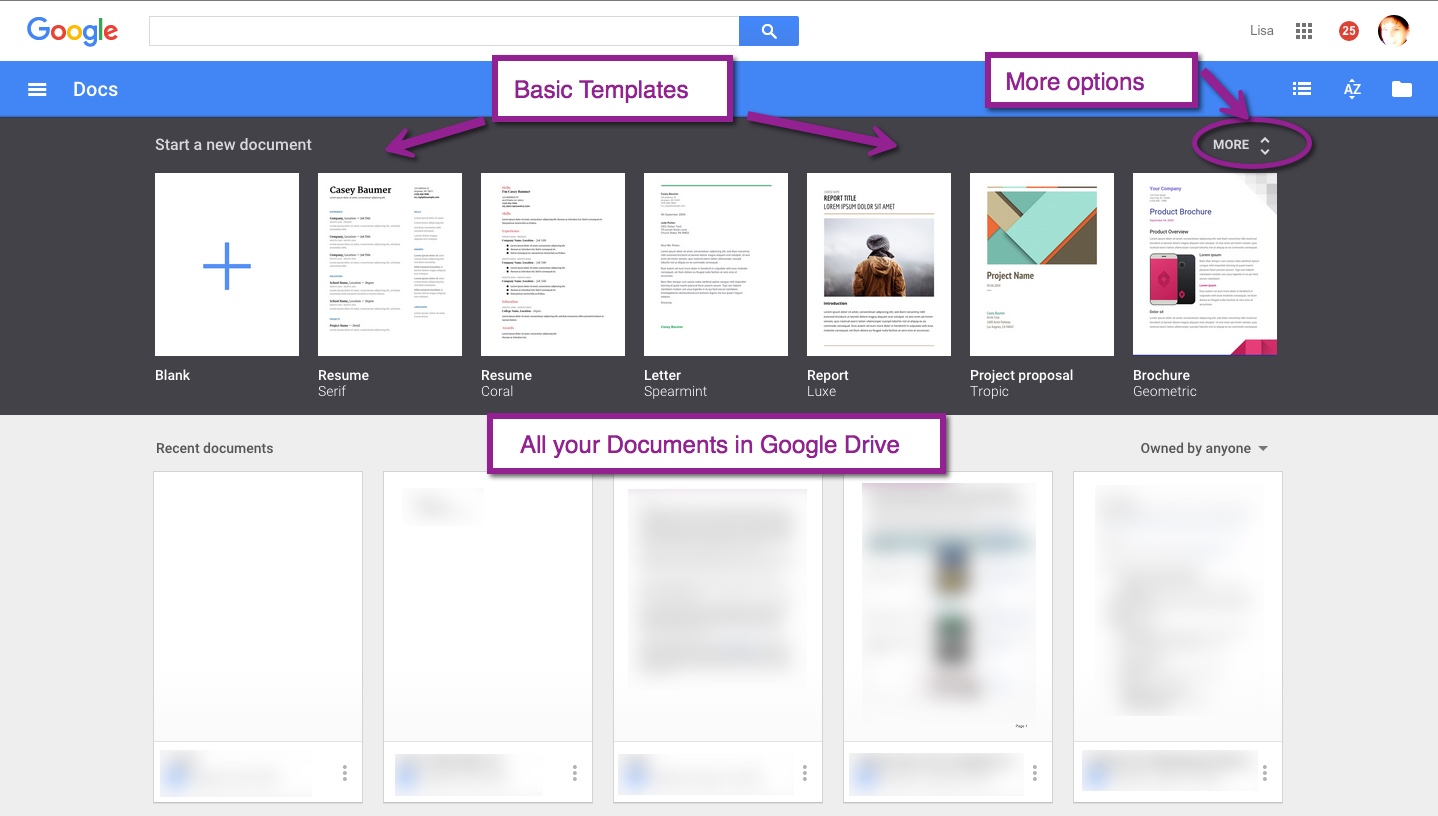 If you are already in a document and wish to create a new one, you can quickly click the upper left corner. This will take you to your Docs home page.
Have a student who has great ideas, but can’t get them written down? Google Docs has a great Add-On to help: Speech Recognition.
In a Google Doc, look for Add-Ons in the toolbar.
You will need to get the Add-On.

Now it’s ready to use. In the toolbar in your document, Speech Recognition is ready to use.

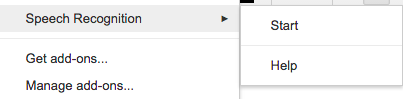
A sidebar will appear on the right side. Choose ‘Start’ and begin speaking.
When you finish speaking, press the ‘Stop’ and your text will appear in your document.

