The easiest way to collaborate is by ‘sharing’ Documents in your Drive. We have talked about how to create Docs and folders. Now, just take it one step further and ‘share’ those to have dynamic, cross-grade, cross-district PLCs. It’s quite easy.
Sharing a Document (or presentation, form, spreadsheet, drawing):
Once you have created your desired document, click the blue share button.

Type the names of those you wish to share with. You can allow others to edit or view. The default setting is ‘edit’. If you would like to retain control over who is allowed to have access to your document, click on the ‘change’ link on the bottom right. Change the ‘share settings’ to ‘Only the owner can change the permissions’. When finished, click ‘Done’.

Sharing a Folder:
Now there are many times when you will want/need to have ‘shared folders’, with your PLCs. That is the same process as sharing a document. The advantage with sharing a folder is that whatever is placed in that folder, it is automatically shared with everyone.
First find the folder you would like to share with others, select it. Then click the ‘share’ icon at the top of the page.
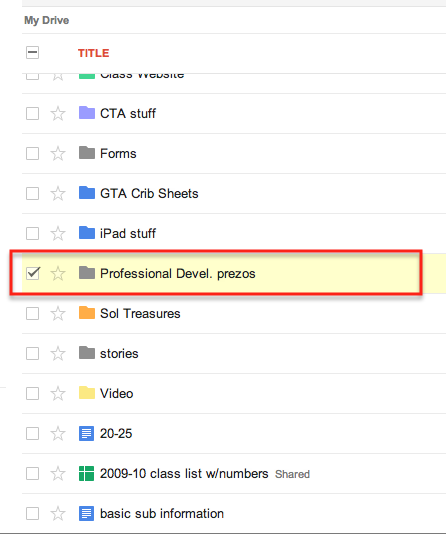

You will then be taken to the ‘Share Settings’ to select others to share the folder with.
I currently have several shared folders. I share an ELD folder with prezos and documents with several teachers in my district. I also share a Math folder with homework forms.
I have shared documents with 10 other teachers to create one OUTSTANDING document. One document was created within 12 hours by teachers in a 50 mile radius. Several of us were creating, sharing, and editing at the same time. It was an amazing experience. This type of sharing makes our lessons better, makes us better teachers, and allows the creativity to seamlessly flow.





 Nowa Techie