Search By Region

Recently, my students learned about Jamestown and Pocahontas. The adopted textbook told the story through the eyes of the United States. This was interesting, but I wondered how England viewed those events. As a result, we researched what the UK had to say about those subjects.

How’d We Do That?

We refined our search to find only items that were from the UK. We started with our basic search, ‘Pocahontas’. Then went to the ‘Gear’ for an Advanced Search.

AS1

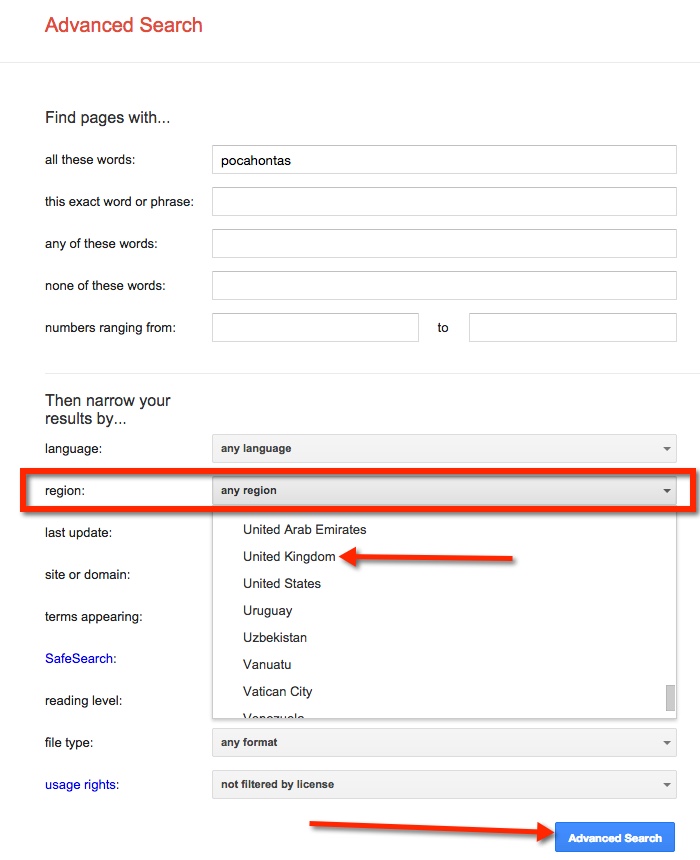
This takes us to a new page filled with search options. For this post, we will focus on searching by Region. Finding the ‘Region’ choice, select the down arrow located on the right side of the gray bar that reads ‘any region’. This then allows the drop down menu to appear. Then select the desired region. We chose ‘United Kingdom’. Finally, select the blue ‘Advanced Search’ button located on the lower right side of the screen.

AS2

Notice the Web Addresses of the refined search. They all are from the United Kingdom. Incidentally, we found a game on the BBC website that had some interesting facts.

AS3

Search By Reading Level

Update: 5-10-15

As of recent, this feature is no longer available.

Too Much Information

There IS such a thing as ‘Too Much Information’! When students begin ‘researching’ on a particular topic, they all too often type in the topic and choose the first link in the list. We need to help guide these students to better resources that they are able to access. One quick way is to teach students how to search by reading level on Google.

Conduct a Search By Reading Level

My students will soon begin learning about the Revolutionary War. When I ‘Googled it’ I was given a long list of websites and images. This is NOT what I want my students doing. They will inevitably go to wikipedia, ‘read’ information, become overwhelmed, and ultimately copy sentences. Thus driving me nuts. As I would like to avoid the whole frustrating process – for both our sakes – I am teaching them some basic search skills.

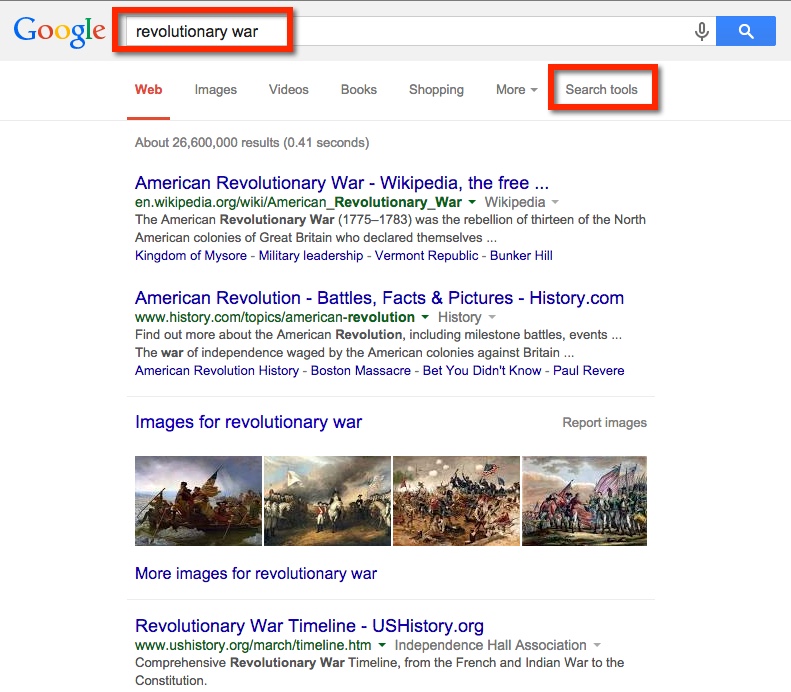
So here’s what I got when I typed ‘Revolutionary War’. Notice that along with images and videos along the top bar (below the search box) there are ‘Search Tools’. This is what I want!

Search 1

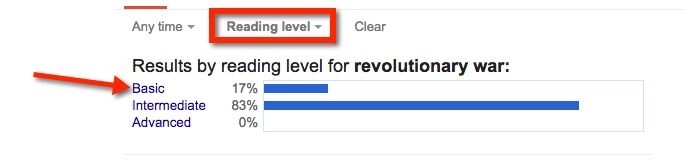
When I choose ‘Search Tools’ a secondary ‘bar’ appears on the next line. Choose ‘Reading Level’.

Search 2

Doing this will result in the ability to choose ‘Basic’, ‘Intermediate’, or ‘Advanced’. For my 5th graders, I encourage them to choose ‘Basic’. Explaining that the items that will be displayed will be closer to their reading level.

Search 3

It’s as easy as that to find information my students can access on the Internet. There is a lot of information out there, we need to arm ourselves and our students with the necessary tools to wade through it.

Submit Group Work

Google Classroom has made my workflow seamless. Recently I had a teacher ask how to have students, who are not document (or slides) owners, ‘submit’ work. I’ll admit, my workflow made my life a little harder. Then, one of my students – Frankie (I told him that he would get a shout out) – simply suggested having the non-owners submit the link for the assignments. So being the collaborative classroom, we gave Frankie a Class Dojo point for helpfulness, and celebrated his brilliance.

How Do Students Submit a Link?

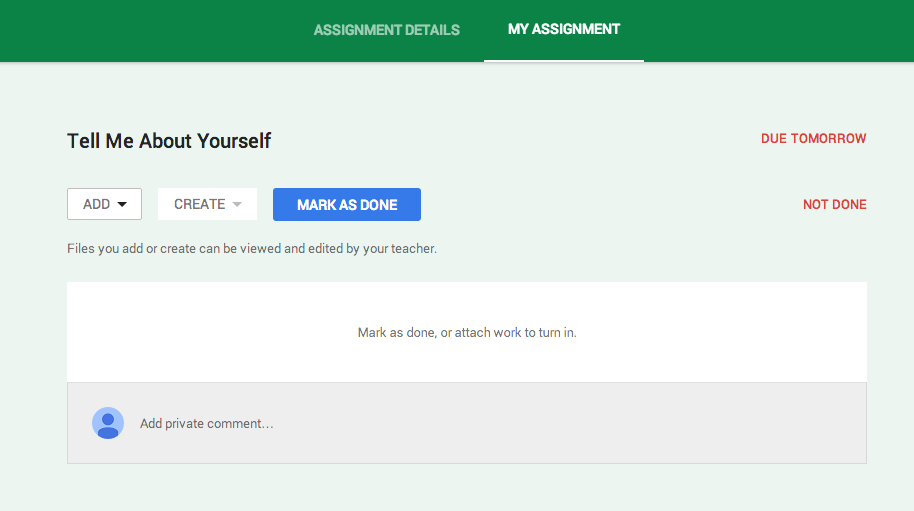
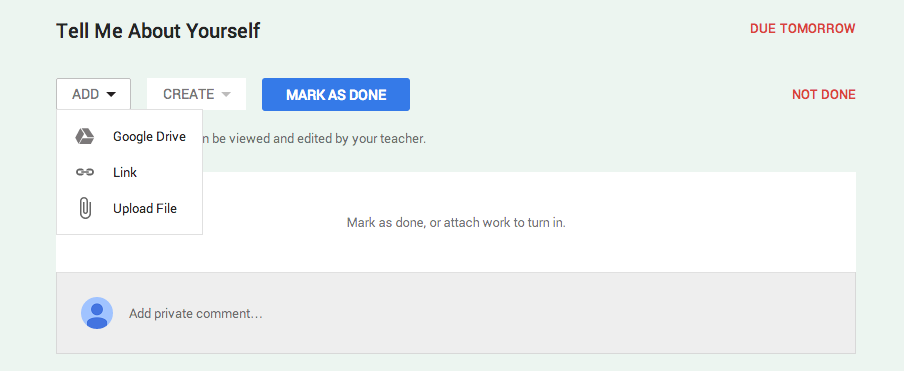
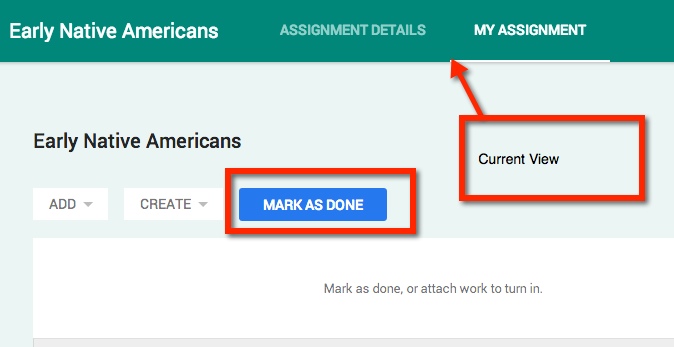
While the students are in their Assignment, they have the option to ‘Add’, ‘Create’, or ‘Mark as Done’.

Assignment


If your students have been working collaboratively on a project, they most likely have created it within their Drive and shared with others. Now, the owner is the only person who has rights to submit the document. They will do this by choosing ‘ADD’ then ‘Google Drive’ and proceed to find the project.

Add


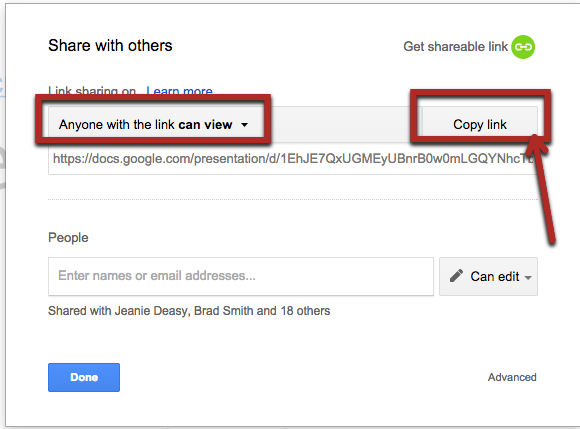
The non-owners, will need to locate the documents link, and be sure that ‘anyone with the link can view’.

Share 1

Share 2


They will then Copy this link in the assignment. However, they will choose ‘Link’ and paste the code there.

Copy Link

Resourceful Students

Today I assigned an article for my 5th graders to read from Newsela. They were to read and annotate the text,using the comment feature, in Google Docs (the original assignment was given in Google Classroom). I allowed them to work in groups in order to discuss and collaborate – we’ll talk about that in a minute.

In the middle of the assignment, I hear an electronic voice say ‘Ecuador’ in the back of the classroom. I asked my students who was doing that, and what were they doing. A group of three girls raise their hands. They explained that they didn’t know how to say a word so they wanted to hear it. Upon further questioning, they explained they went into Google Translate, typed the word, and pressed the speaker button. They simply ‘translated’ it into English. Yup, English to English! Brilliant!

gtranslate

Collaboration

As these three girls continued working together, I listened in on their discussion. After reading the article, they had a few questions to answer. One of the girls tried to assign each one a question to answer – with the intent of copying the answers from each other. Now, they know this is NOT collaboration. As I continued to listen, one of the girls pointed out that that wasn’t right, and they all needed to do the questions together. And that’s exactly what they did, answered the questions together! Smart kiddos!

Google Classroom Evolves

Google has listened to teachers’ feedback yet again. Since Classroom’s Beta rollout last summer, Google has continued to ask teachers what WE want, what would make their product better. We spoke, and they responded…again.

Today Google announced a few improvements based on OUR feedback.

1. Groups Integration

If you use Google Groups, you can now pre-populate classes with this newest iteration.

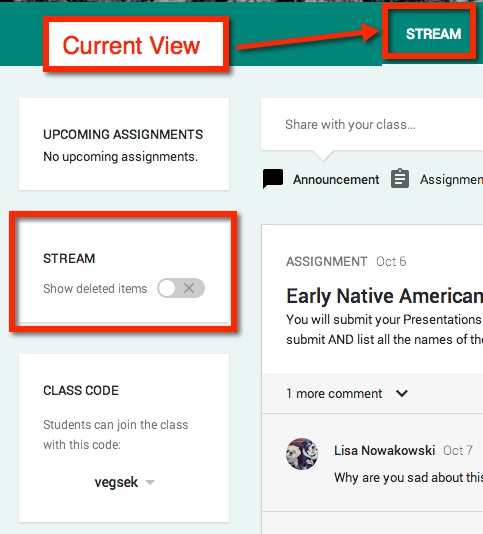
2. View Deleted Items

It’s a simple on/off toggle switch.

Classroom 1


3. Control Class Commenting Feature

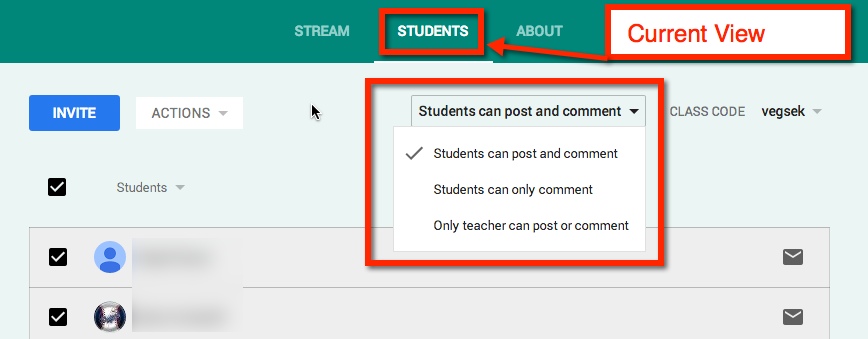
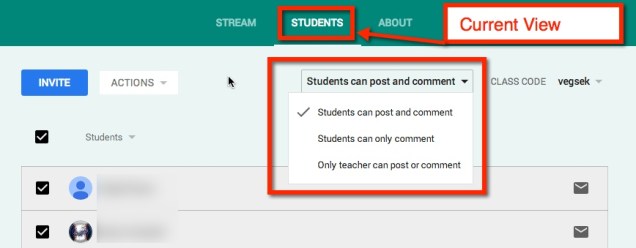
When in ‘Students’, you choose whether students can post, comment, or if the teacher is the only one with those rights. This feature will hold true for ALL students in the class. If you would like to control the ability for individuals to post/comment see below (number 4).
Classroom 2

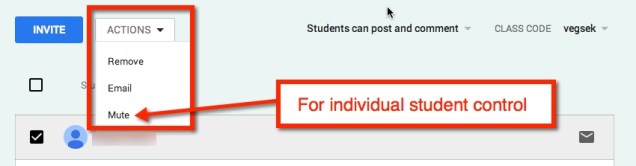
 4. Mute Individual Students

Every now and then a student tests the waters, and drowns. You now have the option to Mute those individuals. Muted students will not be able to post or comment in the Classroom.
Classroom 10

5. Sort Students

Some teachers prefer to sort by last name, while others prefer first name. Google has given teachers the freedom to sort as we please.

Classroom 3

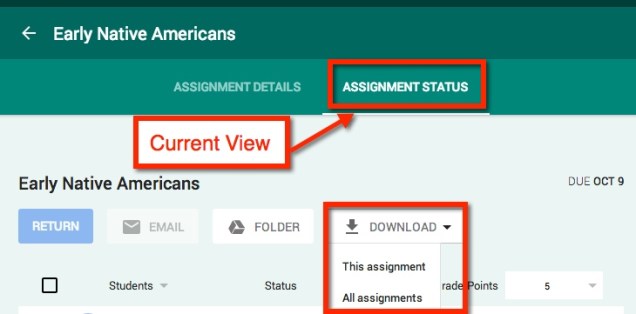
6. Downloading Grades

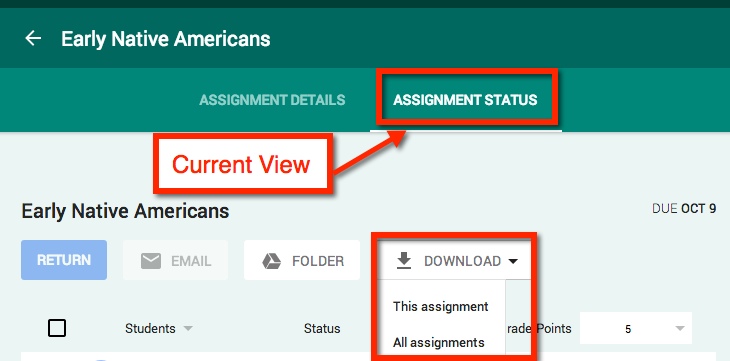
The ability to download ALL assignment grades at once (to CSV file) makes it easier to upload those grades into whatever grading program you or your district are using.
Classroom 4

7. Students Can Mark Assignments as ‘Done’

Recently I had my students working on a Presentation in groups. I posted the assignment, but only the owner of the Presentation needed (or had the rights) to ‘Turn In’ the assignment. This left 40 ‘Not Done’ assignments – which looked messy and inaccurate. Now those students can go into their Classroom, and mark the assignments as ‘Done’.

This feature is handy when assigning reading, viewing a video, or other tasks where nothing needs to be handed in.

Student View in their ‘Stream‘. It has marked the assignment as ‘Late’.

Classroom 5

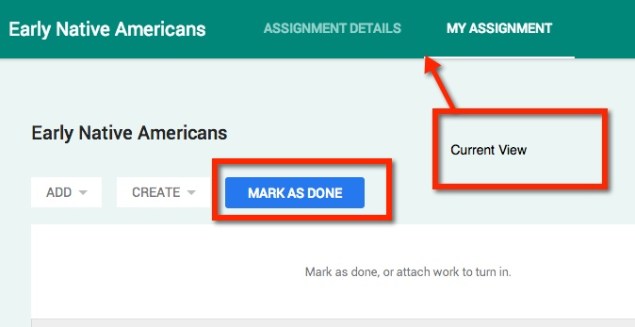
The student needs to ‘Open’ the assignment and ‘Mark As Done’.
Classroom 6

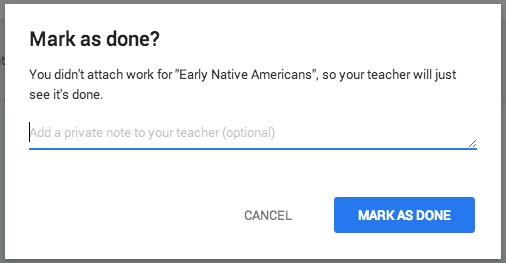
A pop-out window will appear asking if the student is sure this is the desired action. Notice the student can add a private message to the teacher.
Classroom 7


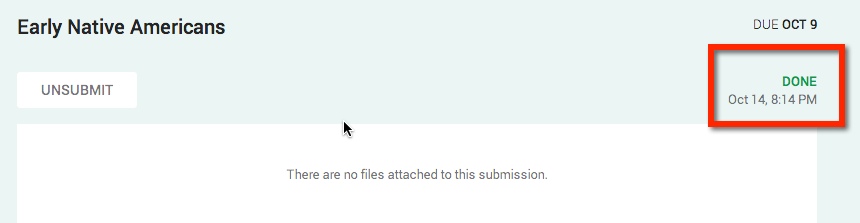
In their ‘My Assignments’ View the student has the option to ‘Unsubmit’. The completion of the assignment is noted in the right corner. It will also be reflected in their ‘Stream’ View.

Classroom 8


classroom 9