Several years ago I created #MathReps (EduProtocols for math) for my classroom. The original idea was based on Jon Corippo‘s 8 p*ARTS of Speech. When I first designed it I was excited and blogged about it. Since then, the idea, and resources have grown. And being who I am, I constantly doubt myself and my creations. I constantly question whether I’m doing good or harm.

Yesterday, some of my doubts were cast aside and my creation was validated. Recently, I was talking to another 5th-grade teacher at my site. We were talking about some tasks that we have students do. She follows the curriculum to a T; I, however, do not. This is in NO way a slight towards her (she’s new and is doing as she is instructed). She shared that she pulled out a concept the students hadn’t seen in a few months (our curriculum doesn’t spiral. I have much more to say about it, but won’t do it here.). It was adding/subtracting with decimals. I thought THAT was a great idea, so I did the same. She reported her students having difficulty remembering to line up the decimals doing the task. As I gave my students a similar task, I observed that they instinctively lined up the decimals. I found this not only interesting but satisfying. My students had been exposed daily to almost 5 months of this concept on various #MathReps. Needless to say, I was elated and felt somewhat justified in doing what I do.
After completing the task I had a frank discussion with my class. I asked, even though I already knew the answer if they had any trouble adding the decimals. I asked about lining up the decimals. They all looked at me like I was crazy. Of course, they knew to line up the decimals….duh! I then shared WHY! I also shared that a class that doesn’t use #MathReps had trouble remembering that important piece of information. And that it was because we practiced these concepts DAILY that they had no trouble with that part. (They had trouble with the task but weren’t confused about how to perform the actual skill of adding decimals.) Because of the culture of our class, they focused on the fact that #MathReps actually do help them and not on the class that had trouble. It was so awesome to bring to light to them, and me, that this protocol really works. One student even remarked that while they may not like doing them it does help them to learn.
Just like with anything, if we don’t use newly acquired knowledge we lose it. In addition, John Hattie puts repetition at a 0.73 on the Hattie Check Scale. I would caution that there are different types of repetition and we need to make sure that our reps are meaningful.
I did share this with the other teacher. I assured her it was no slight on her, and she understood, rather it was a slight on the adopted curriculum.


 Another year means another word! This year I chose ‘
 Chaos.
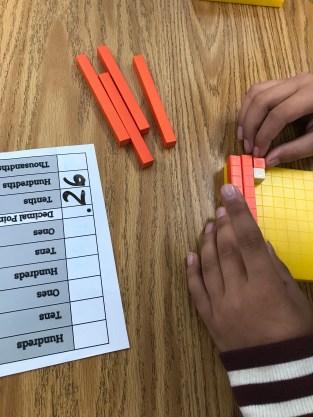 I don’t use manipulatives enough in math. Over the past few years, I have used fewer manipulatives than ever before. I take partial responsibility for this. I should have incorporated more into my lessons. However, other factors contributed to this: my district not providing any manipulatives, adopting a half curriculum (half because the state doesn’t recognize it) that makes no mention of using any, and the pressure to keep moving along the curriculum/pacing guide. Well, this year I am making a conscious effort to do better.


 I quickly realized while reading the first article with the class that it wasn’t going as planned. And for some insane reason, I powered on with the second article. What? Yeah, not sure what I was thinking (well, clearly I wasn’t thinking!). I did, however, extend the cat mini-report for a second day and scrap the dog report for next week. I also realized that I need to work up to two articles.