Google Maps allows you to draw a line, or polygon, when creating custom maps. This can be achieved by choosing the Draw a Line tool, choosing the type of line you’d like, and clicking along the places you would like to mark off.
I especially like the feature that allows users to change the color of the line and polygon, and change the line width.
Pinning a location on a custom Google Map is easy. You can either find the location by typing it in the search box at the top, or by placing a pin at your desired location.
Click on the Green pin > Add to Map > Pin will turn Red.
To pin location without looking it up: Select the Pin icon at the top of the screen, and click the desired location, then ‘Save’.
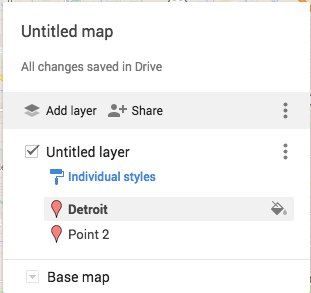
To change the icon symbol, go to the menu at the left, choose the point you would like to change, and click on the paint bucket.
You can then choose a different color pin, icon shape, or even look for additional icons.
Want to know how to create a custom map? Check this out!
Today – more accurately starting last week – I feel like a genius. I know that will all change by Wednesday. Actually, that feeling started to change this afternoon when someone thought Canada was a state.
State Reports in 5th Grade
We all do them, students for decades have done them. Little has changed. Students get an outline of what is expected, they write, roughly, a 10 page paper on a state, and the teacher must read all reports. I HATE it! I don’t want to read 47 state reports – I teach 2 classes of Social Studies this year. They are painful to read. They are formulaic – partly the fault of the teacher (yes, I know that would be me). And they are BORING!
Time for a change!
So this year, I’m challenging my students. Their reports will be on a Google Map that they create. They will still have to research all the same information, but the presentation will be different. For example, the directions state that they are to find the state capital (of their state) and mark it with a yellow star. Then they are to find other major cities and mark them with an orange star. The students are then free to insert photos of those cities to further enhance their map. Their maps will look something like this:
Below are the complete directions. Like I said, I feel like a genius today, but by Wednesday, it’ll be a different story. And in the end, I will compile all their maps into 1 map using Thinklink. In addition, I even allowed students to work with a partner. Yup, different from the norm!
How did the students react?
They LOVED it. They couldn’t wait to get started. I have a few email me questions already. When was the last time that happened with a written report? They were so excited. I just need make sure they stay focused and write the necessary paragraphs.
Minor issue
It has been a while since we’ve used Maps, and many of the students had questions about some of the specifics. Fortunately for us, the Techie Chicks are in our classroom. And they have a tutorial on how to create a custom map!
The future
I’m sure there will be tweaking along the way. The students will feel free to give me input, and even come up with better ideas. I’ll keep everyone posted. I’m really excited about this.
I have begun to plan my trip to Italy. As part of this I am creating a Google Map for each city I will visit. Within each city, I have different layers: Transportation, Hotels, Sights. While creating my Rome Map, I accidentally placed a hotel in the Sights Layer. My initial thought was that I would have to delete it and start over again, making sure that I placed it in the correct layer. Then…I thought, “Wait a minute, this is Google. I wonder if I can drag and drop the hotel to the correct layer.” Happily the answer was yes! So easy.
Check it out. The image on the left has Hotel Oceania on the Sights Layer. I drug that up to the Hotels Layer, where it now resides – shown in the image on the right.
I’m sure that those of you who have been to a CUE conference, or even attended this year’s Fall CUE at American Canyon High School, are not surprised by this statement. Each year, I am amazed by all the awesomeness that congregates in one place.
I kicked off my weekend by attending a session with Danielle Forst, Juli Kimbley, and Danny Silva. They demonstrated how a simple search, Google Forms, and Google Maps can be used to create a digital version of The Amazing Race. Basically, a question is asked, students have to search for the answer, answer it on a Google Form. The Form, after submitting, will have a link to a map with another question. So simple, yet soooo much fun!
See page for author [Public domain], via Wikimedia CommonsThis, of course, got me thinking. This is why getting out of our districts and connecting with other educators is so important. I had a lesson coming up on explorers, the first one being Marco Polo. I wanted to do an Amazing Race with maps, but am thinking that will be completely #awesomesauce to do with States and Capitals. As for the Marco Polo lesson I thought something a little simpler would be a better way to go. As YouTube is generally blocked in my district, but has been open on and off for a few days, I decided to take my chances. I created a VERY basic map about Marco Polo. I selected 2 points, again that whole will it or won’t it be blocked, and attached short YouTube videos, along with a rough outline of the route he took. I attached the link to the map using Google Classroom and away we went!
The amazing part of this project wasn’t the simple map that was created, it was the learning that took place. Fortunately, YouTube is currently open, so the students were able to view the videos. However, the cool part of this lesson was that so many of the students were inspired, they began researching about Marco Polo and his life…On their own! I had students coming up to me, and each other, stating random facts that they discovered. One student found a video from the History Channel and began watching it (it was 40 min. long).
Now I could have done the old fashioned thing and read it out of the uber interesting Social Studies book – cuz who doesn’t love those things? But instead, I used the inspiration of Fall CUE and experienced one of the best Social Studies lessons of my career! I can’t wait to have the students creating maps of their own!

 Nowa Techie