I was recently asked how to change a page name on Google Site, so that it is reflected on the sidebar menu. This is especially helpful when you are working with a Site Template for a class.
How To
Custom Header for Sites
Webpage Screenshot
Webpage Screenshot is a wonderful Chrome Extension. It allows you to edit information on a webpage. Great for summarizing, finding the topic, defining words in context clues, and so much more. Check out this video I made. It’s easy to use and has many classroom applications. What will you use it for?
Search Using Custom Range
There are so many features to Google Search it will boggle your mind. Well, it boggles mine. I find it fascinating that I can search for a news article from 1865 or 1968. I no longer have to go to the library and use the old-school microfiche. Okay, who am I kidding. I never did that. But, if you did you will love this option in Search. Here is a quick video I made showing you how I found a news article from April 1968 regarding Dr. Martin Luther King’s death.
Default Calendar Setting
Today I held a training for some on Google Apps. We touched on Calendar. Some wanted to know how to change the default setting from Week view to Month view. Here’s how:
- Go to your calendar
- Find the gear on the right and click on it
- Go down to Settings
- On the left side, scroll until you find ‘Default View’
- Choose your desired view
- Save
And there you have it! Easy as pie. In case you aren’t sure, here’s a video for you:
Google Search 1
So after attending Google Teacher Academy, I now have so much to share. I will start with some basic search features.
Information from Tasha Bergson-Michaelson.
Important tips
- Use only key words — don’t use complete sentences.
- For those students who need help finding the key words:
- Have students draw picture of what want to search.
- Only type words that were drawn — this helps students find key words.
- example: search ‘What dogs come from China?’
- student draws a dog or dogs and China. Only type those 2 words.
- Older students may want to think about how they text friends or what words they would hashtag
- Searches need to go beyond words.
- Search images or video.
Create, Share, & Organize in Google Drive
Create Videos for Your Class
This post is created for Professional Development for KCUSD, October 24, 2012.
In this 40 minute session attendees will:
- Familiarize themselves with quick and easy video techniques.
- Be able to leave this session and enter your classroom ready to go.
- Be able to use videos for assessment purposes.
Video taping doesn’t have to be difficult. You just need to remember what your focus is: the content of the video, not the quality.
This first video was created and shot by a student.
I was looking to see if the student understood the concept of place value. The video was shaky and there were several pauses. I didn’t care. This video can be shown as a review in class or used by students to review on their own. I also used this video as an assessment tool. It’s time we start assessing ways other than paper/pencil, fill in the blanks!
What do you need? Any of the following will do:
- FlipCam (no longer made, but can probably find on ebay, Craigslist, or other such sites. This one is my favorite!

- Sony Bloggie
- iPod
- Smart phone
- White board or paper for student to write on
- Writing tool


Where to start?
- Give students a specific task (i.e. show me how to add 4 + 3)
- Tell them the video must be done in one shot, no editing!
- If there are mistakes, it’s okay (unless they’re huge then have them redo!)
- A quiet setting is more favorable (just outside your classroom, or in the corner)
Okay, so they’ve done the video…Now what???
You will want to upload your video somewhere. I suggest Vimeo. Since we do not have access to Youtube (education); this is the next best thing. If you don’t have a Vimeo account, sign up. It’s all FREE! Once you have uploaded your video to Vimeo, you will have to wait approximately 1/2 hour for you to be able to view it. Make sure you set the privacy settings to ‘anyone’.
To set your video to ‘anyone’.
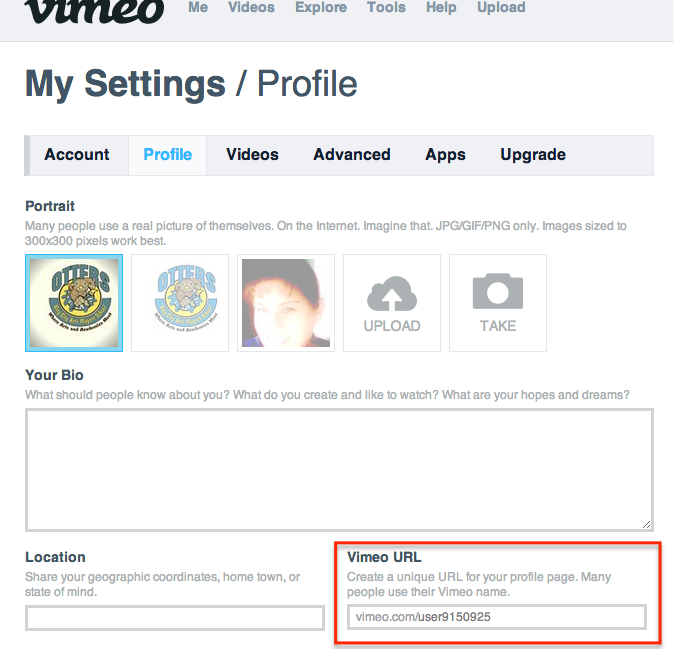
Personally, I like to put all videos on my website. This makes it easy for students and parents to find. If you don’t have your website set up yet, you can direct people to your Vimeo URL. You can find yours by going to the Profile section of the Settings.
That’s great Lisa, but I teach Kinder. How can I use it?
- Have students stand in a single file line with a shape, number, or high frequency word on a paper. You hold the camera. Have students walk up to you one at a time and say what’s on their paper.
- Have students draw a story (retell or their own), with an older student recording the younger student can verbalize the story.
- Record a silly song they like to sing.
5 Video Projects to Try With Your Students Written by Richard Byrne
Some tips:
- If students are recording, give very specific directions. Now is not the time to get creative. Tell them to just record the paper they are working on.
- If students are to be in the shot, as for interviews, tell them where to stand.
- Focus on the content, not the video quality.
- Have fun!
If you’d like to see other videos my students have created, check them out here.
How Blogs Can Be Used In the Classroom
This post is created for Professional Development for KCUSD, October 24, 2012.
In this 40 minute session attendees will:
- Familiarize themselves with different [blogging] host options: kidblog, Blogger (part of our Google Apps), Edublogs, and Weebly.
- Kidblog will be the primary focus for this session.
- Be able to leave with the knowledge on how to begin a classroom blog.
- Be able to use their new blog for assessment purposes.
- Be able to maintain a simple blog.
Blogging is an informal way to communicate thoughts and ideas. Many ‘posts’ contain pictures or videos to enhance the reader’s experience. Think of a blog as a journal, and each post as a journal entry. However, educators are using blogging in the classroom to extend learning beyond the classroom walls and into the 21st Century. Students can now communicate with other students around the world through blogging.
There are some really great options for hosting your blog. For beginners, Kidblog is easy to manage. As a 3rd grade teacher I found this easy for my students and myself to manage. Choose the one that you feel most comfortable with. For the purposes of this PD we will look at Kidblog. After you sign up, this is what you will see, minus my posts and comments.

You have a few options for blogging. You can A) be the sole blogger and have your students post comments, B) be a blogger and assign a select few their own blog (which you will approve all posts and comments for), or C) be a blogger and assign each student in your class a blog (which you will approve all posts and comments for). The choice is really yours. There is no right way.
Now let’s get you set up. Go to kidblog.org and choose ‘Create a Class’
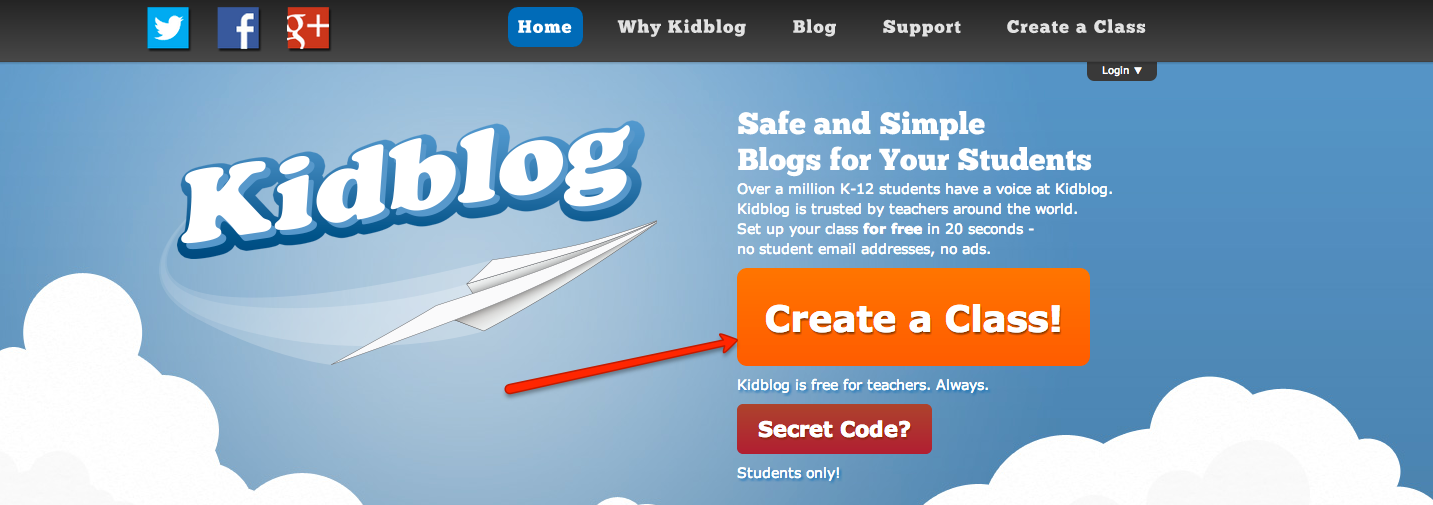
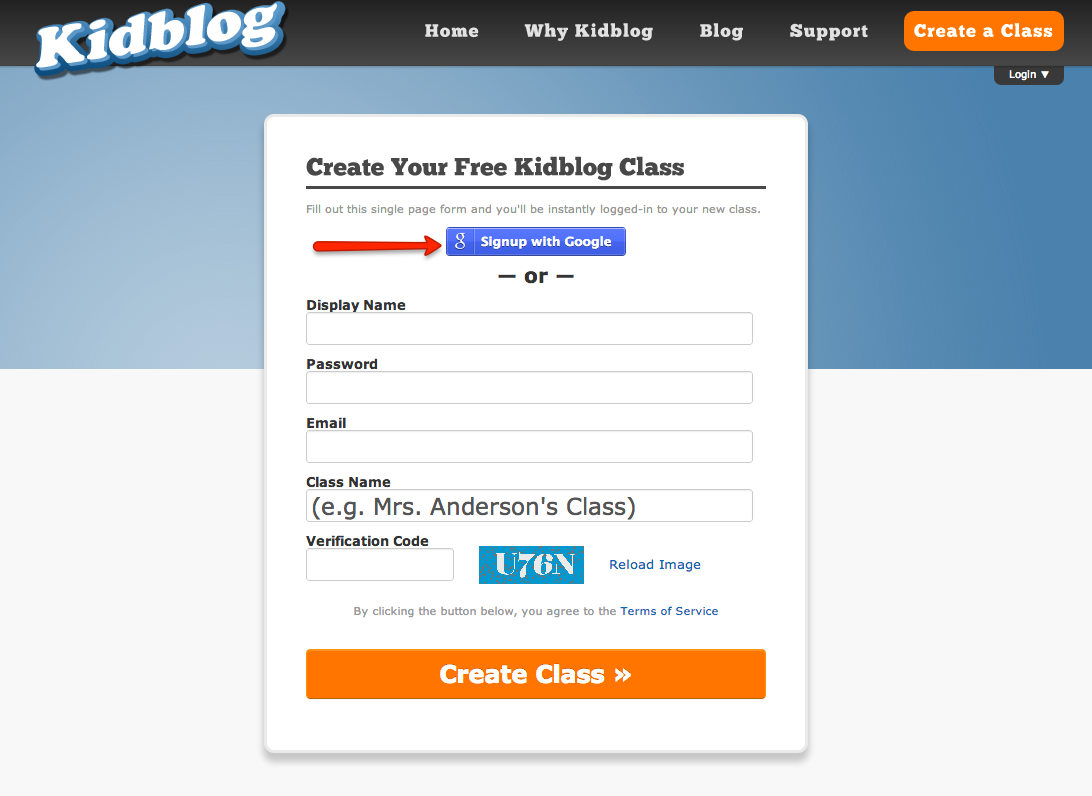
Sign up using your school email (it’s Google).
On the next page, you will need to choose the blue button “Always Allow”. You will only need to do this step when you first sign up.
Now you need to name your class.
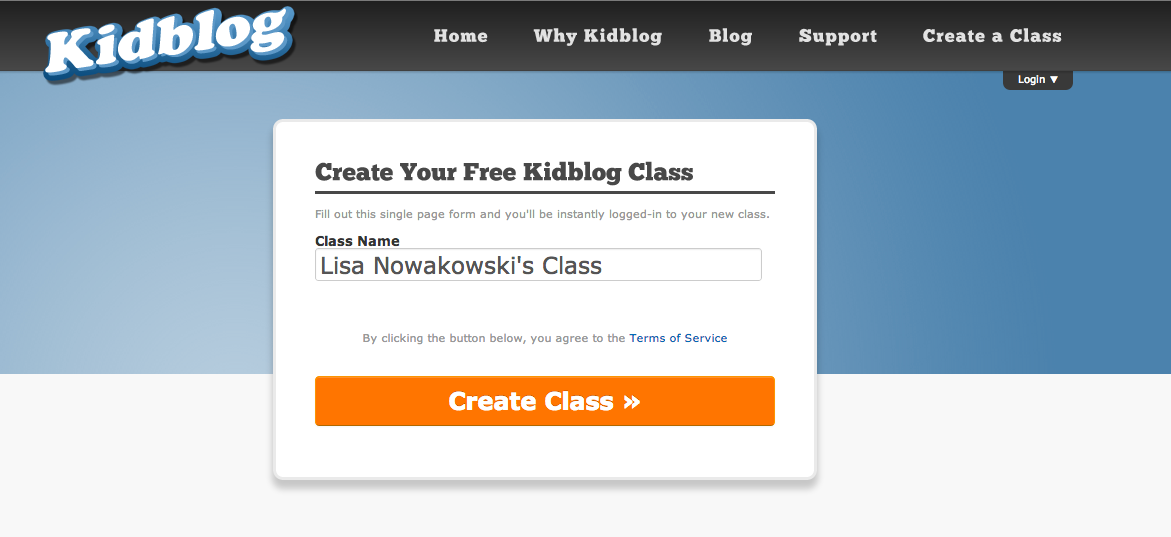
Now you are ready to begin! You are now looking at your dashboard. This is your command central. To get started and make sure the world can see you, we need to go to settings.

 I place a link on my website for my students and parents to have quick access.
Kidblog has several themes you can choose from. All you have to do is decide which one works best for you.
Changing the time has proven useful for me. I have asked students to respond to a post, or create their own, if the time is at 10pm, I know a parent or older sibling is doing the work for them!
Remember to save all changes before moving to the next page.
Next, we will go to the ‘Posts’ section in ‘Settings’.

We are still in Settings.
Choose the ‘Posts’ button.
CHANGE ‘Who may read my posts?’ to ‘everybody’. This makes it easier for parents and students to comment.
Next, check mark the two boxes that state Admin/Teacher/Moderator must approve posts before they appear. This is useful when you assign students their own blog.
Having a message sent to you regarding posts waiting for approval makes your life easier too.
Finally, remember to save all changes.
Now we will look at our ‘Comments’ settings.
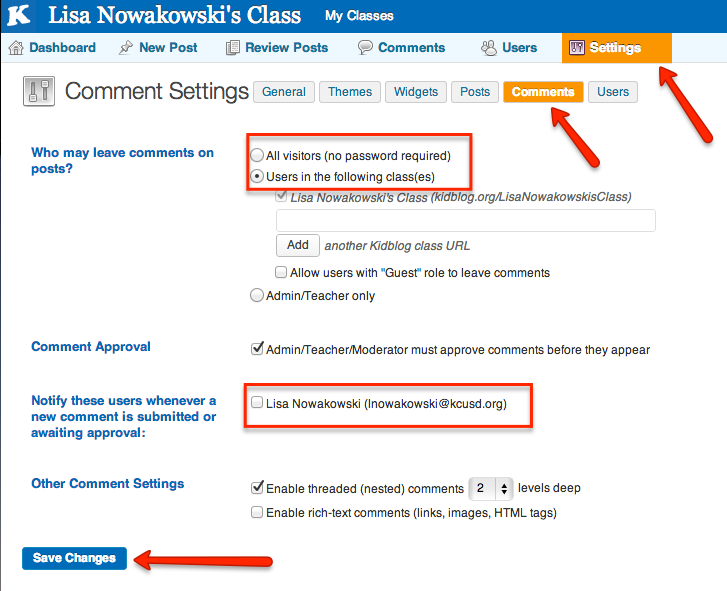 We are still in the main ‘Settings’.
We are in ‘comments’.
You will notice that this looks very similar to the ‘Posts’ settings.
CHANGE the setting ‘Who may leave comments on posts?’ to ‘All visitors’. Not only will it encourage students, parents, and grandparents to comment, but you can then encourage other classes or schools to comment.
Comment approval is already checked to be approved before they appear.
Again, check the notification box.
Finally, save all changes.
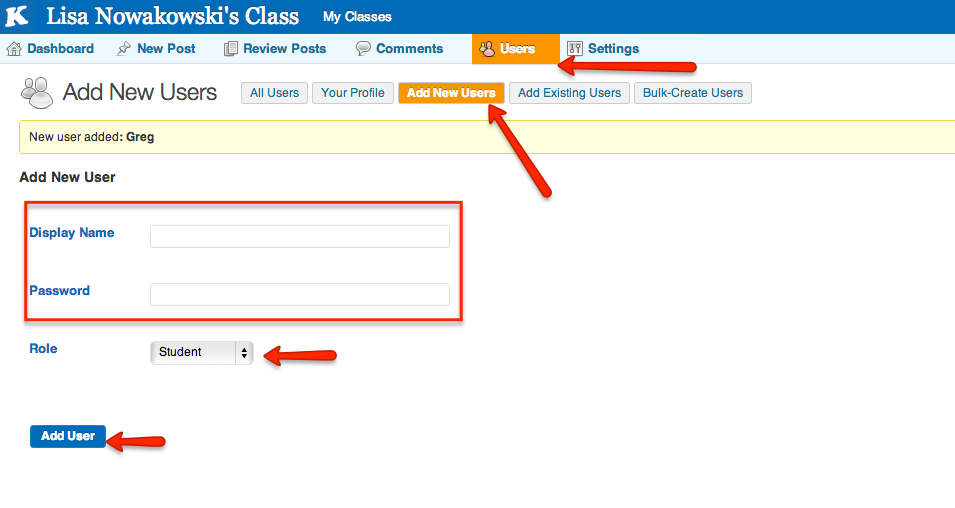 If you want students to have their own blog, select ‘Users’ and ‘Add New Users’.
I find it easiest to set the display name as the student’s first name.
I often keep the password the same as the display name. This way it’s easier for younger students to remember.
Keep their role as ‘student’
And finally, save all changes.
You and your students are now ready to start blogging! Simply select ‘New Post’ at the top of the page and begin writing. It’s that easy.
How do students get in you ask?
Now what?
Now that you are all set up, the uses are limitless. I have used blogging as a form of assessment:
- For assessing on a post I write, I pose a question or problem. The students then answer.
- For assessing on their blog, I have students respond to a question or problem that I have posted on their blog. I did this by accessing each student blog and copy/paste the question. This way, each student is working on his/her own blog without copying what someone else may have written (which can happen in the above example).
- Another way to assess, is to have students explain on concept on their blog. This way I don’t have to go in and post on each blog first. For example, I will have students explain how to multiply two numbers.
- I have used it for assessing writing. I give students a choice of 4 or 5 topics or writing prompts to choose from. They then respond on their blog. We have a scale (rubric) in class, so they know what I expect.
- I also expect students to comment on each other’s posts. Again, there is a scale to avoid such comments as, “Good job!” The comments should be specific and part of the topic.
Families can also get involved. Many times the family members comment on the student blogs, making it even more meaningful and powerful for the students. The idea that the world can read what they write is a powerful motivator for quality writing.
Happy blogging to everyone!
Google Calendar
Google Calendar is a wonderful tool with many features. This is just a basic overview. We will go over creating a calendar, adding events, and adding your calendar to your email page — makes it super easy to see what’s coming up.
First, log into your account and go to Calendar. You can do this by going to the top bar or Calendar when you first log in.


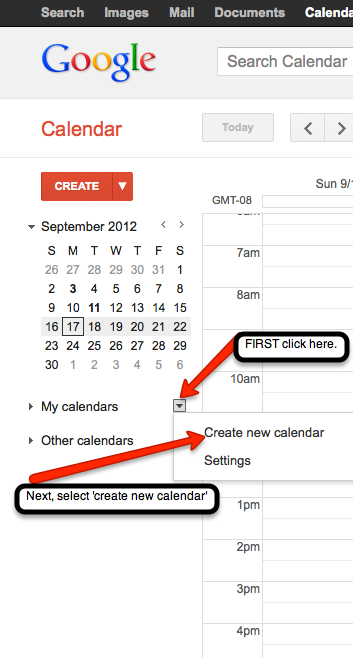 You will now create your own calendar. Find the ‘My Calendars’ section. Just to the right of that, there is a small arrow. Click on the arrow to create a new calendar.
 Next, fill out the information for your calendar. If you would like to add this calendar to your website, be sure to check the ‘public’ option. You also have the choice to share your calendar with a few. Simply input their email addresses. When all information has been added click the ‘Create Calendar’ button located at the bottom of the page. This will then take you back to your calendar.
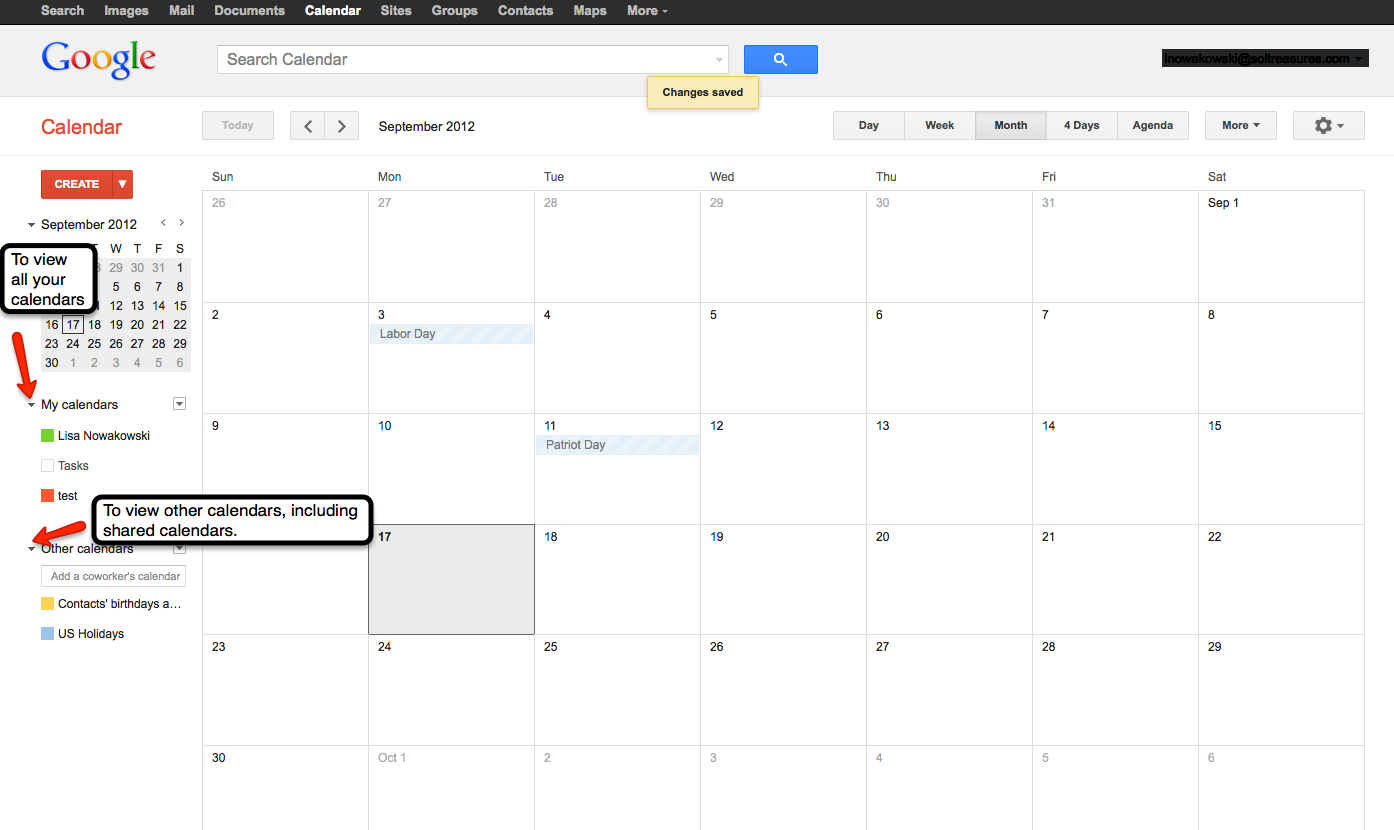
To view your calendar(s) click the small arrow to the left of ‘My Calendars’. Yours will be listed with separate colors for each calendar. To view other calendars, click the small arrow to the left of ‘Other Calendars’. You can add a variety of calendars, including friends. To view, and add, other calendars click on the small arrow to the right of ‘Other Calendars’ — the small arrow with a box around it. Holidays & Moon Phases calendars can be found under ‘Browse interesting calendars’. Once you find one that you like, you can ‘subscribe’ to it.
Add an Event:

The quick option is to click on the date of choice and fill in the information.
 The other option is to ‘double click’ on the desired date and fill in the information. Remember, if you want the information to be posted on your webpage calendar, choose the ‘Public’ option. Save all information when you are done.
Joining Other Calendars:
You will receive an email notification that you have been added to a Calendar — by say your lovely secretary, to view the school’s Calendar. The Calendar will automatically be added to your Calendar page under ‘Other Calendars’.
View Calendar on Your email Page:
 Going back to your email page, you will click on the ‘Gear’ on the right and choose ‘Settings’
 From the ‘Settings’ page, you will go to the ‘Labs’ tab. Scroll down until you find ‘Google Calendar’. Once you have located it, be sure to ‘Enable’ the lab. Finally, ‘Save all changes’. This button can be found at the top or bottom of the page.

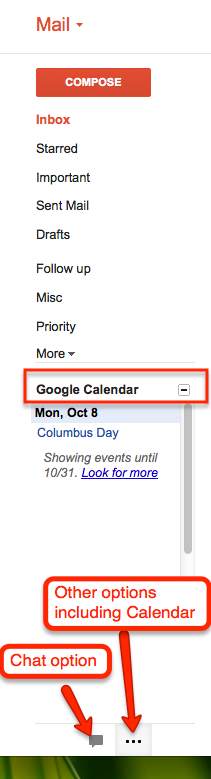
You can now easily switch between the ‘Chat’ option and the ‘Calendar’ by clicking on the icons at the bottom of the left column.
Soon, I will discuss how to add an attachment and ‘event flair’ to an event!
 Nowa Techie