Well, I’ve applied again. This time I had several people look over my application questions and video and give me feedback. Many thanks to all those who helped. It was all due last week and I felt good sending it off. So, here is the video portion of the application. It was rather difficult to put in all the cool things that happen in the classroom in one minute. Hope you enjoy it. We had fun creating it.
Google Calendar
Google Calendar is a wonderful tool with many features. This is just a basic overview. We will go over creating a calendar, adding events, and adding your calendar to your email page — makes it super easy to see what’s coming up.
First, log into your account and go to Calendar. You can do this by going to the top bar or Calendar when you first log in.


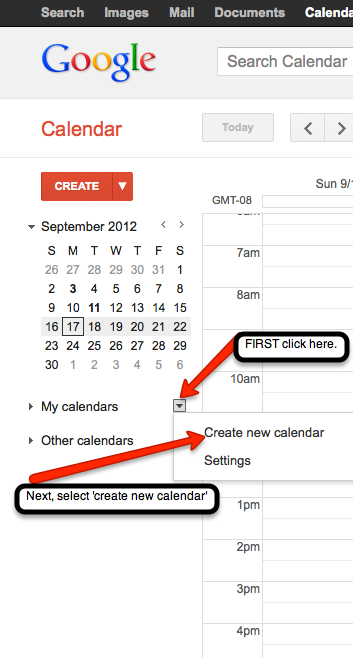 You will now create your own calendar. Find the ‘My Calendars’ section. Just to the right of that, there is a small arrow. Click on the arrow to create a new calendar.
 Next, fill out the information for your calendar. If you would like to add this calendar to your website, be sure to check the ‘public’ option. You also have the choice to share your calendar with a few. Simply input their email addresses. When all information has been added click the ‘Create Calendar’ button located at the bottom of the page. This will then take you back to your calendar.
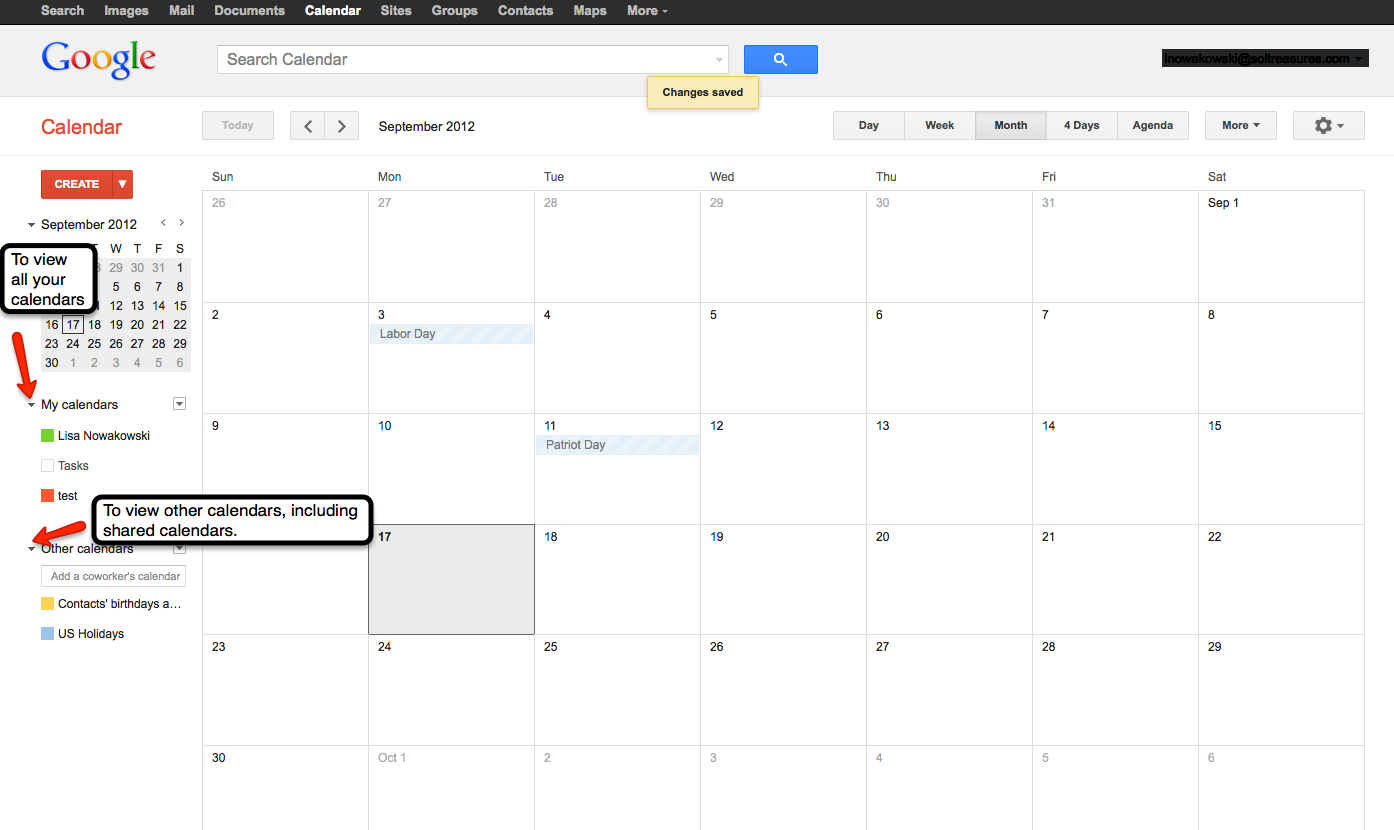
To view your calendar(s) click the small arrow to the left of ‘My Calendars’. Yours will be listed with separate colors for each calendar. To view other calendars, click the small arrow to the left of ‘Other Calendars’. You can add a variety of calendars, including friends. To view, and add, other calendars click on the small arrow to the right of ‘Other Calendars’ — the small arrow with a box around it. Holidays & Moon Phases calendars can be found under ‘Browse interesting calendars’. Once you find one that you like, you can ‘subscribe’ to it.
Add an Event:

The quick option is to click on the date of choice and fill in the information.
 The other option is to ‘double click’ on the desired date and fill in the information. Remember, if you want the information to be posted on your webpage calendar, choose the ‘Public’ option. Save all information when you are done.
Joining Other Calendars:
You will receive an email notification that you have been added to a Calendar — by say your lovely secretary, to view the school’s Calendar. The Calendar will automatically be added to your Calendar page under ‘Other Calendars’.
View Calendar on Your email Page:
 Going back to your email page, you will click on the ‘Gear’ on the right and choose ‘Settings’
 From the ‘Settings’ page, you will go to the ‘Labs’ tab. Scroll down until you find ‘Google Calendar’. Once you have located it, be sure to ‘Enable’ the lab. Finally, ‘Save all changes’. This button can be found at the top or bottom of the page.

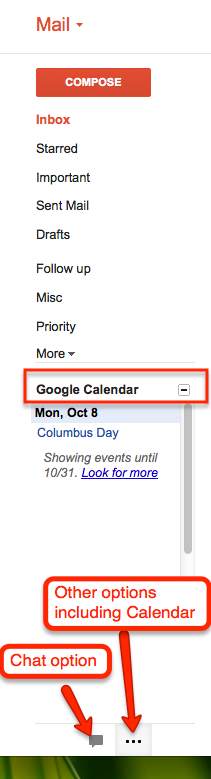
You can now easily switch between the ‘Chat’ option and the ‘Calendar’ by clicking on the icons at the bottom of the left column.
Soon, I will discuss how to add an attachment and ‘event flair’ to an event!
Sharing in Google
The easiest way to collaborate is by ‘sharing’ Documents in your Drive. We have talked about how to create Docs and folders. Now, just take it one step further and ‘share’ those to have dynamic, cross-grade, cross-district PLCs. It’s quite easy.
Sharing a Document (or presentation, form, spreadsheet, drawing):
Once you have created your desired document, click the blue share button.

Type the names of those you wish to share with. You can allow others to edit or view. The default setting is ‘edit’. If you would like to retain control over who is allowed to have access to your document, click on the ‘change’ link on the bottom right. Change the ‘share settings’ to ‘Only the owner can change the permissions’. When finished, click ‘Done’.

Sharing a Folder:
Now there are many times when you will want/need to have ‘shared folders’, with your PLCs. That is the same process as sharing a document. The advantage with sharing a folder is that whatever is placed in that folder, it is automatically shared with everyone.
First find the folder you would like to share with others, select it. Then click the ‘share’ icon at the top of the page.
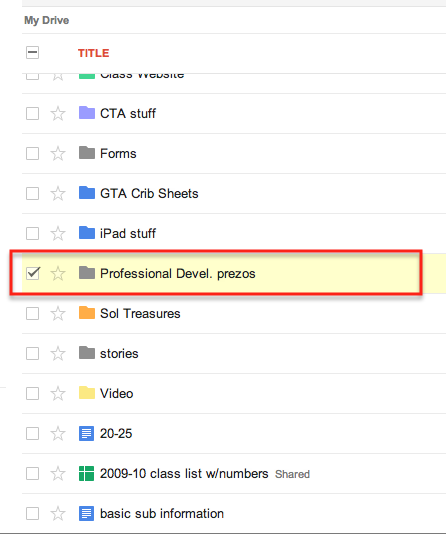

You will then be taken to the ‘Share Settings’ to select others to share the folder with.
I currently have several shared folders. I share an ELD folder with prezos and documents with several teachers in my district. I also share a Math folder with homework forms.
I have shared documents with 10 other teachers to create one OUTSTANDING document. One document was created within 12 hours by teachers in a 50 mile radius. Several of us were creating, sharing, and editing at the same time. It was an amazing experience. This type of sharing makes our lessons better, makes us better teachers, and allows the creativity to seamlessly flow.
 Nowa Techie