Recently I was doing a project and wanted the 13 original colonies map, but didn’t want to outline each state. Instead, I downloaded the .KMZ file of all 50 states (Map found here) and deleted all but the original 13. I had to do some modifications, but that was so much easier than recreating it all from scratch. And it was so easy to export the file then import it into my map.
Google Maps
Google My Maps Part 10: Preview
Want to know how your maps look when others open it? What other options do your viewers have?
Google My Maps Part 9: Sharing
Now that you have an awesome map or HyperMap, you need to share it! You have a few options. You can have some edit or view. Or you may wish to have a MapFest where everyone can contribute and edit.
Google My Maps Part 8: Measurement Tool
The feature you didn’t even know you needed! I’ve been measuring out distances before using the drawing tool for math. (Spoiler alert: I use maps in class to practice adding and subtracting fractions.)
Google My Maps Part 7: Directions
Directions are one of those ‘nerdy’ features that make me happy. I haven’t used it in the classroom, yet. In the meantime, here’s how to use it. How can you incorporate this into the classroom?
Google My Maps Part 5: Import Data
Importing data into a Google My Map only takes a few clicks and a CSV, TSV, KML, KMZ, GPX, or XLSX file. This is especially handy in the classroom for research and tracking data.
Google My Maps Part 4: Layers
Another feature on Google My Maps is the Layers. When we were studying the 13 Colonies, I was able to separate information into layers. There was a layer for the original 13 colonies, a layer for the colonial regions (New England, Middle, Southern), and the current geography of the 50 states. The students were able to click on and off layers in order to clearly see important information.
Google My Maps Part 3: Lines and Shapes
There are so many learning opportunities with the lines and shapes feature of My Maps. We are currently adding and subtracting fractions with unlike denominators. It gets really boring doing problems from a book. In the coming days, I plan to create a Hypermap with lines – making sure the distance will be a fraction. (NOTE: My Maps measures distance using decimals. This will be good practice for my 5th graders to convert). My Maps will also tell the area and perimeter of a shape, MORE math opportunities!
Google My Maps Part 1
I have begun to create a series of videos on Google My Maps. I enjoy incorporating the tool in several areas of the curriculum and want to share my passion. Here’s a quick guide on Getting Started.
Lesser Known Geo Tools
It’s no secret that I LOVE Google My Maps and incorporating them into lessons. Whether it’s to have students document their learning like in the Pre-Columbian People’s lesson, or a self-guided lesson on Marco Polo (with additional tasks to show understanding); My Maps are the bee’s knees for me! But there are some insanely cool, yet lesser known, Geo Tools out there?
Smarty Pins – This fun game combines  trivia and location skills. Players are given a trivia question, which correlates to a place in the world, that they then must place Peg Man on the map. This game was developed by Google. The closer you are to the location, and faster you are, the more ‘miles’ you earn. You are given 1000 miles to start the game. However, if you are not accurate you lose ‘miles’. So if your answer is 149 miles away, that’s how many ‘miles’ or points you lose. Once you are out of ‘miles’ the games ends.
GeoGuessr – This is a super fun, highly addictive game (if you’re a nerd like me!). There are 2 modes and several GeoGuessr Maps to choose from. When you arrive on the site, the first game is ‘Explore the World’. Using Google Maps Street View, you are dropped in a location. Using clues (signs, vegetation, cars, etc.) you need to place a pin on the map as to the location of where you are. Scrolling a bit further down on the page, there are several maps focusing on countries, cities, and continents. I clicked on ‘North America’ where game maps for Canada and United States, along with some cities, appeared. You can set a timer for minutes and seconds. I mentioned a second mode: Challenge. This is where you can challenge a friend.
GeoSettr – This is similar to GeoGuessr, but YOU create your own GeoGuessr game. You start by dropping Peg Man in a location on the map on the left, zoom in as far as needed to find your desired location. You can see the view your players will see on the right screen. Then, set the pin for that round. You have 5 rounds. Once you have completed your GeoSettr, the game will give you a unique URL to share. You can check out mine. This could be fun for 5th Grade States and state capitals.

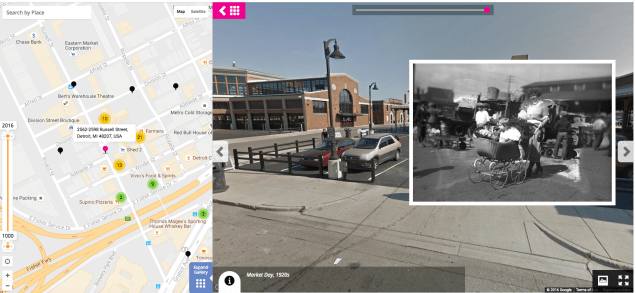
History Pin – This is a new one for me. This combines my love of historical (or family shared) photos with maps. I have only browsed some collections and was in nerd heaven! Again, using Google Maps and Google Maps Street View you are shown the Street View image of what the location looks like today with an insert of a photo, or image, from the past. Check out this example from Eastern Market in Detroit, MI.
Tour Builder – One of my all time favorites. This lets you create your own map story. The story is a bit more linear than using regular Google Maps. You choose all destinations in the order you want. You can add text, photos, and videos. Here’s a quick ‘Cheat Sheet‘ I created to help get you started.

 Nowa Techie